How to Sync OneNote Across Devices
How to Sync OneNote Across Devices: Step-by-Step Guide
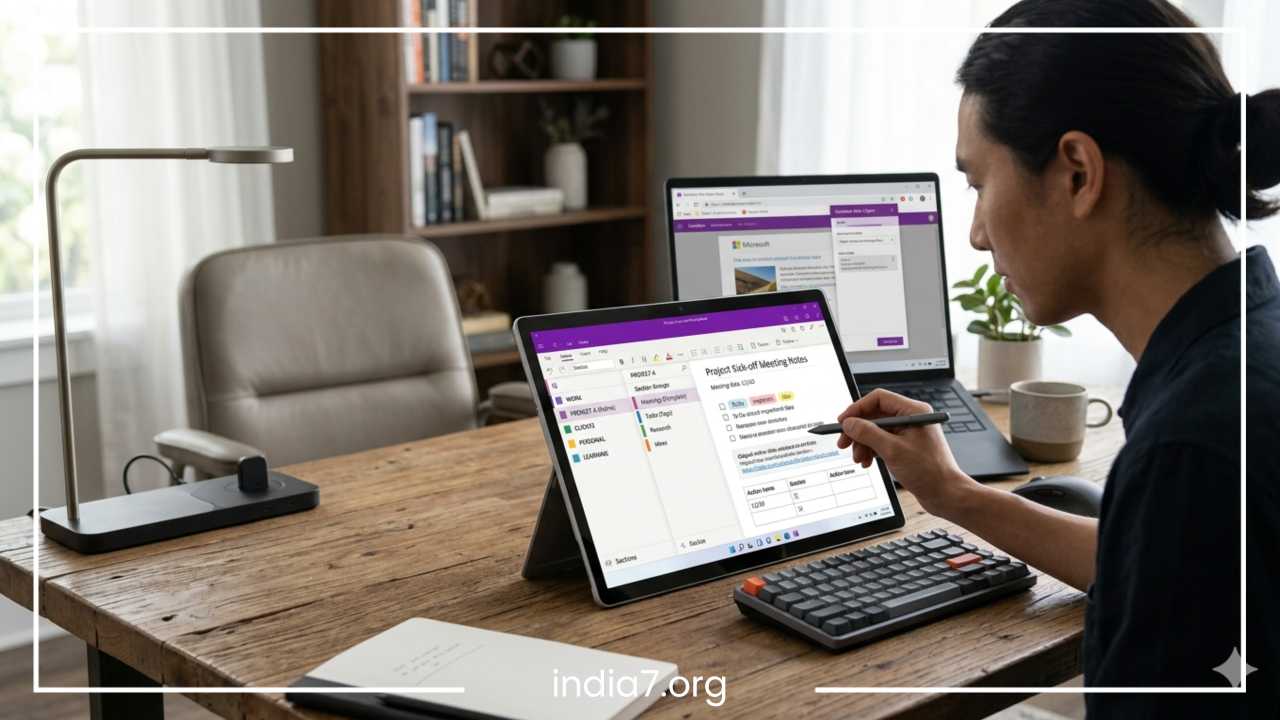
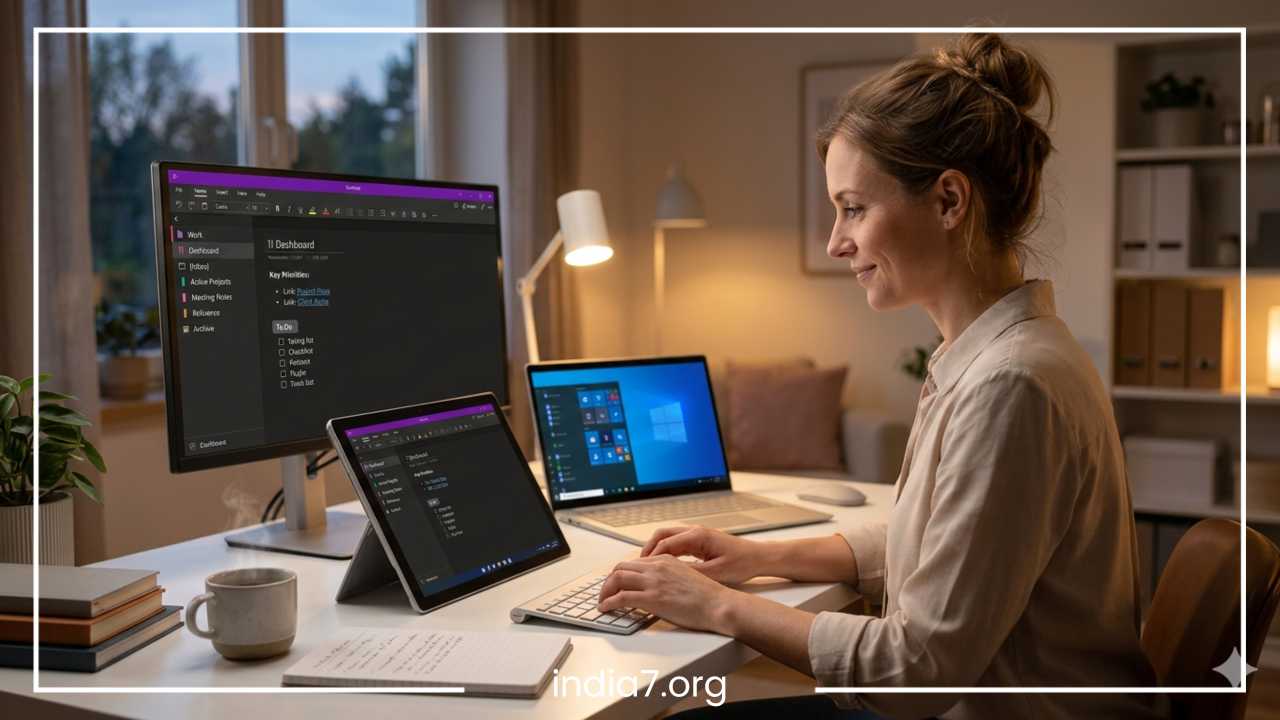
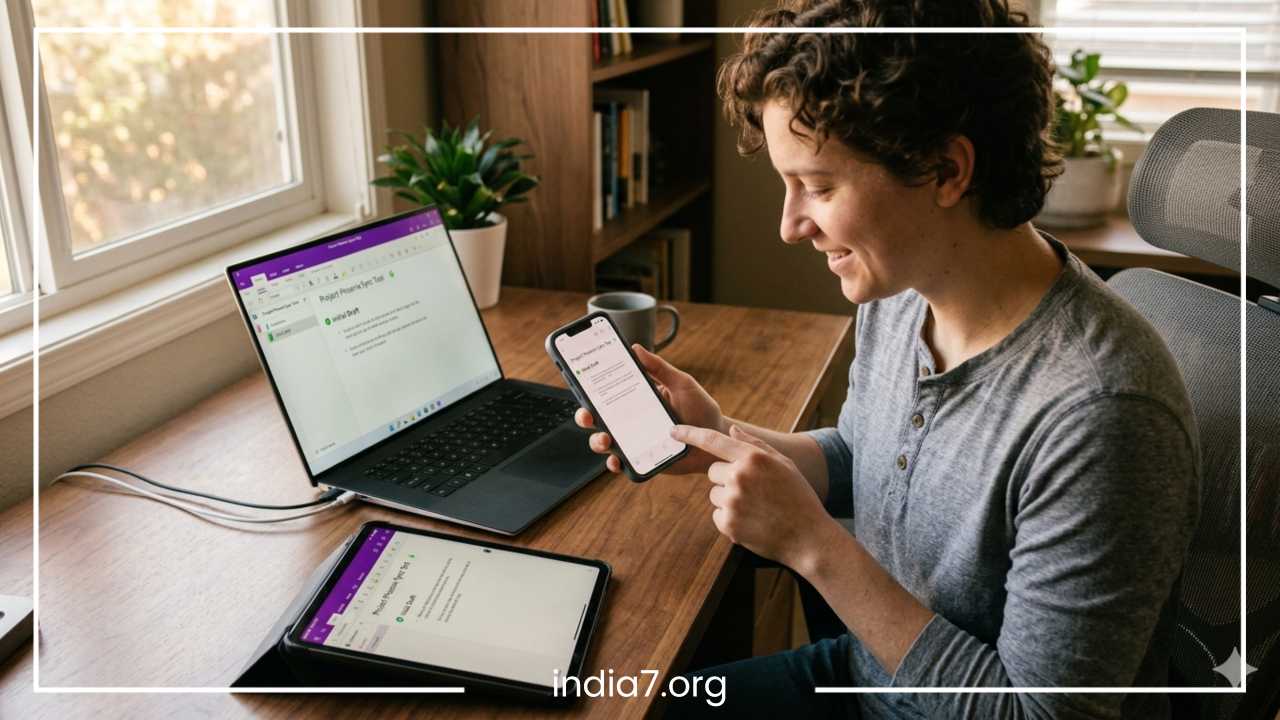
In the modern digital landscape, information is generated and consumed across a multitude of platforms. We start our mornings scrolling through phones, spend our afternoons tethered to desktops, and finish our evenings on tablets. In this multi-device reality, the ability to maintain a single, cohesive stream of thought is paramount. Microsoft OneNote has emerged as a premier solution for this need, offering a robust, cloud-based infrastructure designed to bridge the gap between different hardware ecosystems.
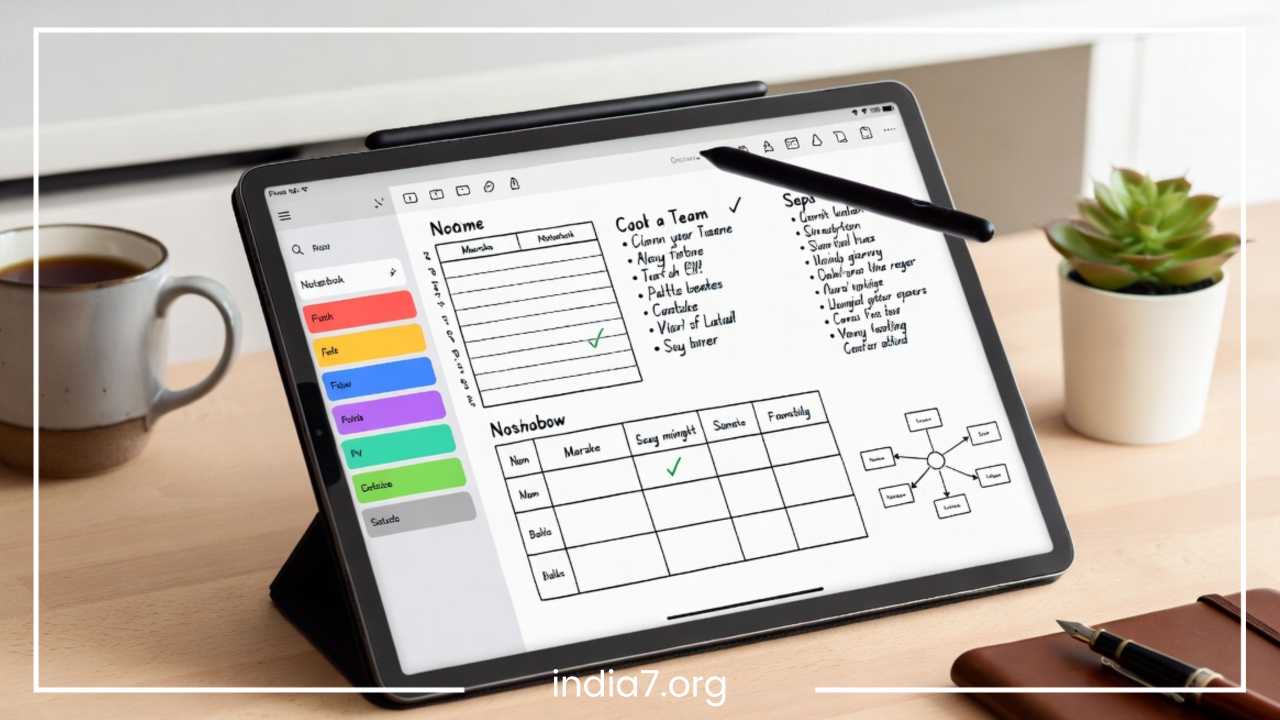
Syncing in Microsoft OneNote refers to the continuous process of reconciling data between your local device and the cloud. When you type a sentence on your laptop, that data is pushed to a server and subsequently pulled by your smartphone. This synchronization ensures that your digital notebooks are “living” documents—ever-evolving and accessible from any corner of the globe.
The importance of syncing for productivity cannot be overstated. It eliminates the “versioning” nightmare where users have different notes saved on different machines. It facilitates seamless transitions: you can start an outline during a commute on your phone, flesh out the details on a workstation, and present those notes from a tablet in a boardroom. Furthermore, syncing acts as an invisible safety net. Because your notes are mirrored in the cloud, a hardware failure or a lost device no longer means a loss of critical data. By leveraging Microsoft OneDrive, OneNote transforms from a simple application into a ubiquitous productivity environment.
Read: Entrepreneurship: Unleash Your Inner Trailblazer (The Complete Guide)
How OneNote Syncing Works
To master OneNote, one must understand the underlying engine that drives its connectivity. OneNote is not a traditional file-based application in the way that Microsoft Word or Excel were historically used. Instead, it operates on a synchronization model that prioritizes the cloud as the “source of truth.”
The Role of Microsoft OneDrive
OneDrive is the backbone of the OneNote experience. Every notebook you create is essentially a collection of folders and files stored within your OneDrive account. When you make an edit, OneNote does not save the entire notebook file again; instead, it sends small “deltas” or increments of data. This is why OneNote does not have a traditional “Save” button. The saving and syncing happen incrementally and automatically in the background.
Automatic vs. Manual Syncing
OneNote is designed to be proactive. Under normal conditions, the app monitors for changes and initiates a sync every few seconds. This near-instantaneous update allows for real-time collaboration. However, manual syncing remains a vital feature for users who work in low-bandwidth environments or those who need to ensure a specific notebook is fully updated before going offline.
Understanding the Version Divide
Historically, there were two main versions of OneNote on Windows: OneNote (formerly called OneNote 2016) and OneNote for Windows 10. While Microsoft has moved toward consolidating these into a single “OneNote” app, the syncing logic remains the same. Older versions allowed for “Local Notebooks” stored on a PC’s hard drive. It is critical to understand that local notebooks cannot sync. For a notebook to appear on your phone or Mac, it must reside in a OneDrive folder.
Connectivity and Credentials
Syncing relies on two pillars: a persistent internet connection and consistent credentials. OneNote uses your Microsoft Account (MSA) to authenticate access to your OneDrive storage. If you are signed into a personal account on your desktop but a work account on your mobile device, the notebooks will not “talk” to each other because they are looking at two different cloud storage lockers.
Read: Know Your Customer (KYC): The Complete Guide for Businesses
Before You Start: What You Need
A successful syncing setup requires a few foundational elements. Addressing these before you begin will save you from the most common troubleshooting headaches.
The Essential Checklist
To sync OneNote across devices, you must have:
-
A Valid Microsoft Account: This can be a free Outlook.com/Hotmail account or a professional Office 365/Microsoft 365 account provided by an employer or school.
-
The OneNote Application: While the web version is useful for quick edits, the dedicated apps for Windows, macOS, iOS, and Android provide the background sync engines necessary for a seamless experience.
-
Available OneDrive Space: Microsoft provides 5GB of storage for free. While text notes take up negligible space, notebooks filled with high-resolution images, audio recordings, and large PDF printouts can quickly consume this quota.
-
Internet Access: High-speed internet is preferred, though OneNote is optimized to work over slower mobile data connections by prioritizing text sync over large media files.
Understanding Storage Limits
It is a common misconception that OneNote uses your device’s hard drive space for the master copy. While a “cached” version exists locally so you can work offline, the master copy lives in the cloud. If your OneDrive storage is full, syncing will freeze. Users who frequently use OneNote for heavy academic research or media-rich journaling should periodically check their OneDrive storage levels to ensure the sync pipeline remains open.
Read: Barter: Beyond the Flea Market
How to Sync OneNote Across Devices on Windows
As a Microsoft product, OneNote is most deeply integrated with the Windows operating system. Whether you are using a Surface tablet or a high-powered desktop, the setup process is the primary gateway to a multi-device workflow.
Step 1: Launch and Authenticate
Open the OneNote app. If you are not prompted to sign in immediately, look at the top-right corner of the interface. Click on your account name or the “Sign In” button. Ensure that the account you use here is the primary account you intend to use on all other devices.
Step 2: Creating or Moving Notebooks to the Cloud
If you have been working on a notebook that is currently saved only on your PC, you must move it to the cloud:
-
Click on File in the top-left corner.
-
Select Share.
-
Choose your OneDrive account.
-
Enter a name for the notebook and click Move.
Once moved, OneNote will provide a link to the notebook, indicating it is now live in the cloud.
Step 3: Configuring Sync Settings
To ensure the app behaves as expected, navigate to File > Options > Sync. Here, you should verify that Sync notebooks automatically is enabled. Another helpful setting is Sync all files and images, which ensures that even large attachments are downloaded to your device for offline viewing.
Step 4: Monitoring Sync Status
In the Windows app, you can view the health of your connection by right-clicking any notebook in your list and selecting Notebook Sync Status. This window provides a detailed look at every notebook, showing when it was last synced and highlighting any specific sections that might be hung up due to errors.
How to Sync OneNote on Mac
Microsoft has invested heavily in making OneNote for Mac a first-class citizen in the Apple ecosystem. The Mac version follows macOS design language but uses the same powerful sync engine found on Windows.
Installation and First Run
Download OneNote from the Mac App Store. Upon launching, you will be required to sign in with your Microsoft account. On macOS, OneNote does not support local-only notebooks, which actually simplifies the process: every notebook you create on a Mac is a cloud notebook by default.
Accessing Existing Notebooks
If you have notebooks created on a Windows machine:
-
Go to the File menu at the top of your screen.
-
Select Open Notebook.
-
You will see a list of notebooks associated with your OneDrive account.
-
Check the boxes for the notebooks you want to sync to your Mac and click Open.
Managing Sync on macOS
The Mac version is highly automated, but you can manually trigger a sync by clicking File > Sync All Notebooks. If you notice a specific notebook isn’t updating, you can Control-click (the Mac equivalent of right-click) the notebook name in the sidebar and select Sync This Notebook.
How to Sync OneNote on Android and iPhone
The true power of OneNote is realized when you can pull your phone out of your pocket and see the notes you wrote ten minutes ago at your desk.
Setting Up OneNote on iOS (iPhone/iPad)
-
Download the app from the App Store.
-
Sign in with your Microsoft credentials.
-
The app will initially show a blank state. Tap More Notebooks at the bottom of the list to see your cloud-stored notebooks.
-
Select the ones you need. OneNote will begin downloading the metadata and then the content of your pages.
Setting Up OneNote on Android
-
Install OneNote from the Google Play Store.
-
Sign in. Android users should ensure they are using the same Microsoft Account used on Windows, even if the phone is linked to a separate Google account.
-
Tap the Notebooks tab and select More Notebooks to bring in your data from OneDrive.
Mobile Syncing Optimization
Mobile devices often juggle battery life and data usage. In the OneNote mobile settings, you can toggle Sync on Wi-Fi only if you have a limited data plan. However, for the best experience, enabling Background App Refresh (on iOS) or Background Data (on Android) is recommended so that your notes stay current even when the app isn’t active on your screen.
How to Force Sync OneNote Manually
Even with the best automation, there are times when you need to “force” the software to communicate with the server. This is common when you’ve just finished a long document and want to ensure it’s available on your mobile device before you walk out the door.
Windows Manual Sync
The most direct way to force a sync on Windows is the keyboard shortcut Shift + F9. This command tells OneNote to stop its scheduled interval and perform an immediate upload of the current notebook. If you want to sync every open notebook at once, simply press F9.
Mobile Manual Sync
On both Android and iPhone, the “Pull to Refresh” gesture is the standard way to trigger a sync. Navigate to your list of sections or pages, and swipe down from the top until you see a spinning icon. This signals the app to check the OneDrive server for any new changes made on other devices.
Web Browser Sync
If you are using OneNote Online, syncing is handled by the browser. Refreshing the page (F5 or the refresh button) will force the web interface to pull the latest version from the cloud.
Common OneNote Sync Problems and Fixes
No cloud service is perfect. Occasionally, the sync pipeline gets clogged. Understanding how to diagnose these issues is the difference between a minor hiccup and a major productivity loss.
Handling “Section Misplaced” Errors
Sometimes, OneNote cannot find where a section belongs in the cloud hierarchy. It will move these to a special category called Misplaced Sections.
-
The Fix: Create a new section in your target notebook. Manually copy the pages from the Misplaced Sections into the new one. Once the new section syncs successfully, you can delete the misplaced one.
Resolving Sync Conflicts
Conflicts occur when the same page is edited on two different devices simultaneously while offline. When both devices reconnect, OneNote doesn’t know which version is the “correct” one.
-
The Fix: OneNote will create a “Conflict Page” with a yellow notification bar. Review both versions, merge any unique text manually, and then delete the version you no longer need.
Account Authentication Loops
Sometimes OneNote gets stuck in a loop where it constantly asks you to sign in, even after you’ve entered your password.
-
The Fix: This is often caused by corrupted “tokens” in the operating system. On Windows, go to Credential Manager in the Control Panel and remove all entries related to MicrosoftOffice. On mobile, the best fix is often to sign out completely and sign back in.
The “Notebook Not Syncing” Triangle
A yellow triangle with an exclamation point next to a notebook name is the universal sign of a sync error.
-
The Fix: Click the triangle to see the specific error code. Often, simply closing the notebook and reopening it from OneDrive resolves the issue. This forces the app to re-establish its connection to the cloud file.
Server-Side Delays
Occasionally, the problem isn’t your device; it’s Microsoft’s servers.
-
The Fix: Check the Microsoft Office Service Status page online. If there is a widespread outage, your best bet is to continue working locally; OneNote will automatically merge your changes once the service is restored.
Tips to Keep OneNote Syncing Smoothly
Prevention is better than a cure. Following these habits will keep your sync engine running at peak efficiency.
Keep Your Notebooks Lean
While OneNote is a powerful archive, extremely large notebooks (multi-gigabyte) can struggle with syncing, especially on mobile devices.
-
Best Practice: Use separate notebooks for different years or major projects. Instead of “Work,” use “Work – Projects” and “Work – Archive.”
Mind the Media
Embedding 4K videos directly into OneNote pages is technically possible but discouraged for sync health.
-
Best Practice: Upload large videos or files to a folder in OneDrive and paste a link into your OneNote page. This keeps the notebook file small and nimble.
Consistent Naming Conventions
Changing the name of a notebook file directly in OneDrive can break the sync link for any device currently using that notebook.
-
Best Practice: If you need to rename a notebook, do it from within the OneNote app interface whenever possible, rather than the file explorer.
Periodic Audits
Once every few months, check your Notebook Sync Status window. You might find that an old, forgotten notebook is trying to sync and failing, which can consume background resources and slow down the sync of your active notebooks.
The Role of OneNote for the Web
While we have focused on dedicated apps, OneNote for the Web is the ultimate fallback. If you find yourself at a public computer or a friend’s laptop, you can go to OneNote.com and sign in.
The web version acts as a “live view” of your OneDrive data. If your notes appear correctly on the web but not on your phone, you know the issue lies with the phone’s app or connection, not with the cloud file itself. This “triangulation” method is the most effective way to troubleshoot sync errors.
Advanced Syncing: Collaborative Environments
OneNote isn’t just for individual use; it is a powerful collaboration tool. When multiple people sync the same notebook, the sync engine works in overdrive to manage multiple contributors.
Real-Time Presence
In modern versions of OneNote, you will see the initials of other users appearing next to the paragraphs they are currently editing. This is a sign that the sync engine is working in “high-frequency” mode. To ensure this works smoothly for your team:
-
Ensure everyone is using a modern version of the app.
-
Avoid having more than 10 people editing the same specific page at the exact same moment to prevent sync lag.
Tracking Changes
If someone’s sync overwrites your work, you can use the History tab in the desktop app. Click Page Versions to see previous iterations of the page before the latest sync. This allows you to roll back changes without losing data.
Final Thoughts
The ability to sync OneNote across devices is the feature that transforms the app from a simple digital diary into a professional-grade productivity engine. By understanding that OneNote is a “window” into your OneDrive storage, you can navigate the setup process with confidence.
Whether you are configuring your first notebook on a Windows desktop, adding your mobile devices for on-the-go access, or troubleshooting a stubborn sync error, the principles remain the same: maintain a stable connection, use consistent credentials, and respect the storage limits of the cloud.
Syncing is more than just a technical feature; it is about the peace of mind that comes from knowing your ideas are safe, updated, and ready whenever inspiration strikes. By following this guide, you have built a bridge between all your devices, ensuring that your digital brain is always in sync with your physical life. Keep your apps updated, your storage clear, and your notebooks organized, and OneNote will remain one of the most reliable tools in your digital arsenal.
Frequently Asked Questions About OneNote Syncing
To further assist you in mastering your digital workflow, here are some of the most common queries regarding OneNote synchronization. These answers address specific technical hurdles and “long-tail” search scenarios that many users encounter.
How do I sync OneNote from PC to Android or iPhone?
To sync notes from your computer to a mobile device, you must ensure the notebook is stored on OneDrive. On your PC, go to File > Share to move any local notebooks to the cloud. Once moved, open the OneNote app on your Android or iPhone, sign in with the same Microsoft account, and select More Notebooks to open the synced file.
Why is OneNote not syncing between devices even when I am signed in?
This is often caused by an “account mismatch” or a “hung” sync process. First, verify that the email address shown in the account settings is identical on both devices. If it is, try a manual force sync by right-clicking the notebook name and selecting Sync This Notebook Now. If that fails, checking the OneDrive Service Status online can confirm if there is a temporary server outage.
Can I sync OneNote without OneDrive or a cloud account?
Modern versions of OneNote (for Windows 10, Mac, and Mobile) require OneDrive for synchronization. While the older OneNote desktop app allowed for local notebooks on a shared network drive, this method does not support syncing to mobile devices. For a true multi-device experience, a Microsoft cloud account is mandatory.
How to fix OneNote sync error 0xE0000021?
This specific error code usually indicates that OneNote is having trouble communicating with the web server, often due to a large number of pending changes. The best fix is to keep the application open and ensure you have a stable internet connection. If the error persists, try closing the notebook in OneNote and reopening it from the “Open” menu to refresh the connection link.
Does OneNote sync automatically when I am offline?
OneNote allows you to edit your notes while offline. The app saves these changes to a local cache on your hard drive or mobile storage. As soon as your device reconnects to the internet, OneNote will automatically push those pending updates to the cloud and pull any changes made on other devices.
How do I sync only specific OneNote notebooks to my phone?
To save data and storage space, OneNote does not download every notebook automatically. On your mobile app, go to the Notebooks list and tap More Notebooks. From here, you can manually choose only the specific notebooks you need to access on the go. You can close notebooks you no longer need by long-pressing the notebook name and selecting Close Notebook.
Is there a limit to the number of devices I can sync OneNote with?
There is no hard limit on the number of devices you can use with a single Microsoft account for OneNote. You can have your notes synced across multiple PCs, Macs, tablets, and smartphones simultaneously. The only limiting factor is your OneDrive storage capacity, which dictates how much total data those notebooks can hold.
How to sync OneNote across different Microsoft accounts?
You cannot directly “sync” two different accounts, but you can share a notebook between them. Open the notebook in your primary account, click Share, and enter the email address of your second account. Once the second account accepts the invitation, the notebook will appear in their “Shared with Me” list and can be synced across all their devices as well.
How long does it take for OneNote to sync changes?
On a high-speed connection, text changes typically sync in 3 to 5 seconds. Larger items like high-resolution photos or PDF printouts may take longer depending on your upload speed. If you are collaborating with others, you will see their initials appear near the text they are editing almost in real-time as the sync engine updates the page.
Why does OneNote keep asking me to sign in to sync?
This is usually a credential conflict. If you recently changed your Microsoft account password, you must update it on every device. On Windows, if the loop persists, you may need to clear your stored credentials in the Windows Credential Manager (search for “Credentials” in the Start menu) to force OneNote to accept the new login token.