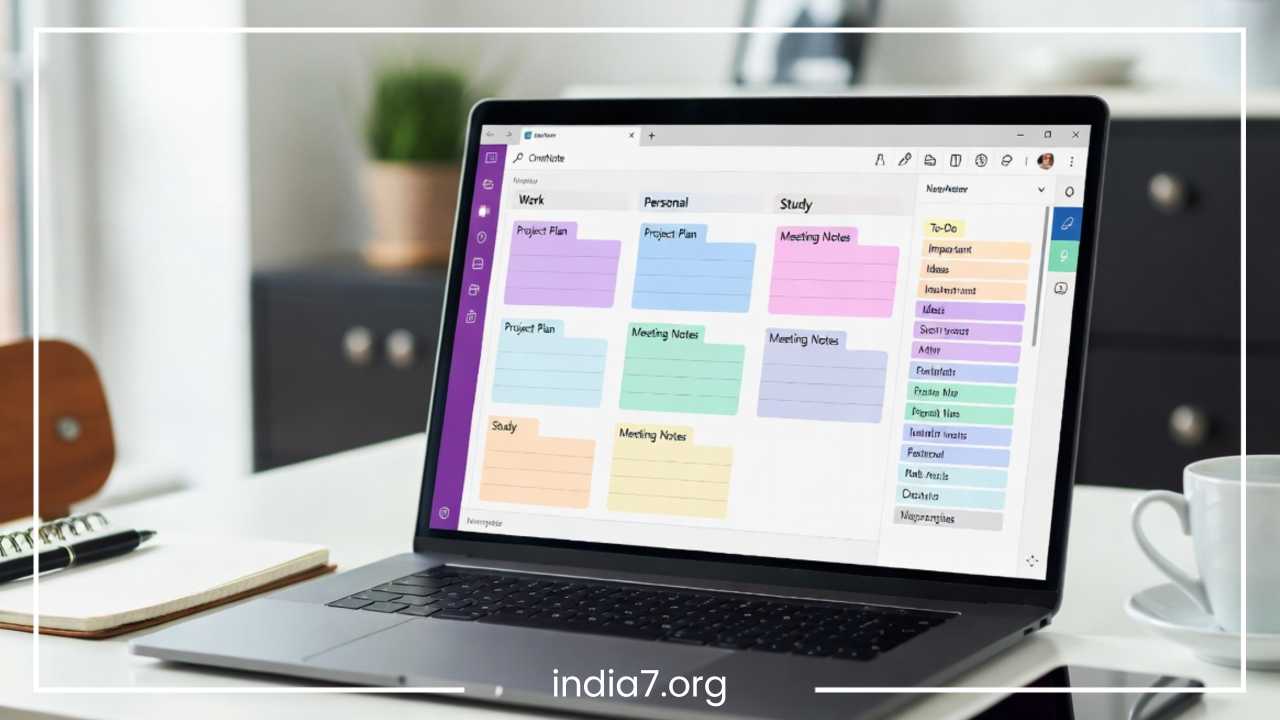
Best OneNote Organization Strategies
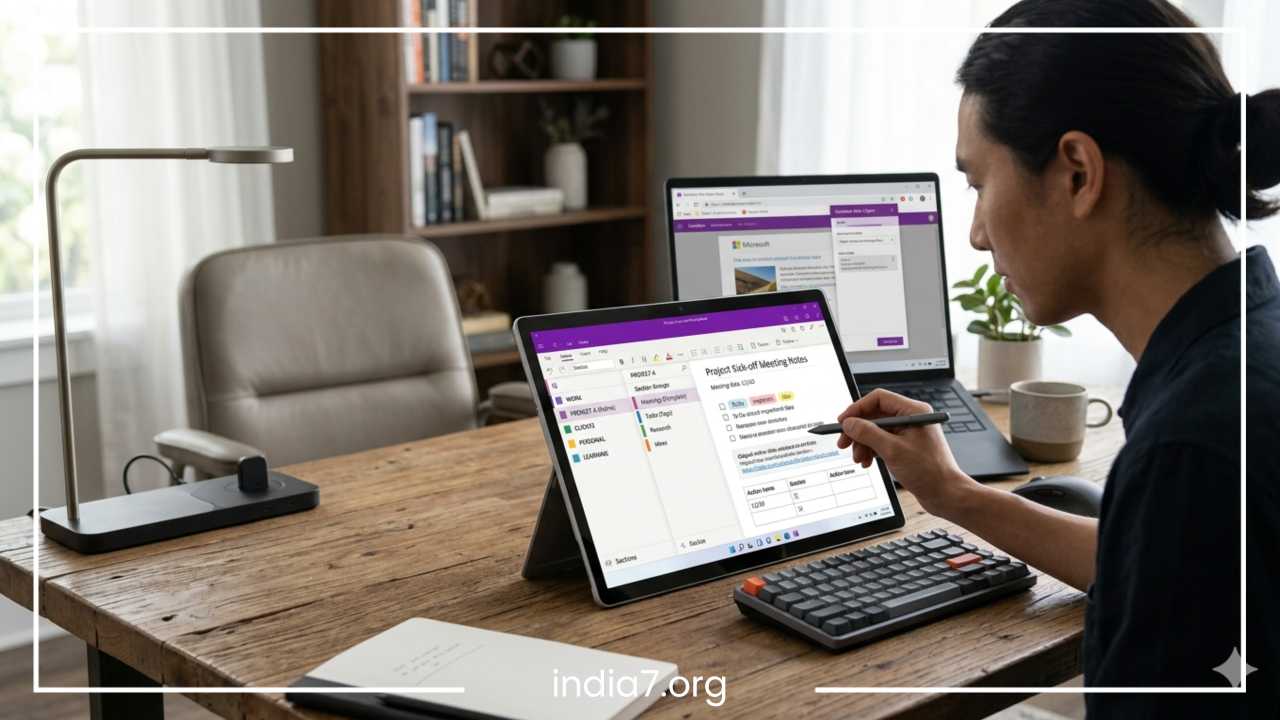
15 Best OneNote Organization Strategies to Stay Organized
In an era dominated by information overload, digital organization is no longer a luxury reserved for the meticulously neat. It is a foundational requirement for professional success, academic achievement, and mental clarity. Every single day, we are bombarded with data from emails, virtual meetings, web articles, project management boards, and casual conversations. Without a centralized, reliable system to capture and arrange this influx, critical insights slip through the cracks. The common result is a digital landscape cluttered with messy notes, scattered documents, half-remembered ideas buried in various apps, and lost information that takes hours to recover.
Microsoft OneNote stands out as one of the most powerful, flexible, and feature-rich note-taking applications available today. Yet, despite its widespread availability as part of the Microsoft ecosystem, it remains profoundly underused. Many users treat OneNote like a basic digital legal pad, creating a single massive wall of text or an unstructured pile of pages that eventually becomes just as chaotic as a physical desk. The true strength of OneNote lies in its freeform canvas and its deeply hierarchical structure. When configured with a deliberate framework, it transforms from a simple scratchpad into a robust external brain. This comprehensive guide details fifteen foundational strategies designed to help you establish a scalable structure, optimize your workflows, and maximize your daily productivity.
Read: The Importance of Offsite Storage
Strategy: Use a Clear Notebook Hierarchy
The foundational mistake most users make when starting with OneNote is ignoring the native structural hierarchy built into the platform. OneNote operates on a distinct, four-tiered architectural model: Notebooks, Section Groups, Sections, and Pages (along with Subpages). Failing to utilize these layers correctly leads to flat, disorganized structures where thousands of unrelated notes live in a single long list. To build a sustainable digital workspace, you must align your content with this natural hierarchy.
A proper structural configuration looks like this:
-
Notebooks: The broadest categories of your life or career. These represent macro-environments.
-
Section Groups: Bundles of related topics or large projects within a single notebook.
-
Sections: Specific focus areas or distinct work streams within a project.
-
Pages and Subpages: Individual notes, documents, meeting minutes, or ideas.
To ensure long-term usability, avoid the temptation to create a new notebook for every minor project or topic that comes across your desk. Having thirty or forty notebooks open simultaneously ruins the navigation experience and slows down system performance. Keep your core notebook structure simple, minimalist, and highly scalable. Rely instead on sections and pages to handle the expanding volume of your data.
Read: Women in the Boardroom: Can You Be Nice and Succeed?
Strategy: Separate Personal, Work, and Learning Notebooks
Mixing different domains of life into a single digital space is a recipe for cognitive friction. When professional action items, personal grocery lists, and academic study guides sit side-by-side in the same notebook, your focus fractures. The mental context-switching required to jump between an upcoming presentation outline and a weekend home renovation plan reduces your efficiency and increases stress. Furthermore, a combined notebook slows down your ability to find information quickly via search, as queries return irrelevant results from other areas of your life.
To establish true mental clarity and optimize your search velocity, you should maintain completely separate notebooks for the primary categories of your daily existence. A robust initial setup includes three distinct notebooks:
-
Work: Dedicated entirely to your job, client deliverables, professional development, and corporate documentation.
-
Personal: Reserved for household management, fitness tracking, financial planning, creative hobbies, and long-term life goals.
-
Learning/Study: A pristine environment for structured courses, books you are reading, research topics, and skill acquisition.
By dividing these spaces, you create clear psychological boundaries. When you open your Work notebook, you are fully in professional mode; when you switch to your Personal notebook, work distractions disappear.
Read: How to Dress for a Pay Rise?
Strategy: Use Section Groups for Major Projects
As your notebooks grow, individual sections can easily multiply and clutter your sidebar. If your Work notebook contains fifty separate tabs for various initiatives, clients, and administrative duties, the interface becomes overwhelming to navigate. This is where Section Groups become invaluable. A Section Group allows you to bundle multiple related sections together under a single, collapsible folder, providing an elegant way to hide complexity until it is needed.
Consider a practical scenario. If you are launching a new marketing campaign, instead of creating five separate sections that clutter your main sidebar, you create a Section Group named “Marketing Campaign.” Inside that single group, you place individual sections for:
-
Strategy and Positioning
-
Content and Copywriting
-
Budget and Expenses
-
Analytics and Reporting
-
Meeting Minutes
This prevents visual clutter in your primary notebook interface while keeping all relevant components of the project grouped together in a logical container. When the project concludes, the entire Section Group can be handled as a single unit, keeping your workspace clean and responsive.
Strategy: Standardize Section Naming
A subtle yet destructive form of digital disorganization is inconsistent naming. When some sections are named with action verbs, others with dates, and some with vague nouns, your brain has to work harder to scan the navigation panel. Standardizing your section naming conventions across all of your notebooks reduces cognitive load and allows you to locate specific tabs in a fraction of a second.
To implement this strategy, establish a set of predictable, reusable section titles that apply across your notebooks or section groups. Highly effective, standardized categories include:
-
Meetings: Exclusively for chronological logs of discussions, decisions, and action items.
-
Tasks: Reserved for active to-do lists, project roadmaps, and immediate deliverables.
-
Research: A repository for source materials, whitepapers, data points, and background reading.
-
Ideas: A low-friction sandbox for brainstorming, creative concepts, and future initiatives.
When you apply these identical categories across different projects, navigating OneNote becomes intuitive. Whether you are looking for research related to a client project or research related to a personal fitness goal, you know exactly which section tab to click.
Strategy: Create a Dashboard Page
When a notebook contains hundreds of pages, navigating through the side panel can feel tedious. To solve this, you can build a dedicated “Dashboard” page at the very top of your most frequently used notebooks. This dashboard acts as a personalized homepage, a central commanding station that outlines your current priorities and provides direct, immediate pathways to your most important content.
Your dashboard page should be clean, highly structured, and designed for quick navigation. It can include a summary of your core objectives for the month, a small section for urgent reminders, and most importantly, a curated collection of internal hyperlinks. OneNote allows you to right-click on any notebook, section group, section, or page and select “Copy Link.” By pasting these links onto your dashboard page, you create an active table of contents. Instead of expanding multiple nested section groups to find a current high-priority project, you simply click the direct link on your dashboard to jump there instantly. This simple habit saves cumulative hours of clicking and scrolling over the course of a busy month.
Strategy: Use Tags for Fast Retrieval
OneNote features a highly versatile tagging engine that goes far beyond simple keywords. Tags allow you to categorize specific lines of text, paragraphs, or blocks of data within a page, regardless of where that page lives in your notebook hierarchy. By assigning metadata to specific pieces of information, you make your notes dynamic and infinitely easier to retrieve.
To maximize the power of this system, focus on a core set of highly practical tags:
-
Important: For critical constraints, deadlines, or project rules.
-
To Do: For actionable tasks that require physical or mental execution.
-
Question: For items that need clarification from a manager, client, or professor.
-
Idea: For unexpected creative breakthroughs that emerge during routine work.
-
Follow-up: For dependencies waiting on external input or team members.
The real magic happens when you use the “Find Tags” feature. OneNote can instantly aggregate all tags across a section, a notebook, or your entire account into a unified summary panel. This means you can view every single “Question” tag across five different projects simultaneously, creating an instant agenda for an upcoming review session or team meeting. The key to success here is moderation: avoid over-tagging your notes, keep your tag selection minimal, and remain entirely consistent in how you apply them.
Strategy: Build a Weekly Review System
Even the most meticulously designed organizational framework will collapse over time if it is not actively maintained. Information enters our digital workspaces at high speed, and during a frantic work week, we rarely have the time to file everything perfectly. Without a structured maintenance routine, your notebooks will gradually accumulate outdated tasks, messy scraps of text, and irrelevant pages. To counter this natural digital decay, you must build a Weekly Review system.
Set aside thirty minutes at the end of every week—typically on Friday afternoon or Monday morning—to audit your OneNote environment. During this dedicated time, perform the following steps:
-
Review your unorganized pages and move them to their correct permanent sections.
-
Check your completed “To Do” tags and uncheck or clear out old action items.
-
Archive or move completed project sections out of your active workspace.
-
Update your central Dashboard page to reflect the priorities of the coming week.
This systematic habit ensures that your notebooks remain clean, relevant, and tightly aligned with your current reality, preventing the accumulation of digital clutter that leads to overwhelm.
Strategy: Use Templates for Repeated Notes
Writing the same structural layouts from scratch every time you take notes is a massive waste of time and energy. Whether you are conducting a client discovery call, capturing lecture notes, or kicking off a new project phase, manually creating headers, tables, and action item lists introduces unnecessary friction. OneNote solves this problem completely through its built-in Page Templates feature.
By creating and saving custom templates, you enforce instant structural consistency across your entire notebook. Consider establishing three essential templates:
-
Meeting Notes Template: Contains dedicated blocks for Date/Time, Attendees, Discussion Agenda, Key Decisions, and Action Items with checkboxes.
-
Project Planning Template: Features sections for Project Scope, Success Criteria, Milestone Timelines, Resources, and Risk Factors.
-
Lecture/Research Template: Structured around the Cornell note-taking method, providing clear regions for main ideas, detailed notes, and summaries.
You can configure OneNote to automatically apply a specific template every time you add a new page to a given section. This ensures that every meeting note or project file looks identical, allowing you to scan your past documentation with complete ease.
Strategy: Leverage Search Like a Pro
Many users waste valuable time manually clicking through sections and pages trying to find a specific note they wrote months ago. This manual browsing behavior is unnecessary because OneNote possesses one of the most powerful digital search engines of any productivity application. Understanding how to leverage this search functionality allows you to find any piece of information within seconds, making rigid folder browsing obsolete.
OneNote’s standout feature is its deep Optical Character Recognition (OCR) capability. The application automatically indexes not just typed text, but also the text within images, clipped screenshots, PDFs, and even legible handwritten notes captured via a stylus. If you take a photo of a whiteboard during a brainstorming session and paste it into OneNote, you can later search for a specific word written on that whiteboard. To maximize search efficiency, use targeted keywords rather than browsing. You can also scope your searches using built-in modifiers to search only the current page, the current section, the entire notebook, or all notebooks simultaneously. Trust the search engine, and stop worrying about perfectly filing every minor detail.
Strategy: Clip Web Content Directly into OneNote
Researching a topic online often leads to a chaotic mess of open browser tabs, lost bookmarks, and disjointed copy-pasting. When you copy small snippets of text manually, you frequently lose the original context, the source URL, and the surrounding data. To streamline your information gathering, utilize the official OneNote Web Clipper browser extension.
The Web Clipper allows you to send digital content straight from your web browser into a designated notebook section with a single click. It offers multiple capture modes tailored to different needs:
-
Full Page: Captures a complete visual snapshot of the entire website.
-
Article: Strips away distracting ads, sidebars, and pop-ups, leaving a clean, highly readable text layout.
-
Bookmark: Saves a compact snippet with a title, a brief description, and the direct link.
-
Region: Allows you to click and drag over a specific image or chart to capture it as a graphic.
The crucial step for staying organized is to process your clipped content immediately. Never let clipped pages sit in a generic inbox indefinitely. The moment you clip an article, assign it directly to your designated “Research” or “Project” section, and add a brief sentence at the top explaining exactly why this piece of content is relevant to your current goals.
Strategy: Use Pages for Atomic Notes
A common trap that leads to unmanageable notebooks is the creation of monolithic pages. A monolithic page is a single, extraordinarily long note where multiple different concepts, dates, and meeting summaries are piled together sequentially. These pages become digital graveyard walls of text that are incredibly intimidating to edit, reorganize, or reference later.
To keep your digital workspace agile, adopt the principle of atomic notes. This design philosophy states that each page in OneNote should focus on a single, distinct idea, concept, or event. Instead of having a giant page titled “Product Development Updates,” break that content down into separate, atomic pages such as “Product Design Phase 1,” “User Feedback Session June 12,” and “QA Testing Guidelines.”
Adopting an atomic structure offers distinct operational benefits:
-
Pages remain short, highly readable, and easily scannable.
-
Reordering pages via drag-and-drop becomes a simple, risk-free task.
-
Internal linking between pages becomes vastly more precise.
-
You can easily share a single, targeted page with a colleague or classmate without exposing a massive document containing unrelated data.
Strategy: Link Between Notes for Context
True knowledge is not a series of isolated lists; it is a dense network of interconnected ideas. When you isolate your notes within rigid sections, you miss out on the valuable synergies that exist between different projects, insights, and pieces of research. OneNote provides a native internal linking mechanism that allows you to construct a personal wiki, connecting disparate notes together to form a coherent web of understanding.
Creating an internal link is incredibly simple. You can right-click any page or section and select “Copy Link to Page,” then paste it elsewhere. Alternatively, you can use the rapid keyboard shortcut by typing double square brackets around the exact title of an existing page, like [[Project Specifications]]. OneNote will instantly convert that text into a live hyperlink.
This strategy is exceptionally valuable for complex research, studying, or managing multifaceted corporate accounts. For instance, while writing a summary of a client meeting, you can instantly link to your “Competitor Analysis” page, which links to a “Market Trends” section. This builds an intuitive web of context, allowing you to navigate your information dynamically based on thought association rather than rigid file paths.
Strategy: Maintain a Task System Inside OneNote
Many people struggle with productivity because their action items are completely divorced from their reference materials. They keep their project notes in OneNote, but their tasks live in a completely separate app or a physical paper notebook. This separation creates a constant need to jump back and forth between tools, increasing the likelihood that small details will be forgotten. You can eliminate this friction by maintaining a unified task system directly inside your notes.
To execute this effectively, utilize OneNote’s native checkbox tags to clearly distinguish between “actionable” content and purely “reference” notes. When you are writing down meeting minutes, don’t just write a list of things that need to happen; format them explicitly as interactive checkboxes.
To take this a step further, design a dedicated “Action Items” section at the front of your notebook. If a task requires deep integration with corporate schedules, you can highlight the text and use the built-in Outlook Tasks feature to sync the item directly to your email calendar and reminders. The fundamental rule is simple: never let an actionable item remain as plain text. Ensure it is explicitly tagged, making it easy to identify, track, and check off upon completion.
Strategy: Archive Old Notes Properly
One of the primary causes of a slow, bloated, and confusing digital workspace is the failure to retire old data. When projects conclude, classes end, or business quarters shift, leaving those historical notes directly in your primary sidebar creates visual clutter. It forces your brain to process irrelevant information every time you look for current tasks. However, deleting these notes is a mistake, as you may frequently need to reference old decisions, data points, or code snippets in the future. The correct solution is a proper archiving system.
Instead of keeping completed initiatives in your active view, establish a dedicated methodology for archiving:
-
Create a separate notebook entirely designated as your “Archive.”
-
Alternatively, create an “Archive” Section Group at the bottom of your current notebook.
-
When a project ends, move the entire section or group into this archive container.
Moving these items removes them from your day-to-day visual navigation, keeping your active workspace pristine, lean, and intensely focused on current priorities. Because OneNote’s global search engine indexes all open notebooks, your archived notes remain completely searchable. If you ever need to retrieve an old file, a quick search query will surface it instantly, giving you the best of both worlds: a clean workspace and perfect data retention.
Strategy: Sync and Access Across Devices
An organizational system is only useful if it is available the exact moment you need it. If your structured notes are trapped exclusively on your office desktop computer, the system fails when you are in a client meeting, sitting in a lecture hall, traveling, or struck by an unexpected moment of creative inspiration on the couch. To maximize your efficiency, you must ensure that your OneNote ecosystem is fully synchronized across all your devices.
OneNote utilizes Microsoft OneDrive to seamlessly sync your notebooks across cloud environments. Take the time to install the dedicated OneNote application on your desktop, laptop, tablet, and smartphone. This multi-device access transforms how you interact with your knowledge:
-
Capture unexpected ideas immediately via your phone while on the move, saving them directly to your “Ideas” section.
-
Review critical project briefs or study guides on your tablet during a commute.
-
Execute deep, focused writing, formatting, and administrative sorting on your primary desktop setup.
Reliable cloud syncing eliminates the risk of fragmented data silos. It ensures that your external brain is constantly updated and always available in your pocket, ready to record information or provide answers whenever and wherever you need them.
Bonus Section: Common Mistakes to Avoid
When building an organized framework within OneNote, knowing what not to do is just as critical as following best practices. Many well-intentioned users inadvertently design systems that are far too rigid or overly complex, ultimately leading to organizational burnout. Recognizing these common pitfalls early will save you time and prevent frustration down the road.
| Mistake | Operational Impact | Corrective Action |
| Creating Too Many Notebooks | Causes severe visual clutter, slows system sync times, and fractures search results. | Limit yourself to 3–5 core notebooks; use Section Groups to handle structural complexity. |
| Lacking a Naming System | Increases cognitive load as you waste time scanning inconsistently titled sections. | Enforce predictable, standardized categories like “Meetings,” “Tasks,” and “Research.” |
| Overusing Custom Tags | Creates visual chaos on the page and ruins the effectiveness of the Tag Summary panel. | Stick to a core set of 5 essential tags and apply them with absolute consistency. |
| Mixing Personal and Work Notes | Destroys mental focus and boundary lines while returning irrelevant search results. | Maintain entirely separate notebooks with distinct cloud account access if necessary. |
| Neglecting Regular Reviews | Allows outdated tasks and unfiled pages to accumulate, causing system decay. | Set aside 30 minutes every week to audit, clean, and re-align your notebook structure. |
Final Thoughts
Achieving true digital organization is not about discovering a magical piece of software; it is about building a deliberate, sustainable system and developing the daily habits to maintain it. Microsoft OneNote provides an incredibly flexible canvas that can adapt to almost any workflow, but that flexibility requires you to step up and establish clear structural boundaries. Without intentional design, even the most advanced tools will simply turn into digital clutter.
By implementing the fifteen strategies outlined in this guide—from honoring the native structural hierarchy and standardizing your naming conventions to utilizing templates and conducting weekly reviews—you can transform OneNote into a highly efficient external brain. Do not try to implement all fifteen strategies afternoon. Instead, select two or three foundational methods that resonate most with your immediate bottlenecks. Master those workflows first, experience the immediate lift in clarity and productivity, and then gradually expand your system. With a consistent framework in place, you will spend far less time managing your notes and significantly more time executing your best work.
Frequently Asked Questions
How do I organize a messy OneNote notebook?
Organizing a messy OneNote notebook requires a systematic, step-by-step cleanup strategy rather than trying to fix everything at once. Start by creating a brand-new notebook to serve as your clean workspace, keeping the old, disorganized notebook open in a separate window as a reference repository. Next, establish your core architecture in the new notebook using three to five broad section groups based on major projects or life domains.
Go into your messy notebook and use the global search feature to find your most critical active notes, current to-do lists, and ongoing project files. Right-click these pages and use the “Move or Copy” command to transfer them into the appropriate sections of your new notebook. For the remaining legacy content, do not waste hours sorting individual pages; instead, move all those unorganized sections into a single section group labeled “Archive.” This immediately clears your daily visual workspace while keeping your historical data completely searchable through OneNote’s indexing engine.
What is the best way to structure OneNote for project management?
The best way to structure OneNote for project management is to use a dedicated Section Group for each major project, which allows you to separate individual work streams while keeping everything under a single folder. Inside the project section group, create four standardized sections: “Dashboard,” “Tasks,” “Meetings,” and “Research.”
The “Dashboard” section should contain a single homepage featuring project goals, timelines, and links to external project assets. The “Tasks” section houses your active checklists and work breakdown structures. The “Meetings” section should be organized chronologically, utilizing a standardized meeting notes template for consistency. Finally, use the “Research” section to hold background data, technical specifications, and web clippings. This atomic, modular structure keeps your project assets separated by function, ensuring team members or individual contributors can find specific deliverables without scrolling through a monolithic document.
How to use OneNote effectively for work and productivity?
Using OneNote effectively for work requires shifting from a passive digital folder mindset to an active workflow system. First, establish clear boundaries by maintaining a strict separation between your professional notebook and your personal notebooks. Second, eliminate manual friction by configuring custom templates for routine tasks, such as client discovery calls, weekly stand-ups, and project post-mortems.
Third, instead of keeping action items on sticky notes or in a separate app, manage your daily responsibilities directly within your notes using interactive checkbox tags. At the end of every workday, use the “Find Tags” feature to aggregate all open action items into a single, actionable checklist for the next morning. Finally, pair your note-taking with the OneNote Web Clipper to instantly capture market research and industry updates directly into your project files, ensuring your reference material sits side-by-side with your execution plans.
Can you create a personal wiki in OneNote?
Yes, you can easily create a highly customized personal wiki or internal knowledge base in OneNote by leveraging the platform’s native page-linking functionality. To build a wiki, start by creating a top-level page titled “Wiki Home” or “Knowledge Base Index.” On this main index page, list the primary categories of your knowledge, such as standard operating procedures, technical guides, code snippets, or book summaries.
To link these topics to individual pages instantly, use the double square bracket shortcut. For example, typing [[SOP for Content Publishing]] will automatically generate a new page with that title and link to it directly from your index page. As you write content within those subpages, continue using the double square bracket method to link back to the index or to connect related cross-reference topics. This creates a dense, non-linear web of information that allows you to navigate your personal knowledge through natural association.
How does OneNote search text in images and handwritten notes?
OneNote utilizes an advanced, automated Optical Character Recognition engine that scans every piece of visual media added to your notebooks. When you paste an image, insert a PDF document, take a screenshot, or use a digital stylus to write handwritten notes, the OCR engine processes the file in the background, identifying text shapes and converting them into searchable metadata.
To use this feature effectively, simply type your search query into the global search bar. OneNote will return matches from typed text, handwritten words, and text embedded within graphics, highlighting the matching term in a yellow box directly on the image or page. If you want to extract text from a graphic manually, you can right-click the image and select “Copy Text from Picture.” This allows you to paste the text directly into a standard text box for editing, making it an invaluable tool for digitizing whiteboard brainstorms, receipt details, or scanned paper documents.
How to back up and sync OneNote notebooks across multiple devices?
To ensure seamless syncing and data safety, OneNote notebooks should be stored and backed up via Microsoft OneDrive. When you create a new notebook, select your cloud-linked OneDrive account as the storage destination rather than your local hard drive. This enables the background synchronization engine to upload incremental updates automatically every time you make a change, edit a sentence, or add an image.
To access these notes across your device ecosystem, install the official OneNote application on your desktop, smartphone, and tablet, logging into each device using the identical Microsoft credentials. If you experience a synchronization delay, right-click the notebook name in the navigation panel and select “Sync This Notebook Now” to force an update. For an extra layer of security, the desktop version of OneNote allows you to configure automatic local backups. Navigate to the Options menu, select “Save & Backup,” and set the utility to save a redundant copy of your notebooks to a local drive or external storage device on a weekly basis.