Best Strategies for OneNote Organization

10 Best OneNote Organization Strategies That Actually Work
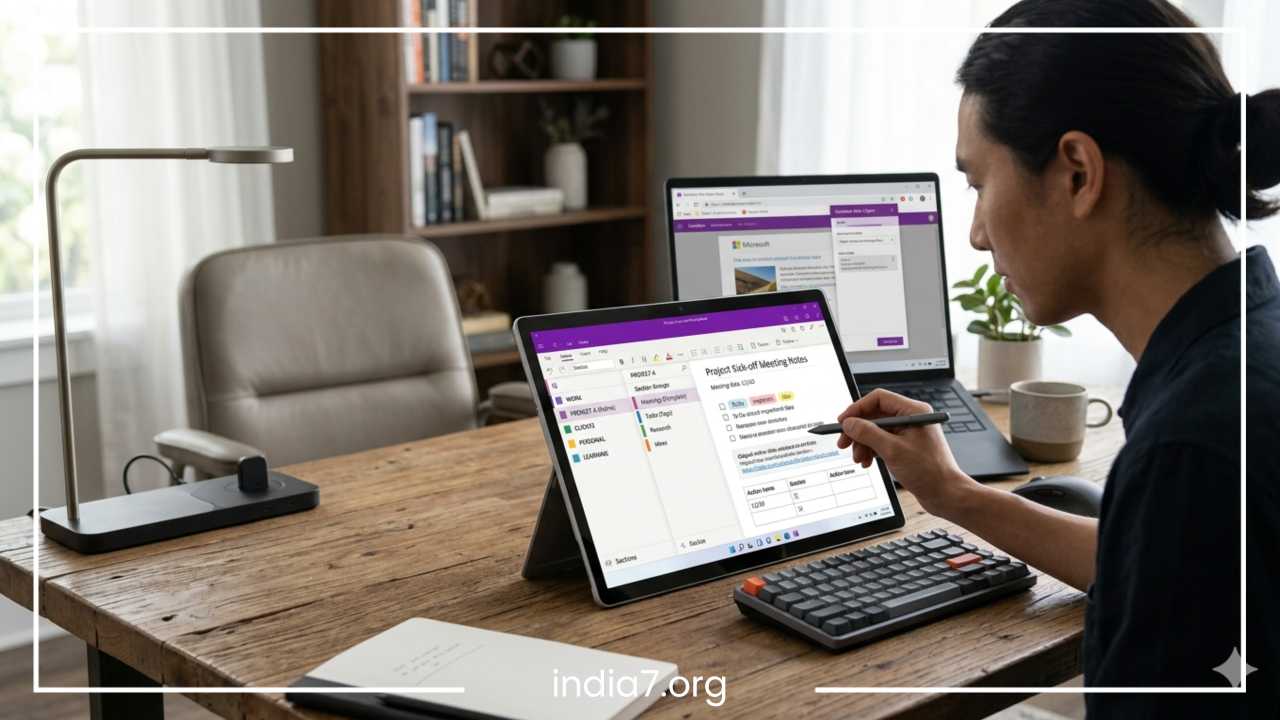
Microsoft OneNote is one of the most powerful digital note-taking tools available, yet millions of users open their apps every day only to be greeted by a chaotic digital wilderness. In the beginning, the flexibility of OneNote feels liberating. You can click anywhere on a page to start typing, drag images wherever you want, and create an endless stream of notebooks, sections, and pages. But without a deliberate OneNote note-taking system, this absolute freedom inevitably leads to structural collapse.
Over time, most OneNote notebooks become messy, disorganized, and frustrating to navigate. You find yourself dealing with duplicate notes on the same topic, forgotten information buried deep within abandoned sections, and an overwhelming number of notebooks that make finding a single piece of critical data feel like hunting for a needle in a digital haystack. When it takes longer to locate your notes than it does to actually execute the task at hand, your digital note organization system is no longer serving you; you are serving it.
What makes a OneNote organization system actually work? It is not about creating an aesthetically flawless, hyper-complex web of color-coded tabs that takes hours to maintain. A truly effective OneNote workflow must be simple to set up, intuitive to navigate, and effortless to maintain. It must reduce cognitive friction, allowing you to capture information instantly and retrieve it within seconds. The ultimate goal is to shift your energy away from managing your notes and toward using your notes to drive actual productivity.
To help you reclaim control of your digital workspace, this comprehensive guide breaks down the ten best OneNote organization ideas and practices. From restructuring your core hierarchy using the minimalist approach to implementing advanced productivity frameworks like the PARA method, these actionable strategies will transform your chaotic app into a streamlined engine for professional and personal success.
Read: UX SEO: The SEO Benefits of User Experience (UX) Design
Build a Simple Notebook Structure First
The single biggest mistake users make when trying to organize OneNote notebooks is creating a separate notebook for every minor project, client, or topic in their lives. Within a few months, the left-hand navigation panel is cluttered with dozens of notebooks, forcing you to constantly click back and forth just to find basic information. Too many notebooks create immense mental confusion and decision fatigue. Every time you want to capture a quick thought, you are forced to stop and debate which notebook it belongs in.
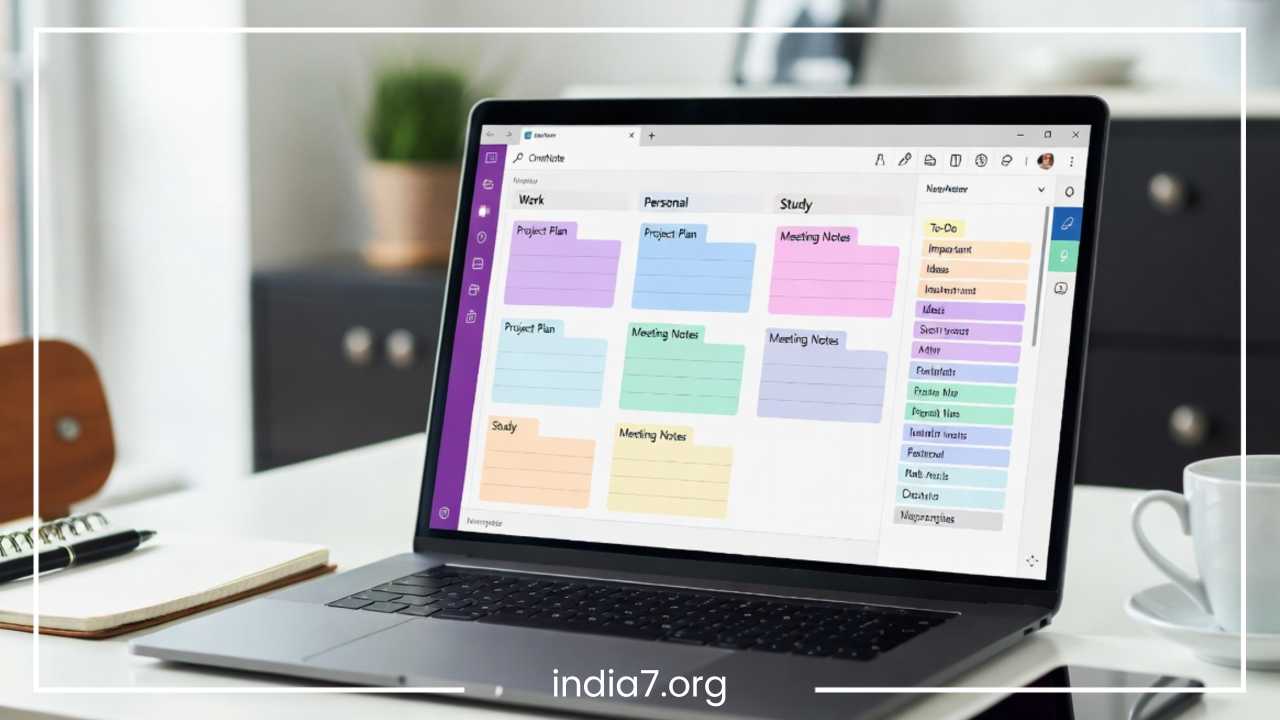
To maximize your OneNote productivity tips, you must keep your top-level structure minimal. A fewer-notebooks approach simplifies navigation and ensures that you always know exactly where to look. For most professionals and students, your life can be cleanly divided into three to four macro-level notebooks: Work, Personal, and Learning.
Consider this clean, minimalist hierarchy for your top-level notebooks and their main content areas:
The Work notebook acts as your primary professional hub. It houses your current initiatives, client details, meeting minutes, and corporate reference materials. The Personal notebook holds everything related to your life outside of employment, such as household management, long-term financial planning, and fitness tracking. The Learning notebook serves as a dedicated digital commonplace book for skill acquisition, book summaries, course notes, and personal development research.
By consolidating your digital footprint into these distinct macro-notebooks, you eliminate the friction of managing a bloated notebook library. Fewer notebooks mean your OneNote workflow remains lightweight and nimble, allowing you to navigate across different areas of your life with just a couple of clicks.
Read: SEO for YouTube: Ranking Your Videos
Use Sections Like Filing Cabinets
If your notebooks represent the main drawers of your desk, sections should be treated like the physical filing cabinets sitting inside them. The core difference between notebooks and sections is that notebooks define the broad domain of your life, while sections organize those domains by permanent, functional categories.
A common pitfall that ruins digital note organization is organizing sections chronologically, such as creating a section for each month or week. Chronological tracking causes information to fragment across time; a project note written in January becomes completely detached from an update written in April. Instead, you should organize your sections by predictable, high-level categories that remain relevant regardless of the date.
When establishing sections within your notebooks, aim for consistency. Excellent examples of functional section names include:
-
Projects: For active, time-bound initiatives with specific deadlines.
-
Clients: For dedicated tracking of accounts, stakeholder communications, and deliverables.
-
Research: For deep-dives, industry analyses, and background information.
-
Meeting Notes: A centralized repository for all historical discussions and agendas.
-
Resources: For standard operating procedures, templates, and reference materials.
The primary mistakes to avoid here are generating too many sections and allowing duplicate categories to bleed across different notebooks. If you find yourself creating sections for micro-topics, remember that you can always use section groups or multi-level pages to handle finer details. Keep your top-level sections broad, predictable, and distinct from one another to prevent your filing cabinet from overflowing with empty or redundant folders.
Read: The Evolution of Business Blogging Sites
Create a Consistent Page Naming System
OneNote features a incredibly robust search engine, but its utility drops significantly if your page titles are vague, messy, or incomplete. When you name pages with single words like “Meeting,” “Ideas,” or “Notes,” you are setting yourself up for future frustration. Six months from now, searching for the word “Notes” will yield hundreds of identical results, forcing you to manually click through dozens of pages to find the right one.
A consistent page naming system ensures that you can identify the exact contents of a page at a glance without ever having to open it. It also supercharges OneNote’s search functionality, matching your queries instantly with well-structured titles.
| Context | Poor Naming Example | Superior Naming Example |
| Recurring Meetings | Meeting | Marketing Weekly Review |
| Client Initiatives | Ideas | Client ABC Product Launch Kickoff |
| Content Creation | Notes | Blog Post Ideas and Outline |
To make your system sustainable, adopt a standardized format based on the nature of the page:
-
Date-First Format: Perfect for recurring entries, journals, or timeline-based tracking. For example, using the standard year-month-day format ensures that your pages automatically sort themselves chronologically in alphabetical views.
-
Project-First Format: Ideal for tracking specific components of a broader initiative, such as branding guidelines or technical specifications.
-
Meeting-Note Format: Combine the date, the stakeholder name, and the core purpose of the meeting into a single line to make tracking corporate decisions incredibly simple.
By taking five seconds to title your pages thoughtfully when you create them, you build an organized trail of digital breadcrumbs that makes future retrieval instantaneous.
Adopt the PARA Method in OneNote
For individuals seeking a highly optimized OneNote note-taking system, implementing the PARA method is a game-changer. Pioneered by productivity expert Tiago Forte, PARA stands for Projects, Areas, Resources, and Archives. It is a universal organizational framework designed for digital information, focusing heavily on how actionable a piece of information is, rather than its topic.
Mapping the PARA method to OneNote is remarkably straightforward. You can create a section group for each of the four components within your primary notebook:
-
Projects: This section group holds short-term efforts in your life or work that have a concrete goal and a specific deadline. Examples include a website redesign or planning a corporate event.
-
Areas: These are ongoing realms of responsibility that require continuous upkeep but do not have a final end date. Examples include health, finances, or product management.
-
Resources: This group serves as a personal library of interests, reference materials, or topics you are curious about, such as coding tutorials, design inspiration, or travel ideas.
-
Archives: This is the final resting place for inactive items from the other three categories, such as completed projects or areas of responsibility you no longer manage.
The primary benefit of the PARA method within OneNote is that it dramatically simplifies decision-making. When you encounter a new piece of information, you don’t have to guess where it goes. If it relates to an active project, it goes into Projects. If it is a long-term responsibility, it goes into Areas.
This functional segregation keeps your active workspace free of clutter, helps you stay focused on current priorities, and adapts seamlessly across both your professional and personal life.
Create a Dashboard or Home Page
Unlike some contemporary note-taking applications, OneNote does not feature a built-in, dedicated dashboard or home view. However, you can easily build your own custom dashboard page to act as the nerve center of your daily operations. A home page provides an immediate overview of your high-priority items, preventing you from getting lost in the deep layers of your notebooks every morning.
Your OneNote dashboard should be placed at the very top of your primary section or section group, and it should remain permanently pinned or easily accessible. This page acts as a visual launchpad before you dive deep into your tasks.
To make your dashboard highly functional, layout your page to include the following essential modules:
-
Quick Links: Direct internal links to your most frequently visited OneNote pages and sections.
-
Active Projects: A brief list of the top two or three initiatives that require your attention this week.
-
Weekly Priorities: High-level objectives that you must accomplish by Friday.
-
Recent Meeting Notes: Links to the latest discussions or agendas for rapid follow-up.
You can organize these modules side-by-side by utilizing OneNote’s flexible text containers, dragging them into clean vertical columns across your page. By starting your workday on this home page, you ground yourself in your current priorities, shield yourself from digital distractions, and maintain a clear line of sight toward your goals.
Use Tags Strategically, Not Excessively
OneNote offers an extensive menu of built-in tags, ranging from checkboxes and stars to custom icons for passwords, books, and movies. While these visual indicators look appealing, excessive tagging is a trap that quickly leads to administrative chaos. If you tag every third sentence with a different icon, your notes become a visually exhausting patchwork of colors that loses all functional meaning.
The golden rule of OneNote best practices is to use tags strategically and sparingly. Tags are not decorative elements; they are searchable metadata designed to trigger specific actions or categorize critical takeaways.
To maintain a clean and highly functional workspace, limit yourself to a strict core set of three to five tags:
-
To-Do Tags: Use standard checkboxes exclusively for actionable items that must be completed.
-
Important Tags: Use a star icon to highlight critical deadlines, project boundaries, or essential concepts.
-
Question Tags: Use a question mark icon to mark items that require further clarification from colleagues or clients during future meetings.
By keeping your tagging vocabulary minimal, you ensure that the system remains sustainable. When you need to find outstanding tasks across your entire notebook, you can use the Find Tags feature to generate a clean, consolidated summary pane of your action items without getting bogged down by extraneous visual clutter.
Archive Old Notes Regularly
One of the primary reasons a OneNote note-taking system degrades over time is accumulation. When completed projects, historical data, and outdated brainstorming sessions remain mixed in with your active files, they slow down your manual navigation and clutter your visual environment. A clean workspace requires a regular archiving workflow to separate what is currently relevant from what is historical.
Archiving does not mean deleting your hard work; it simply means moving inactive information out of your primary view so that you can focus entirely on current objectives. Keeping old content separated allows OneNote to load sections faster, optimizes search accuracy, and provides immediate mental relief.
To set up an effective archive, create a dedicated Section Group or an entirely separate notebook named Archive. Inside, organize your historical data logically:
Archive
├── Historical Years
└── Completed Projects
Within this archive structure, you can drop old sections wholesale once a project wraps up.
To keep this system fresh, establish a quarterly or semi-annual archiving routine. Take thirty minutes at the end of every quarter to audit your active sections. If a project is complete or a client contract has ended, drag those sections directly into your Archive hub. This habit keeps your daily workspace lean, mean, and perfectly aligned with your immediate real-world demands.
Use Templates for Repetitive Notes
If you find yourself manually typing out structural headers like “Agenda,” “Attendees,” and “Action Items” every time you jump into a meeting, you are wasting valuable time. Starting from a blank page creates unnecessary friction and often leads to messy, inconsistent documentation. Utilizing custom OneNote templates is a foundational strategy for driving personal productivity and institutional consistency.
Templates ensure that regardless of when a note was taken or who authored it, the layout remains completely uniform. This uniformity makes retrieving specific data points significantly faster because your eyes automatically know exactly where to look on the page.
Meeting Notes Template
A standard corporate meeting template should be clean and action-oriented. It needs an explicit section for the meeting agenda to keep discussions on track, a dedicated box for critical decisions made by stakeholders, and a finalized list of action items detailing who is responsible for what deliverable and by when.
Project Planning Template
For new initiatives, a project planning template keeps the entire team aligned. It should clearly outline the macro-level project goal at the very top, followed by a high-level timeline featuring milestone dates, and a comprehensive resource list linking out to external budgets, shared drives, and tracking sheets.
Study Notes Template
For students and lifelong learners, a structured study layout changes how information is retained. It should feature a summary block for synthesizing complex topics into your own words, a core concepts column for key definitions, and a review questions section to test your long-term recall later.
By saving these layouts as default templates for their respective OneNote sections, every new page you generate will automatically load your pre-built structure, saving you precious minutes and ensuring clean data capture.
Leverage OneNote Search Instead of Over-Organizing
An obsession with building the absolute perfect folder structure can quickly become a form of procrastination. Many professionals spend hours nesting pages within pages and sections within sections, trying to account for every single organizational edge case. This approach does not scale. As your repository of information expands into thousands of pages, even the most elaborate hierarchy will eventually break down under its own weight.
This is where you must leverage OneNote’s incredibly powerful built-in search engine instead of over-organizing your environment. OneNote does not just scan page titles; it indexes body text, looks inside embedded documents, searches metadata tags, and even uses optical character recognition to read handwriting and text inside images.
To optimize your daily retrieval workflow, shift your paradigm from manual browsing to keyword searching:
-
Broad Keyword Searches: Pressing the standard shortcut keys opens a global search bar that queries every single notebook you have open.
-
Advanced Filter Queries: You can narrow your search down to a specific section, notebook, or look specifically for pages containing action-oriented tags.
-
Recent Notes Trailing: Use the recent notes feature to quickly jump back to pages you worked on over the past few days, completely bypassing your sidebar navigation.
The core insight here is that you should organize your notes just enough to provide a general framework, but let the search engine handle the heavy lifting of granular retrieval. This approach saves you hours of administrative upkeep and ensures you always find your content instantly.
Review and Clean Up Weekly
No matter how pristine and immaculate your OneNote organization ideas are when you first implement them, your workspace will naturally trend toward disorder over time. Throughout a busy work week, you will inevitably drop quick thoughts onto random pages, clip web articles hastily, and create temporary placeholder titles to keep up with rapid conversations. Organization is not a one-time setup task; it is an ongoing, lifelong habit.
To prevent your system from slowly decaying back into a digital jungle, you must commit to a simple, weekly maintenance routine. Setting aside just fifteen minutes every Friday afternoon to clean up your notebooks will preserve your system indefinitely.
When executing your weekly maintenance, follow this straightforward, repeatable checklist:
-
Review and rename pages with unclear titles to match your established naming conventions.
-
Move misplaced notes out of quick-capture sections and into their permanent functional sections.
-
Move completed projects and old client files into your dedicated Archive group.
-
Review all outstanding action tags to ensure tasks are tracked or checked off.
-
Delete duplicate notes, empty pages, and outdated web clips that no longer serve a purpose.
By transforming organization into a consistent weekly ritual, you ensure that you never have to face a massive, overwhelming cleanup project ever again. You will close down your computer every Friday afternoon with complete peace of mind, knowing your digital workspace is sharp, orderly, and fully prepared for the upcoming week.
Final Thoughts
When it comes to mastering your digital workspace, simplicity will always triumph over complexity, and consistent execution will always beat short-lived perfection. The ultimate downfall of most digital organizational systems is that they require too much energy to maintain. By focusing on minimal top-level notebooks, utilizing functional sections, enforcing strict page naming rules, and letting OneNote’s native search engine do the heavy lifting, you build a resilient ecosystem that adapts effortlessly to your changing life.
Remember that you do not need to implement all ten of these advanced strategies simultaneously by tomorrow morning. Trying to overhaul your entire digital life in a single day is a surefire recipe for burnout. Instead, treat your organization as an iterative journey.
If your OneNote feels overwhelming today, begin by simplifying your notebook structure and creating a dashboard page. Those two changes alone can dramatically improve how quickly you find and use your notes.
Once those foundational habits become second nature, you can slowly layer in advanced frameworks like the PARA method or customized page templates. By cultivating a clean, distraction-free digital note-taking system, you clear away the mental fog of disorganization and unlock a massive competitive advantage for your daily productivity.
Frequently Asked Questions
How do I organize my OneNote notebook for maximum productivity?
Organizing your OneNote notebook for maximum productivity requires moving away from countless micro-notebooks and consolidating your files into three or four macro-notebooks, such as Work, Personal, and Learning. Within these notebooks, organize your sections by predictable, functional categories (like Projects, Meetings, and Resources) rather than by dates. To maximize daily efficiency, build a custom homepage or dashboard at the top of your primary section containing quick links to active tasks and high-priority pages so you can launch your workday without digital distraction.
What is the best way to structure OneNote for managing multiple client projects?
The best way to structure OneNote for multiple client projects is to utilize a dedicated “Work” notebook paired with Section Groups. Create a Section Group for each major client to keep their data isolated. Within that client’s group, use individual sections for specific operational needs, such as Meeting Notes, Contracts, and Deliverables. Pair this structure with a strict, date-first page naming convention (such as Year-Month-Day Meeting Topic) so your project timelines remain perfectly sequential and easily searchable during client reviews.
How can I implement the PARA method framework inside Microsoft OneNote?
To implement the PARA method framework inside Microsoft OneNote, create four distinct Section Groups within your main notebook: Projects, Areas, Resources, and Archive. Place time-bound initiatives with concrete deadlines under Projects, and continuous life responsibilities (like finances or health) under Areas. Store web clips, references, and static documentation under Resources. Once a project is completed or an area becomes inactive, drag that entire section into the Archive group to keep your active workspace lightweight and clutter-free.
Why does OneNote search not find words or text inside my images?
If OneNote search is not finding text inside your images, it is usually because the app’s built-in Optical Character Recognition (OCR) features have not finished indexing the file, or the feature is manually disabled. To fix this, right-click the specific image inside your note, hover over the “Make Text in Image Searchable” option, and verify that the correct language is selected. For large notebooks or heavily packed PDFs, it can take several minutes for OneNote’s cloud servers to process, index, and make the image text fully searchable globally.
How do I create a default custom page template in OneNote?
To create a default custom page template in OneNote, design your ideal page layout first by adding your preferred headers, text tables, and action tags. Once your layout is complete, navigate to the Insert tab on the top ribbon and click on Page Templates. At the bottom of the Templates task pane that appears on the right side of your screen, click the link that says “Save current page as a template.” Give your template a unique name, and check the box to “Set as default template for new pages in the current section.”
What is the best workflow to sync and clean up messy OneNote pages weekly?
The best workflow to clean up messy notebooks is to schedule a recurring fifteen-minute maintenance routine every Friday afternoon. During this time, audit your quick-capture pages, delete temporary notes, and rename vague page titles to fit your standard naming conventions. To ensure your files sync perfectly across your desktop, phone, and tablet without throwing sync errors, always clear out your “Quick Notes” section, empty your notebook’s deleted items bin, and allow the app to complete its cloud sync before closing your laptop.