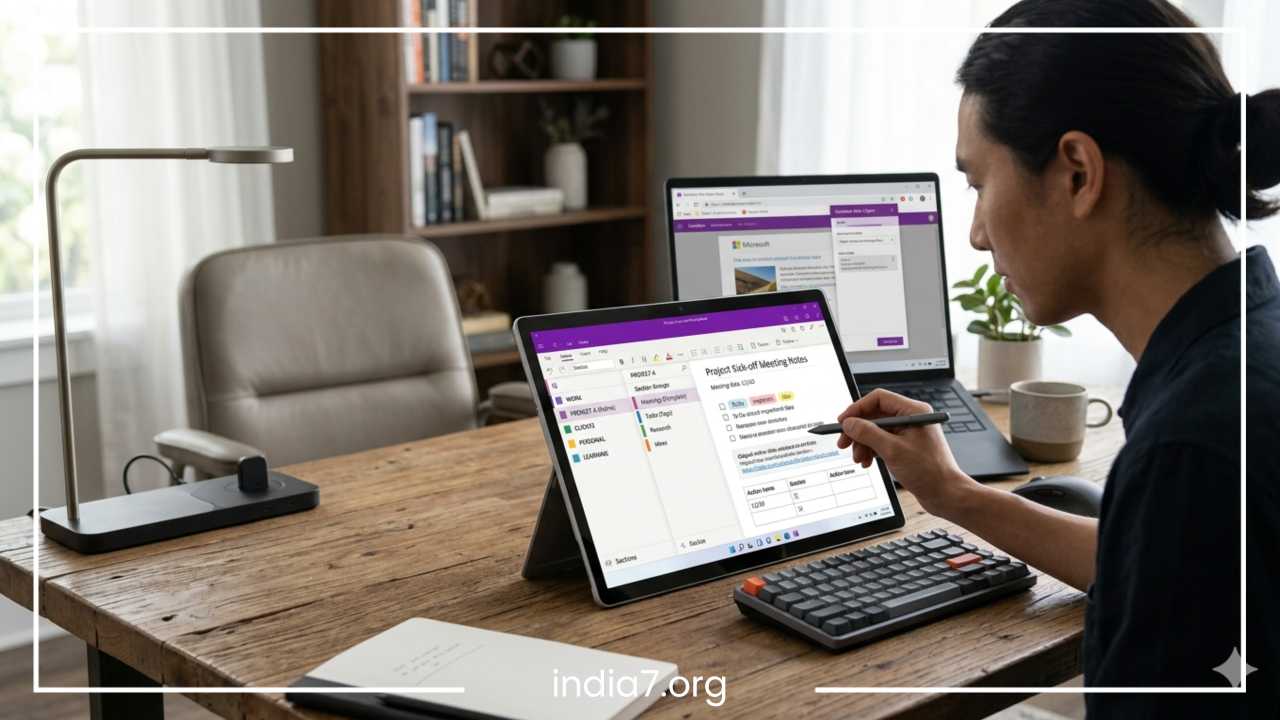
Top OneNote Organization Methods
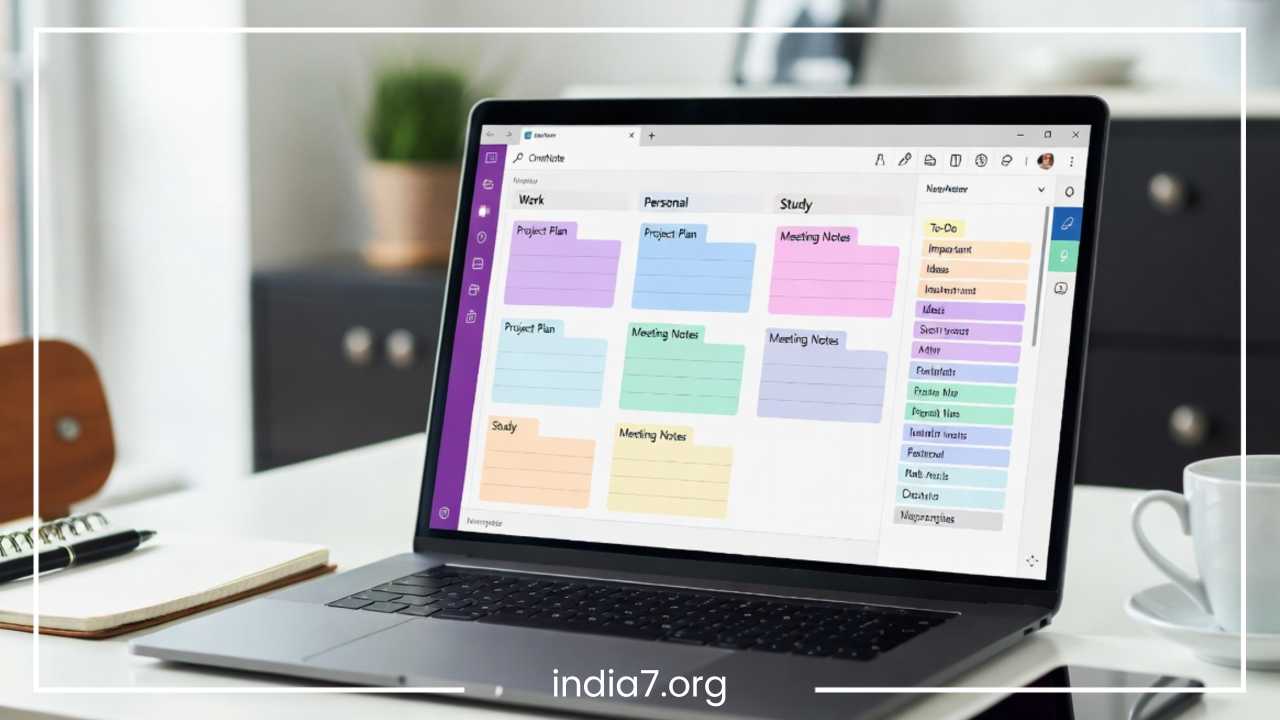
Top OneNote Organization Methods for Better Productivity
In an era dominated by information overload, digital note-taking has transformed from a convenient luxury into an absolute necessity. Among the various tools available for managing digital knowledge, Microsoft OneNote stands out as one of the most resilient, versatile, and widely adopted platforms. Its popularity spans across corporate environments, academic institutions, and personal creative spaces. The core appeal of OneNote lies in its freeform canvas model, cross-platform synchronization, and a deeply ingrained structural hierarchy that mimics physical binders. Unlike rigid, linear text editors, it allows users to type anywhere, draw, embed media, and clip web content with unparalleled freedom.
However, this exceptional flexibility carries a significant downside. Without a deliberate organizational framework, a OneNote account can rapidly degenerate into a digital landfill. Users frequently find themselves battling scattered notes, forgotten pages, and deeply buried snippets of critical information. The initial friction of not knowing where to save a thought often leads to procrastination, while the inability to retrieve a note during a critical meeting or study session results in massive productivity loss. The cognitive load of navigating a messy workspace drains mental energy that should be spent on execution, deep creative work, or strategic problem-solving.
This guide provides a comprehensive roadmap to regaining control of your digital workspace. Rather than prescribing a restrictive, one-size-fits-all solution, this article explores structured, proven organizational methods specifically tailored to OneNote. By understanding how to align the application’s native features with modern productivity frameworks, you can transform your notes from a chaotic archive into a dynamic engine for personal, academic, and professional success. Whether you are a corporate executive managing multiple cross-functional teams, a student tracking complex course syllabi, or an individual striving to streamline personal goals, the strategies outlined below will help you build a highly functional digital ecosystem.
Read: Trends in Portable Exhibition Stands
Understanding OneNote Structure
Before implementing any organizational methodology, you must thoroughly understand the foundational building blocks of OneNote. The application uses a distinct physical binder metaphor, which sets it apart from tag-heavy databases or flat file structures. Mastering this native architecture is a critical prerequisite for building an efficient system; attempting to force an incompatible organizational style onto OneNote often results in technical frustration and broken workflows.
The hierarchy consists of four primary structural tiers:
-
Notebooks: This is the highest level of organization. A notebook acts as an independent master file or a distinct physical binder. Everything you create lives inside a specific notebook.
-
Sections: Located within notebooks, sections function like color-coded tab dividers. They serve to separate broad topics or categories within a single major subject area.
-
Pages: Inside each section are individual pages. This is your actual workspace—the infinite, freeform digital canvas where you type text, insert tables, and sketch ideas.
-
Subpages: OneNote allows you to indent pages beneath a parent page, creating up to three levels of nested subpages. This feature is invaluable for breaking down complex topics into smaller, digestible components without cluttering the main section navigation.
This multi-tiered hierarchy allows for deep, nested categorization, but it requires careful planning. A common mistake made by beginners is establishing a structure that is either too flat or too deep. Creating a brand-new notebook for every minor project leads to excessive switching friction, as navigating between notebooks requires more clicks and loading time. Conversely, dumping hundreds of unrelated pages into a single section creates endless vertical scrolling, rendering the visual layout useless.
Another frequent pitfall is the failure to utilize subpages, leaving major project overviews sitting on the exact same visual hierarchy level as minor daily meeting notes. Understanding that notebooks should represent permanent life areas, sections should capture steady operational categories, and pages should hold actionable content will prevent these structural failures. By treating the hierarchy as an intentional filtering system, you ensure that your notes remain clean, intuitive, and scalable over long periods.
Read: Find the Success You Crave With the Help of a Business Coach
Notebook-Based Organization System
The Notebook-Based Organization System is the most intuitive approach for individuals transitioning from physical paper to digital documentation. This method relies on creating completely separate, dedicated notebooks for the primary macro-areas of your life. For most users, this involves establishing three core pillars: a Work notebook, a Personal notebook, and a School or Projects notebook. Each notebook operates as an isolated environment with its own set of distinct rules, confidentiality levels, and synchronization settings.
This system works exceptionally well for users who require strict psychological and structural boundaries between different areas of their lives. For instance, an employee handling proprietary corporate data can keep their occupational notes entirely separated from their personal fitness logs, journaling, or side-ventures. This separation reduces cognitive switching costs, preventing professional anxieties from bleeding into personal moments, and vice versa. It is also an ideal setup for students who want to close their academic notebooks during holidays to focus exclusively on personal hobbies.
Pros and Cons
The primary advantage of this method is simplicity. It requires very little cognitive effort to maintain because the destination for any piece of information is immediately clear based on life categories. It also simplifies sharing logistics: you can securely share an entire school notebook with a classmate without exposing your personal diaries or professional projects.
The downside, however, is the potential for siloed data. If a personal passion project suddenly transforms into a professional business venture, moving mass quantities of notes across notebooks can disrupt internal page links. Additionally, managing open notebook tabs across multiple devices can occasionally slow down navigation if the notebooks grow excessively large.
Example Setup
To visualize this method in practice, consider the following structural blueprint:
-
Work Notebook
-
Section: Administrative (Pages: Onboarding, Benefits, HR Policies)
-
Section: Team Meetings (Pages: Weekly Syncs, Quarterly Reviews)
-
Section: Project Alpha (Pages: Scope, Timelines, Deliverables)
-
-
Personal Notebook
-
Section: Fitness (Pages: Workout Routines, Meal Plans, Progress Tracking)
-
Section: Finances (Pages: Annual Budget, Investment Tracker, Savings Goals)
-
Section: Travel (Pages: Vacation Itineraries, Packing Lists, Flight Details)
-
-
School Notebook
-
Section: Calculus (Pages: Lecture Notes, Syllabus, Exam Study Guides)
-
Section: Physics Lab (Pages: Lab Reports, Formulas, Research Data)
-
Read: Business: Vision and Mission
PARA Method in OneNote
The PARA Method is a widely acclaimed digital organization framework developed by productivity expert Tiago Forte. It stands for Projects, Areas, Resources, and Archives. Unlike traditional category-based systems that organize information by topic, PARA structures information dynamically based on its current level of actionability. This actionable focus makes it a brilliant match for professionals, knowledge workers, and freelancers who deal with high volumes of fast-moving data.
The four components of PARA are defined by specific timelines and commitments:
-
Projects: Short-term efforts in your personal or professional life that have a concrete, definitive deadline and a specific, measurable outcome.
-
Areas: Ongoing realms of responsibility that require maintenance over time. There is no final deadline, but there is a standard of performance that you wish to uphold.
-
Resources: Topics of ongoing interest, reference materials, or research specialized fields that you might want to look up or utilize in the future.
-
Archives: Inactive items from the previous three categories. This includes completed projects, responsibilities you no longer hold, or resource topics that are no longer relevant.
Mapping PARA directly into OneNote requires a strategic decision regarding where to place the structural dividing lines. The most effective approach is to create a master notebook for each of the four PARA elements, using sections and pages within them to manage individual items.
Example Workflow
In this workflow, you would maintain four active notebooks in your sidebar:
-
1. Projects Notebook: Each active project gets its own dedicated section. For example, a section titled “Website Redesign” would hold pages for design inspiration, copy drafts, and developer communications. Once the website launches, that entire section is dragged out of the Projects notebook and dropped into the Archives notebook.
-
2. Areas Notebook: Sections here represent permanent responsibilities. A “Health” section might contain pages tracking annual doctor visits, while a “Direct Reports” section would hold ongoing 1-on-1 performance notes for your team members.
-
3. Resources Notebook: This notebook operates as a personalized encyclopedia. Sections are organized by topic, such as “Graphic Design Typography,” “JavaScript Code Snippets,” or “Tax Strategies.”
-
4. Archives Notebook: This serves as a storage vault. It holds completed project sections or defunct area sections, keeping your main workspace clean while ensuring you never lose historical data.
This dynamic restructuring dramatically improves productivity. When you open your OneNote workspace in the morning, your focus is channeled into the Projects notebook, where the most pressing work lives. It entirely eliminates the visual distraction of old, completed files or passive reading materials, creating an environment optimized for execution.
Tag-Based Organization System
While structural systems rely heavily on folders, notebooks, and physical boundaries, the Tag-Based Organization System takes a completely different path. It treats OneNote as a fluid, searchable database. This methodology prioritizes flat hierarchies over deep nesting, utilizing OneNote’s built-in and custom tagging features to categorize notes contextually, regardless of which page or section they reside in.
OneNote features a robust, native tagging engine located directly in the Home tab. It includes preset tags such as To-Do checkboxes, Important stars, Question marks, and Contact indicators. More importantly, the application allows users to create highly customized tags with unique icons and text labels. By applying these tags meticulously across your notes, you build an interconnected web of data that defies rigid folder restrictions.
For example, instead of creating a highly segmented folder structure to track a single client, you can create a flat section called “Client Notes.” Within that section, you might have pages spanning dozens of different subjects. By applying a custom tag named “Client Feedback” or “Pending Approval” directly to specific paragraphs or tables across multiple pages, you create a searchable index.
To harness the true power of this system, you must master the “Find Tags” feature. Clicking this button generates a centralized “Tag Summary” panel on the side of your screen. This tool aggregates every single instance of a tagged item across all sections and notebooks into a clean, actionable list. You can filter this summary to show only unchecked To-Do items, or focus exclusively on items tagged “Important” within the last week.
This method is highly recommended for professionals who work cross-functionally and find that their notes frequently fit into multiple categories simultaneously. A note on “Budget Adjustments” could easily belong to a specific project folder, a general finance folder, or a manager review folder. With tags, you can simply label the paragraph with tags for the project, finance, and manager, and pull it up instantly using the tag summary tool. This shifts the focus from where a note lives to what the note means, maximizing retrieval speed.
Section Group Strategy
As digital notebooks evolve and grow over years of continuous use, sections can easily become overcrowded. When a single notebook contains twenty or thirty distinct sections stretching horizontally across the top or vertically down the side, the interface becomes overwhelming. This is where the Section Group Strategy becomes an essential tool for clean visual design.
A section group is essentially a folder designed specifically to house other sections. It introduces an extra layer of organizational depth directly between the notebook level and the section level. By collapsing multiple related sections into a single group, you dramatically clean up your sidebar navigation, keeping your interface minimal and focused.
Consider a professional managing a corporate marketing department. Instead of overcrowding a single notebook with twenty isolated sections for every minor marketing channel, they can utilize section groups to build a tidy, structured system:
-
Marketing Operations Notebook
-
Section Group: Digital Advertising
-
Section: Paid Search
-
Section: Social Media Ads
-
Section: Display Networks
-
-
Section Group: Content Strategy
-
Section: Corporate Blog
-
Section: Email Newsletters
-
Section: Video Production
-
-
Section Group: Analytics & Reporting
-
Section: Monthly Traffic
-
Section: ROI Dashboards
-
-
This layout demonstrates when to use section groups versus when to avoid them. They are incredibly useful when you have a massive, permanent topic that naturally breaks down into distinct sub-categories that each require multiple pages. Grouping keeps these sub-categories bundled together logically.
However, you should avoid using section groups for short-term projects or low-volume topics. Nesting sections too deeply can create a “buried content” issue, where you have to double-click through multiple layers just to write a quick note. If a topic can be easily handled within a single section using subpages, skip the section group entirely to maintain a leaner, faster workflow.
Page Templates & Standardization
A frequent cause of digital disorganization is structural inconsistency. When every note page looks completely different—some starting with dates, others with raw bullet points, and some consisting of unstructured text blocks—finding specific information during a quick scan becomes incredibly difficult. The Page Templates and Standardization method solves this by introducing uniform layouts for recurring types of documentation.
OneNote features a powerful built-in template manager that allows you to apply pre-designed backgrounds, layouts, and structures to your pages. You can choose from a wide variety of academic, business, and blank templates, or easily design your own custom layouts and set them as the default style for any specific section.
Implementing standard templates across your notebooks offers substantial productivity benefits:
-
Saves Time: You no longer waste valuable minutes formatting tables, typing headers, or adjusting margins every time you create a new note.
-
Reduces Decision Fatigue: The template clearly outlines exactly what information needs to be captured, allowing you to focus your mental energy purely on the content itself.
-
Improves Visual Scanning: When every meeting note or lecture page follows the exact same visual layout, your eyes instinctively know exactly where to look to find action items, summaries, or dates.
Common Template Implementations
To maximize the benefits of standardization, consider creating and setting up three foundational templates within your workspace:
-
Meeting Notes Template: This template should feature a clean table at the very top for metadata, including Date, Time, Attendees, and Project Goal. Below the metadata, create three distinct sections: a main column for raw notes, a highlighted box on the right for critical decisions, and a dedicated checkbox list at the bottom for action items with assigned names and deadlines.
-
Study Notes Template: Perfect for academic courses or professional certifications. Based on the classic Cornell Note-taking System, this layout splits the page into a wide main column for detailed lecture notes, a narrow left margin for keywords and flashcard-style cue questions, and a broad box at the footer for a two-sentence summary of the page content.
-
Project Tracker Template: Designed for managing initiatives, this layout includes a visual progress bar or status dropdown at the top (e.g., Not Started, In Progress, Blocked). It should feature sections for high-level project objectives, key performance indicators, immediate milestones, and an area to link related resource pages.
Inbox & Capture System
One of the biggest friction points in digital note-taking occurs when you try to organize a note at the exact moment you capture it. If you are in the middle of a phone call or a fast-paced lecture, stopping to think about which notebook, section group, or folder a thought belongs to breaks your focus. The Inbox and Capture System solves this by separating the act of capturing information from the act of organizing it.
This system relies heavily on creating a single, dedicated section in your primary notebook titled “Inbox” or “Quick Capture.” This inbox functions as a temporary digital landing pad. Whenever a new idea strikes, a task arises, or you need to copy a snippet of text from a website, you dump it directly into this section without spending a single second worrying about formatting or long-term storage.
To make this system truly work, you must utilize OneNote’s quick-capture access points across your devices:
-
Quick Notes: Using the native keyboard shortcut (Windows Key + N), you can pop open a small, minimalist note window over any application you are currently running, allowing you to jot down an idea without even opening the main OneNote app.
-
Mobile Widgets: Placing a dedicated OneNote capture widget on your smartphone’s home screen allows for instant voice memos, photo captures, or quick text entries while you are on the go.
-
Web Clipper: The official browser extension lets you clip full articles, recipe ingredients, or research extracts directly into your designated inbox section with a single click.
The engine that keeps this entire system from collapsing into chaos is a strict, non-negotiable Weekly Review Process. Once a week—ideally on Friday afternoon or Sunday evening—you must sit down and completely clear out your inbox section.
During this review, you look at each captured page, decide on its final destination, apply appropriate tags, format it using a standardized template if necessary, and move it to its permanent location within your PARA or Notebook-Based system. If a note is no longer useful, you delete it immediately. This routine ensures that your active workspaces remain perfectly pristine, giving you total peace of mind that nothing important slips through the cracks.
Search & Tag Combos for Retrieval
An organization system is only as good as its retrieval mechanism. It does not matter how meticulously neat your sections look if it takes you five minutes of clicking through folders to find a specific piece of data when you need it. The ultimate goal of any productivity system is rapid retrieval, and combining OneNote’s advanced search capabilities with smart tagging strategies provides an incredibly powerful way to find information instantly.
OneNote boasts an exceptionally fast indexing and search engine that operates across your entire account. By pressing Ctrl + E, you activate a global search box that looks through every single notebook you own simultaneously. If you want to restrict your search to just the current page or section, pressing Ctrl + F focuses the search parameters locally.
What elevates OneNote’s search engine above standard text matching is its built-in Optical Character Recognition (OCR) technology. This system automatically scans and indexes the text hidden inside images, digital photos, screenshots, and embedded PDF documents. If you snap a photo of a whiteboard layout during a brainstorming session, OneNote converts those handwritten scribbles into searchable text within minutes, allowing you to find that specific whiteboard layout later simply by typing a keyword.
To maximize your efficiency, combine search terms with tags to filter out digital noise:
-
Keyword + To-Do: Searching for a project name alongside a To-Do tag instantly surfaces every uncompleted task tied to that specific project across your entire notebook ecosystem.
-
Scoping Filters: Use the search dropdown menu to actively narrow your queries from “All Notebooks” to “This Section Only” when dealing with common keywords that appear across multiple life categories.
-
Phrase Matching: Enclose multiple search words in quotation marks (e.g., “Q4 Marketing Budget”) to force the search engine to look for that exact phrase sequence, skipping irrelevant pages that happen to contain those individual words scattered across the canvas.
Focusing your organizational efforts heavily on optimized retrieval completely changes how you manage your notes. You no longer have to worry about finding the absolute perfect folder location for every single note page; as long as the page contains descriptive keywords, clear tags, or relevant images, OneNote’s search features will pull it up in a fraction of a second.
Advanced Tips for Power Users
Once you have established your core structural foundation, you can implement several advanced techniques to maximize efficiency and transform OneNote into a highly integrated productivity hub.
Internal Page Linking
One of the most powerful ways to build a personal knowledge base is through internal page linking, a technique that mimics the structure of modern web pages. By right-clicking any page or section and selecting “Copy Link to Page,” you can paste that hyperlink directly onto a completely different note canvas.
Alternatively, typing double brackets around any existing page title—such as [[Project Roadmap]]—instantly generates an automatic internal link. This technique allows you to build centralized dashboard hubs, wiki-style documentation tables, and comprehensive tables of contents that allow you to glide effortlessly between highly detailed subpages without using the sidebar menu.
Embedding Files and Media
Instead of using OneNote as a repository for plain text alone, utilize its capability to embed active digital assets directly onto your canvas. You can insert live Excel spreadsheets that update in real-time, embed interactive video explainers, and print full multi-page PDF documents directly onto the screen for inline annotation.
Using a digital stylus, you can sketch diagrams, highlight critical sentences, and jot down handwritten feedback directly on top of these embedded documents. This makes it an invaluable environment for academic research and collaborative design reviews.
Ecosystem Integration
OneNote integrates seamlessly with the broader Microsoft ecosystem, specifically Outlook and Teams:
-
Meeting Details: Clicking the “Meeting Details” button in the Home tab automatically pulls in all metadata from your Outlook calendar, including dates, locations, agendas, and attendee lists.
-
Outlook Tasks: Highlighting any sentence on your note canvas and selecting the Outlook Tasks flag immediately synchronizes that item with your corporate task list, creating automated reminders.
-
Teams Collaboration: Embedding a shared OneNote section directly into a Microsoft Teams channel allows an entire corporate department to edit project files simultaneously during live video calls.
Device Synchronization and Shortcuts
To maintain an agile workflow, ensure that OneNote is installed across all your active devices—laptops, tablets, and mobile phones—and configured to sync via OneDrive. This guarantees that a quick task captured on your phone while commuting is instantly waiting for you on your desktop when you arrive at the office.
Finally, commit core keyboard shortcuts to muscle memory to speed up your work. Pressing Alt + Shift + D inserts the current date instantly, Ctrl + 1 applies a quick To-Do checkbox to any line of text, and Ctrl + Alt + 1 or Ctrl + Alt + 2 quickly formats text into clean structural headings without touching your mouse.
Common Mistakes to Avoid
Even with the best intentions, it is easy to fall into bad organizational habits that degrade your system’s performance over time. Recognizing and avoiding these common pitfalls will save you from future digital cleanup sessions and ensure long-term productivity.
Overcomplicating the Structure
The single most common mistake is building an overly complex organizational hierarchy on day one. Users often get excited and create five levels of section groups, dozens of niche categories, and intricate color-coded tagging systems before they even write their first ten pages.
This creates immense maintenance friction. If your organization system requires more than five seconds of thought to determine where to save a note, it is too complicated. Keep your structure as flat and simple as possible in the beginning; allow complexity to grow naturally only when your volume of notes genuinely demands it.
Accumulating Too Many Notebooks
Creating a separate notebook for every minor topic or short-term project is a recipe for high navigation friction. Opening and closing notebooks constantly clogs up the user interface and slows down cross-notebook searches.
Instead, stick to a small handful of master notebooks representing permanent life areas, and rely on sections, section groups, and pages to handle individual projects or topics.
Neglecting the Review System
An organization system is not a permanent monument that stays clean on its own; it is a dynamic process that requires regular upkeep. Failing to dedicate time for a consistent weekly review allows your quick capture inbox to overflow, rendering it completely useless. Notes quickly grow stale, deadlines pass unnoticed, and old projects end up cluttering your active workspace. Treat your weekly review session as a non-negotiable appointment.
Ignoring Search Capabilities
Many users waste valuable time manually clicking through nested sections and subpages searching for a specific quote or link because they completely forget about OneNote’s global search engine. Do not let manual navigation slow you down. Get into the habit of using Ctrl + E as your primary entry point for pulling up older records, and trust the search index to do the heavy lifting for you.
Final Thoughts
Organizing Microsoft OneNote effectively is not about creating a beautifully rigid archive; it is about building a dynamic system that actively supports your cognitive workflow and accelerates your daily productivity. Whether you choose the structural clarity of the Notebook-Based System, the action-oriented flow of the PARA framework, or the fluid flexibility of a Tag-Based database, the ultimate goal remains exactly the same: reducing mental friction and finding your information precisely when you need it.
Do not feel pressured to adopt any single methodology in its absolute entirety. The real magic of OneNote lies in its flexibility, allowing you to easily combine separate elements from different strategies to build a personalized hybrid system. You might choose to structure your primary workspace around the PARA method, maintain a dedicated Quick Capture section as your inbox, and utilize custom tag combinations to handle fast, global searches.
Start building your optimized setup gradually. Begin by cleaning up your main layout, choosing standard templates for your recurring meetings or study sessions, and establishing a consistent review routine. By investing a small amount of intentional effort into managing your digital canvas, you will transform OneNote into an indispensable tool that keeps you organized, focused, and highly productive over the long haul.
Frequently Asked Questions
How do I structure my OneNote for maximum productivity?
Structuring your OneNote account for maximum productivity requires building a balanced framework that aligns with your primary daily activities. Start by establishing a small number of master notebooks based on broad life roles, such as work, personal finance, and academic study. Within each notebook, keep your section tabs limited to a maximum of ten active categories to prevent visual clutter across the application window. Use pages for individual entries, and utilize up to three tiers of nested subpages to keep highly detailed sub-topics bundled cleanly beneath a single parent topic. This prevents endless vertical scrolling while keeping your information logically structured.
What is the best way to organize OneNote for work and projects?
The best way to organize your professional notes is by implementing a framework tailored to actionability, such as the PARA method. Create four dedicated workspaces: one for active projects, one for ongoing core areas of responsibility, one for passive resource materials, and one for archived historical records. Within your active projects notebook, give each ongoing initiative its own section tab containing pages for meeting notes, timelines, and deliverables. Once a specific assignment wraps up completely, drag that entire section into your archives notebook to keep your main corporate dashboard entirely focused on immediate execution.
How to use OneNote tags effectively for task management?
To build a highly effective task management routine around tags, you must shift away from manual folder navigation and rely instead on OneNote’s centralized search functionality. Apply the native To-Do checkbox tag to actionable sentences directly as you type your notes during live meetings. Create custom tags for specific contexts or team members, such as “Awaiting Approval” or “Delegate to Operations.” Once your tags are applied, click the Find Tags button in the Home ribbon to generate a unified Tag Summary panel. This tool aggregates every single unchecked item from all sections into an interactive master task list that you can review and clear out regularly.
Can I search inside images and PDFs using Microsoft OneNote search?
Yes, OneNote features advanced, built-in Optical Character Recognition technology that scans and indexes text buried inside non-text files automatically. When you embed a multi-page PDF document, paste a quick screenshot, or insert a photo of a conference room whiteboard, the background indexing engine processes the visual data within minutes. When you activate global search by pressing Ctrl + E and type a specific keyword, OneNote will accurately surface and highlight that phrase even if it lives entirely inside an image asset or an attached document.
How do I set up a quick capture inbox system in OneNote?
Setting up a quick capture workspace involves separating the fast gathering of thoughts from long-term filing logistics. Create a dedicated section tab at the very top of your primary notebook and label it explicitly as your Inbox. Use cross-device shortcuts—such as the native Windows Key + N command for instant desktop quick notes, mobile home screen widgets for voice memos, and the official web clipper browser extension—to dump raw ideas, web clippings, and links directly into this inbox immediately. Schedule a recurring, fifteen-minute weekly review session to sort through the inbox contents, apply templates, and move items to their final destinations.