Best Productivity Tips for OneNote
Best Productivity Tips for OneNote: Organize Notes Like a Pro
In an information-driven world, our professional and personal success depends heavily on how efficiently we capture, process, and retrieve knowledge. Every day, we are bombarded with articles, meeting notes, project deadlines, random brainstorms, and personal to-do lists. Without a centralized, reliable system, this influx of data leads to cognitive overload, missed deadlines, and a persistent feeling of digital chaos.
Many professionals, students, and creators fall into common productivity traps when it comes to digital note-taking. They jot down critical details on physical sticky notes that get lost, or they scatter text files across multiple desktop folders. Some use their email inboxes as an impromptu archive, wasting valuable hours searching for a single conversation or attachment. Even those who have adopted digital note-taking applications often find themselves facing a different problem: a disorganized, chaotic mess of untitled pages and unstructured data that feels impossible to navigate.
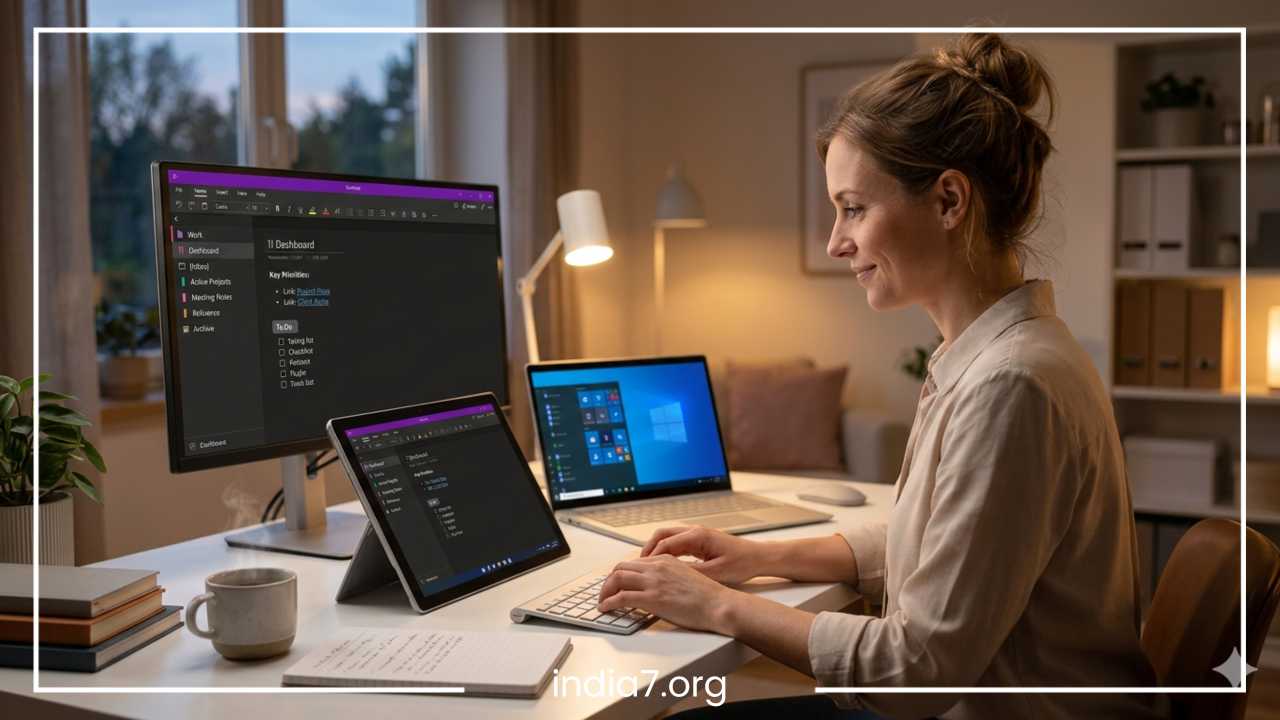
Microsoft OneNote stands out as one of the most powerful, flexible, and comprehensive tools available to combat this digital friction. Modeled after the classic three-ring binder, OneNote provides a freeform canvas combined with a rigid systemic hierarchy that can accommodate any organizational methodology. Whether you are managing complex corporate projects, organizing academic research, or building a personal repository of life goals, understanding how to configure and utilize OneNote effectively will fundamentally transform your workflow.
In this comprehensive guide, you will learn actionable OneNote productivity tips to turn this software into a highly organized, high-yielding digital workspace. We will cover everything from structuring your initial notebooks and deploying automated templates to leveraging advanced search tools, mastering custom tags, integrating with the broader Microsoft ecosystem, and building a sustainable digital note-taking habit. By applying these OneNote organization ideas, you can reduce mental clutter, save hours of manual administrative work, and manage your notes like an absolute professional.
Read: Adopting the Qualities of the Richest Men in the World
Start With a Smart Notebook Structure
The foundation of an efficient OneNote workflow is a highly intentional notebook structure. Because OneNote offers complete freedom over how you arrange your data, it is easy to default to an ad-hoc system where you create notebooks on a whim. This lack of planning quickly leads to fragmentation. To improve productivity with OneNote, you must design a structural framework that mirrors the distinct areas of your responsibility.
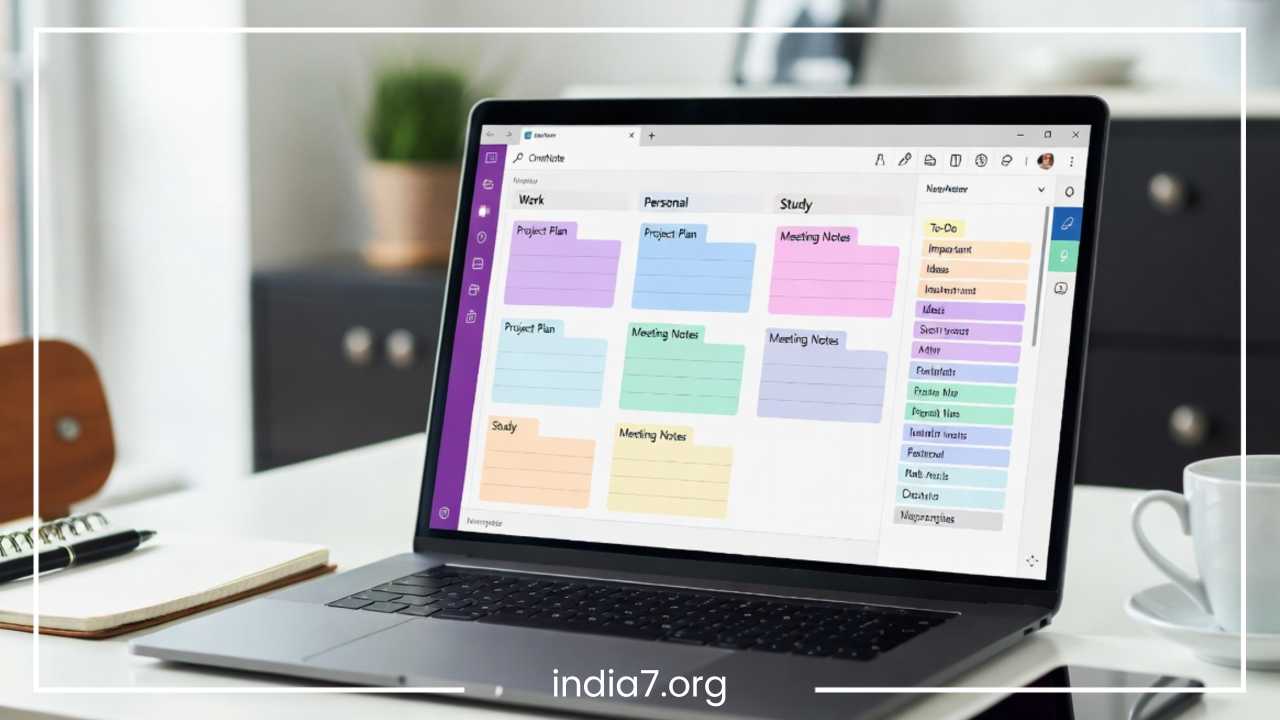
A highly effective approach is to separate your life into macro-level notebooks based on context. For most users, this involves maintaining three to four core notebooks: a Work Notebook, a Personal Notebook, a Study Notebook, and a specialized Archive or Sandbox Notebook.
Within a Work Notebook, your structural hierarchy should support your operational daily needs. Rather than creating a separate notebook for every single client or project, use OneNote sections to create distinct operational categories. For instance, you can establish sections for Management, Client Projects, Team Meetings, and Standard Operating Procedures. If you handle multiple high-value clients, dedicated section groups can house all relevant sections for a specific client, preventing your main navigation bar from becoming overcrowded.
For personal life management, a Personal Notebook serves as your digital home base. You can establish sections for Household Management, Financial Planning, Fitness and Health, Travel Itineraries, and Creative Hobbies. A Study Notebook, on the other hand, is indispensable for students or lifelong learners. Here, a brilliant OneNote organization strategy is to dedicate an individual section to each academic subject or professional certification course, with pages corresponding to specific lecture modules, reading assignments, and exam review packets.
When naming your notebooks, sections, and pages, consistency is paramount for seamless navigation. Implement clear, standardized naming conventions. For example, instead of naming a page “Notes,” use an ISO date format combined with a descriptive title, such as “2025-05-18 Project Alpha Kickoff.” This ensures that when your pages are listed chronologically or alphabetically, they follow a predictable, intuitive sequence.
Furthermore, capitalize on OneNote’s visual configuration by color-coding your notebooks and sections. Assign distinct, professional colors to separate buckets of work. You might choose a deep slate blue for professional corporate notebooks, a soft forest green for personal wellness and finances, and a warm terracotta for creative projects. This provides immediate visual cues, allowing your brain to switch contexts instantly when jumping between different areas of responsibility.
Read: Keys to Becoming a Good Manager
Use Templates to Save Time
One of the greatest enemies of efficiency is the blank page. Starting every meeting note, project overview, or daily plan from scratch introduces unnecessary cognitive friction and results in inconsistent formatting. Utilizing structured templates is one of the best OneNote tips to standardize your data collection, reduce preparation time, and ensure you never forget to document critical details.
Templates provide a reliable, predictable layout that speeds up both writing and reading. When your notes follow a rigid, familiar layout, your eyes naturally know where to look to find action items, decisions, or background references. This consistency is highly beneficial when reviewing historical entries weeks or months down the line.
Consider the diverse use cases where standardized templates can revolutionize your workflow:
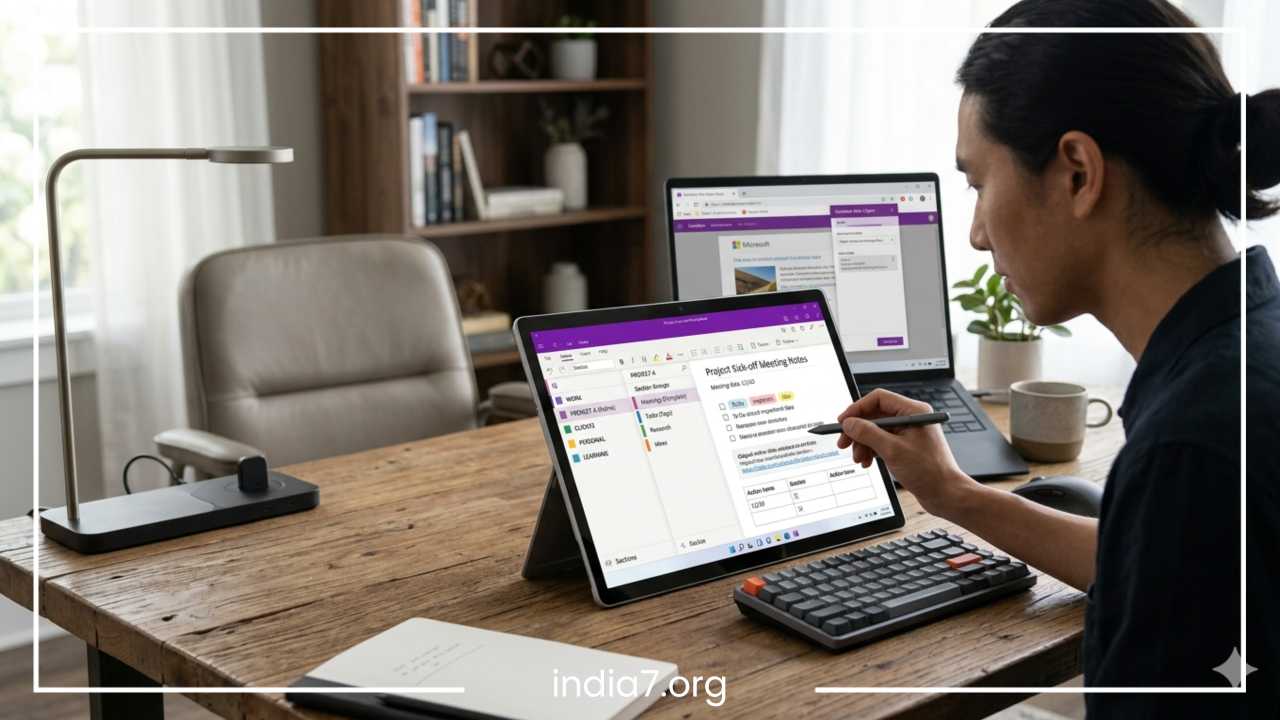
For meeting notes, a template should feature dedicated content blocks for the meeting objective, attendee list, chronological discussion points, a distinct table for action items with assigned owners, and a section for scheduling follow-up items.
For a daily planner, a template might include blocks for your top three strategic priorities, a time-blocking schedule, a running task list, and a small space for evening reflection.
Project tracking templates benefit from structured tables mapping out project phases, milestones, current blockers, risk assessments, and links to external collaborative assets.
In an academic or learning setting, a template built around the Cornell Notes system—separating pages into columns for main keywords, detailed lecture notes, and a concluding summary—greatly facilitates retention and study efficiency.
Content planning templates can break down creative ideas into working titles, target audiences, content outlines, search engine optimization keywords, publishing deadlines, and cross-platform promotional checklists.
To create your own reusable templates within OneNote, design a page with the exact layout, tables, headers, and placeholder text you desire. Navigate to the Insert tab on the ribbon, click on Page Templates, and open the Templates task pane. At the bottom of this pane, select “Save current page as template.” Give your template a concise, descriptive name. To maximize your efficiency, check the box that allows you to set this newly created template as the default layout for every new page created within that specific section. This automation completely eliminates setup time, instantly elevating your digital note-taking workflow.
Read: 5 Steps to Customer Complaints Management Success
Master Tags for Better Organization
While a clear notebook hierarchy is excellent for grouping related concepts, information often cuts across multiple projects and categories. This is where tags become an indispensable asset. By mastering OneNote’s tagging engine, you can transform a static notebook into a lightweight, dynamic task manager and an extraordinarily agile knowledge base.
OneNote features a robust suite of built-in tags designed to categorize contextual information on the fly. The To-Do tag inserts an interactive checkbox directly into your notes, allowing you to track tasks exactly where they are conceived. The Important tag, marked by a visual star, highlights critical data points, constraints, or decisions. The Question tag, designated by a question mark, allows you to flag items that require further clarification from colleagues or professors, while the Idea tag helps you instantly capture spontaneous flashes of inspiration during deep work sessions.
To truly customize OneNote for your personal workflow, you should design custom tags tailored to your industry or lifestyle. For example, a project manager can create custom context tags like “To Delegate,” “Waiting on Client,” or specific priority levels such as “High Priority” and “Low Priority.” A freelance writer might use tags like “Source Material” or “Quote.” To create these, click on the Tags dropdown menu on the Home tab, select “Modify Tags,” and build customized visual alerts that match your operational lexicon.
The true magic of tagging lies in OneNote’s ability to pull isolated bits of information together via the “Find Tags” feature. Clicking this button compiles every single tagged item across your entire workspace—regardless of which notebook, section, or page it resides on—into a centralized summary pane.
This summary pane can be grouped by tag name, section, date, or title. If you are preparing for a weekly 1-on-1 meeting with your supervisor, you can search for all items tagged with a custom “Discuss with Boss” tag, generating an instant meeting agenda. This capability prevents action items from being buried deep inside hundreds of pages of meeting minutes, solving a massive corporate productivity vulnerability.
Organize Notes With Sections and Subpages
A common structural mistake that degrades digital note-taking efficiency is keeping a flat organizational structure, where every page exists on the exact same hierarchical level. This approach results in an endless, overwhelming scrolling list of pages. To establish true digital order, you must exploit the relationship between sections, pages, and subpages.
Sections act as your high-level container categories, while pages represent individual concepts, meetings, or dates. Subpages allow you to nest related items underneath a primary parent page, creating a clean, collapsible accordion layout. OneNote allows you to create up to three levels of page hierarchy: a main page, a level-one subpage, and a level-two subpage.
This multi-tiered approach is remarkably effective for structuring long-term projects. Imagine a parent page titled “Project Horizon Product Launch.” Underneath this main page, you can create a level-one subpage for “Market Research,” which can further collapse to show level-two subpages detailing individual focus group interviews or competitor analysis matrices. Another level-one subpage could be dedicated to “Marketing Campaigns,” housing nested pages for email sequences, social media copy, and paid advertising assets.
In a client management context, this system works beautifully to keep dashboards clean. The parent page can serve as a Client Dashboard containing the contract details, primary contact info, and high-level milestones. Collapsed beneath it are individual subpages for every weekly sync meeting, creative brief, and technical specification sheet. This structure ensures that current, active information is immediately visible, while historical deep-dive documentation remains readily accessible but safely tucked away out of sight.
For academic subjects, a student can create a parent page for “Module 1: Macroeconomic Theory.” Every subsequent lecture note page, reading summary, and problem set answer key associated with that specific module can be indented as a subpage. When the module is completed, collapsing the parent page instantly hides dozen of pages, keeping the navigation sidebar clean, organized, and perfectly streamlined for upcoming modules.
Sync OneNote Across All Devices
A note-taking system is only as good as its availability. If your digital notes are locked on a desktop computer at your office, they cannot assist you when an inspired thought strikes during your evening commute or while reviewing project requirements at a client’s site. To fully maximize your OneNote workflow, you must establish seamless cloud synchronization across your entire device ecosystem.
By storing your notebooks on Microsoft OneDrive, OneNote syncs updates in real-time across your desktop software, web browsers, tablets, and mobile applications. This ubiquitous availability fundamentally changes how you interface with information. When you capture a fleeting business idea or snap a photo of a whiteboard on your smartphone while traveling or working remotely, that asset is instantly processed and waiting for you on your dual-monitor desktop workstation when you return.
Cloud synchronization also unlocks robust, real-time collaboration features. Notebooks can be shared with team members, business partners, or classmates, allowing multiple individuals to co-author meeting minutes, brainstorm project concepts, or build collective study guides simultaneously. OneNote handles multi-user inputs gracefully, highlighting changes made by different authors with their initials, ensuring absolute transparency in shared workflows.
To maintain maximum productivity when network connectivity is spotty or non-existent, such as during long flights or remote site visits, rely on OneNote’s powerful offline capabilities. OneNote caches a complete functional copy of your notebooks locally on your device. You can continue reading, editing, structuring, and writing notes completely offline. The moment your device detects an internet connection, OneNote automatically synchronizes the offline changes to the cloud in the background, preventing data conflicts and guaranteeing that your repository is always perfectly up to date.
Use Keyboard Shortcuts to Work Faster
For professionals looking to maximize their daily efficiency, minimizing reliance on the computer mouse is a highly effective tactic. Reaching for a mouse or trackpad to execute simple text formatting or navigation tasks introduces microscopic delays that accumulate into significant lost time over a long workday. Memorizing and executing essential keyboard shortcuts allows you to capture thoughts at the speed of mind.
To capitalize on this major opportunity to improve productivity with OneNote, focus on mastering a core set of highly impactful navigation, formatting, and structural shortcuts:
Essential Navigation and Interface Shortcuts
-
Ctrl + M: Opens a new, secondary OneNote window. This is incredibly useful when you want to view a project reference page on one monitor while actively taking notes in a separate notebook on another.
-
Ctrl + Alt + D: Docks the OneNote window to the side of your desktop screen, automatically resizing open web browsers or Word documents so you can research and take notes side-by-side without overlapping windows.
-
Ctrl + Page Up / Page Down: Moves sequentially up or down through your list of pages within the current section, allowing for rapid historical reviews.
-
Ctrl + Shift + G: Shifts focus immediately to the section navigation menu, letting you jump across sections using your keyboard’s arrow keys.
Rapid Formatting Shortcuts
-
Ctrl + 1: Applies or toggles a To-Do checkbox to the current line of text. Pressing it multiple times cycles through task completion states.
-
Ctrl + 2: Applies the Important star tag to flag critical data points.
-
Ctrl + 3: Applies the Question mark tag to highlight text needing clarification.
-
Ctrl + Alt + 1: Instantly applies the Heading 1 format to structure your page.
-
Ctrl + Alt + 2: Instantly applies the Heading 2 format for subheaders.
-
Ctrl + Alt + 3: Instantly applies the Heading 3 format.
Quick Task and Creation Shortcuts
-
Alt + Shift + D: Inserts the current date dynamically into your text.
-
Alt + Shift + T: Inserts the current local time.
-
Tab: When typed at the end of a word or sentence, instantly converts that text into a structured data table, generating columns automatically as you continue pressing it.
Integrating these shortcuts into your daily mechanical routine completely eliminates layout friction. Instead of searching through multi-layered ribbon menus to find a specific tag or header option, your fingers execute the commands instinctively, keeping your focus entirely on the substantive content of your notes.
Improve Search and Retrieval of Notes
The ultimate test of any digital organization framework is not how easy it is to save information, but how quickly you can retrieve it when a high-pressure situation demands it. OneNote features a world-class indexing and search infrastructure that ensures you can find information instantly, completely eliminating the time-wasting ritual of digging manually through folders and pages.
OneNote’s fundamental search mechanism is accessed via Ctrl + F (to search within the current page) or Ctrl + E (to search globally across every notebook you have open). The global search engine goes far beyond simple exact-match text strings. It employs sophisticated contextual matching, highlighting your search terms dynamically across your entire structural layout.
One of OneNote’s most powerful productivity features is its native Optical Character Recognition (OCR) capability. When you paste an image, a PDF document, or a screenshot into a page, OneNote automatically processes the graphic asset in the background, indexing any embedded text it discovers. If you take a screenshot of an administrative error code or a slide from a corporate presentation, typing keywords from that image into the search bar will pull up the exact page containing the graphic asset.
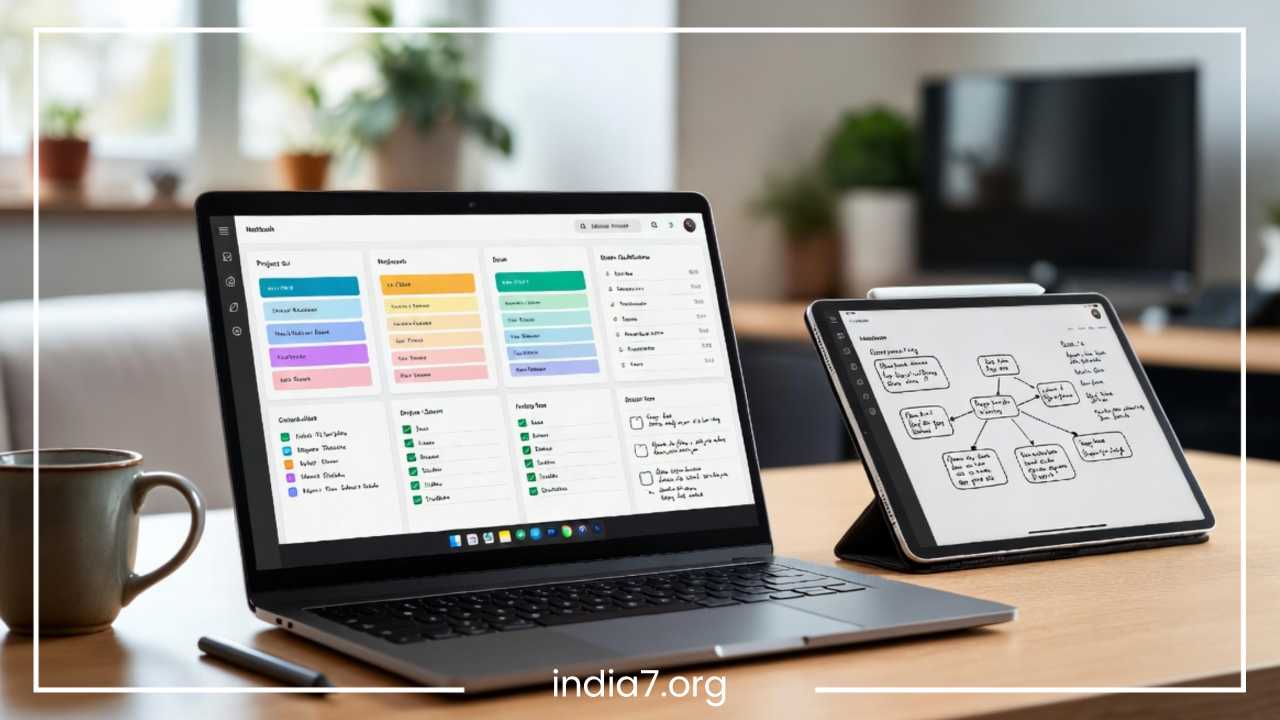
This OCR engine extends brilliantly to handwritten notes. If you prefer utilizing a digital stylus on a tablet or Microsoft Surface device to sketch out mind maps or write handwritten notes during seminars, OneNote’s ink-recognition algorithms index your handwriting. You can search for your handwritten concepts just as easily as typed text, combining the cognitive benefits of tactile handwriting with the unparalleled retrieval speeds of a digital database.
To search effectively and refine your results, leverage advanced search syntaxes. Use quotation marks around phrases to find exact wording, such as “third quarter budget constraints.” If your search returns too many results, use the search pane’s built-in filter dropdown to restrict the scope from “All Notebooks” down to “This Section” or “This Page,” or sort the results by “Date Modified” to instantly surface the most relevant, up-to-date documentation.
Integrate OneNote With Other Microsoft Tools
OneNote does not operate in a vacuum; it serves as a central hub within the larger Microsoft ecosystem. By intentionally integrating OneNote with the productivity tools you already use every day—such as Outlook, Teams, To Do, and Word—you can build automated workflows that eliminate repetitive manual data entry.
The synergy between OneNote and Microsoft Outlook is a massive time-saver for corporate professionals. By using the “Meeting Details” feature in OneNote, you can link an Outlook calendar event directly to a blank OneNote page with a single click. This action automatically imports the meeting date, time, location, invitation link, agenda description, and a complete roster of attendees.
During the meeting, you can check off attendees as they arrive and document notes. Furthermore, if you write down action items on this page, you can highlight the text and click “Outlook Tasks.” This instantly synchronizes the action item with your Outlook task list and your Microsoft To Do application, syncing deadlines, reminders, and tracking states across platforms.
For modern remote and hybrid teams operating within Microsoft Teams, OneNote serves as a phenomenal collaborative backbone. You can embed a shared team notebook as a dedicated tab directly at the top of a Teams channel. This allows team members to view project dashboards, shared resources, and internal documentation without ever leaving the communication workspace, ensuring that everyone operates from a single source of truth.
When transitioning from research to deep-form generation, the integration between OneNote and Microsoft Word streamlines your writing. If you have compiled extensive data points, customer quotes, and structural outlines within OneNote, you can use the built-in “Export” function to convert an entire OneNote page or section directly into a fully formatted Word document. This seamless transition allows you to jump from raw information gathering to polished corporate reporting without losing structural integrity or formatting.
Capture Information Quickly
A core tenet of personal productivity is that your mind is for having ideas, not for holding them. When you attempt to remember every data point by sheer willpower, you exhaust your cognitive energy. To stay focused and productive, you need a mechanism to capture information fast, moving it out of your head and into your trusted system.
OneNote provides an array of rapid-capture tools designed to intercept information the moment it appears:
The Microsoft OneNote Web Clipper browser extension is an indispensable asset for digital note-taking. When researching online, the Web Clipper allows you to save an entire web page, a cleaned-up “article view” that strips out distracting ads and sidebars, a visual screenshot, or a specific bookmarked snippet directly to a designated notebook section. It automatically attaches the source URL, ensuring you can always return to the primary origin text to verify facts or cite literature.
When you are on the move, mobile scanning via the integrated Microsoft Lens technology inside the mobile OneNote app turns your smartphone camera into a high-powered scanner. You can snap crisp, perspective-corrected photos of whiteboards, paper receipts, business cards, or physical documents. The software automatically crops, straightens, and cleans up the image, embedding it cleanly into your notes as an editable, searchable digital file.
For hands-free capture during site visits, commutes, or brainstorming walks, utilize the built-in voice notes feature. Recording audio notes directly onto a page allows you to narrate your thoughts effortlessly. In modern versions of OneNote, the voice dictation engine converts your spoken words into structured text in real-time, complete with automated punctuation, allowing you to draft content completely hands-free.
Finally, the Quick Notes feature acts as the digital equivalent of a physical sticky note pad. By pressing the Windows Key + Alt + N keyboard shortcut on your PC, a small, stripped-down OneNote window pops up instantly over whatever app or browser you are currently using. You can rapidly type a phone number, a tracking code, or a sudden realization, close the window, and return to your work. OneNote automatically routes these entries into a dedicated “Quick Notes” section, safely storing them until you are ready to review and process them later.
Use OneNote for Project Management
While dedicated project management tools are excellent for tracking highly structured database rows or complex engineering pipelines, they can often feel overly restrictive for creative management, entrepreneurial ventures, or multi-disciplinary initiatives. OneNote excels as a flexible project management platform, offering complete customization over how you visualize project execution.
The most effective way to manage a project in OneNote is to design a centralized Project Dashboard on the primary page of a section. At the top of this dashboard, state the project’s core objective and key performance indicators in bold, clear formatting. Below the objective, build a structured tracking table mapping out specific milestones, target deadlines, current health status indicators, and designated project leads.
Beneath this dashboard table, you can construct interactive progress checklists. By using OneNote’s native task check-boxes, you can group tasks into sub-phases (e.g., Phase One: Initiation, Phase Two: Execution, Phase Three: Launch). Because the canvas is freeform, you can place a checklist side-by-side with a visual mood board, an embedded financial spreadsheet, or a list of supplier contact details.
To enhance team collaboration within a project notebook, establish clear assignment protocols. When multiple team members are updating a shared project space, you can create a dedicated column within your task tables titled “Owner.” Team members can use custom tags or highlight text in their assigned colors to show completion status. Combined with OneNote’s “Page Versions” history—which allows you to right-click a page and view exactly who edited what text at any specific hour—you maintain accountability and clarity throughout the lifecycle of the project.
Declutter and Maintain Your Notebooks
A digital note-taking system is not a static museum; it is a living, breathing environment. Over time, even the most meticulously planned OneNote workflow can accumulate outdated data, finished project pages, duplicate files, and irrelevant web clippings. Without consistent maintenance, this accumulation leads to digital entropy, slowing down your search queries and increasing visual clutter.
To combat digital friction, adopt a strict habit of digital decluttering. The bedrock of this maintenance workflow is the implementation of a Weekly Review routine. Set aside 15 to 20 minutes at the end of every week—such as Friday afternoon—to audit your active notebooks.
During this weekly review, perform the following tasks:
First, process your Quick Notes section. Review the scattered thoughts, links, and text fragments you captured in haste during the week. Move them to their proper long-term home notebooks and sections, or delete them if they are no longer useful.
Second, look over your active To-Do checkboxes. Check off completed items, and migrate uncompleted tasks to the upcoming week’s planner page or update their priority tags.
Third, consolidate duplicate notes and prune redundant screenshots or outdated drafts.
When a major project concludes or an academic semester ends, do not leave those sections cluttering your active workspace navigation panels. Instead, build a dedicated “Archive Notebook.” Right-click the completed section or section group and move it entirely into the Archive Notebook. This keeps your active workspace incredibly lean, focused exclusively on current commitments, while preserving historical knowledge in a separate, searchable archive that can be opened instantly if the need arises.
Advanced OneNote Productivity Tips
Once you have mastered the foundational structures and habits of OneNote, you can introduce advanced optimization strategies to elevate your productivity. These sophisticated techniques turn OneNote from a basic text repository into a robust personal knowledge management network.
Hyperlinking Between Notes
OneNote allows you to create internal hyperlinks connecting pages and sections together. By right-clicking any page or section and selecting “Copy Link to Page,” you can paste that link onto a completely different page.
This capability allows you to construct a comprehensive web of interconnected ideas, mimicking the structure of a personal Wiki or a “Second Brain” system. You can build a central “Index Page” for a major project that contains descriptive summary text with direct inline hyperlinks to dozens of supporting research pages, technical specifications, and meeting notes, allowing you to jump across contexts with a single click.
Efficient File Embedding
Instead of cluttering your local computer hard drive with random project attachments, embed documents directly onto your OneNote pages. You can insert files as live printouts or as file attachments.
Inserting a file as an attachment embeds the actual file data directly inside the OneNote file notebook package. This means that if you open that notebook on another device, the underlying Excel sheet or PDF document travels with it, providing absolute mobility.
Utilizing Tables Efficiently
Tables in OneNote are remarkably agile. Beyond simple data alignment, you can sort table data alphabetically or numerically with a single click via the Table Tools ribbon menu.
If a table grows too complex or requires mathematical computations and graphing, you can click “Convert to Excel Spreadsheet.” This instantly converts your simple OneNote table into an active Microsoft Excel sheet embedded directly on the canvas, combining OneNote’s note context with Excel’s immense computational power.
Password-Protecting Sensitive Sections
Information security is a critical component of digital note-taking. If you maintain sections containing highly sensitive personal data, financial accounts, proprietary business formulas, or client contracts, protect them with military-grade encryption.
Right-click the sensitive section tab, select “Password Protect this Section,” and establish a strong password. OneNote will automatically lock the section after a designated period of inactivity, ensuring your confidential data remains completely safe from prying eyes even if your device is left unattended.
Harnessing Artificial Intelligence Tools
Modern iterations of OneNote integrate deeply with artificial intelligence assistants, such as Microsoft Copilot. By leveraging AI within your notebooks, you can instantly summarize long, dense research pages, automatically extract action items from messy meeting notes, reformat unstructured text into clean tables, and generate creative brainstorming outlines based on your historical notes. This intelligent layer drastically reduces the manual effort required to analyze and synthesize complex information.
Common Mistakes to Avoid
When building out a digital note-taking system, it is highly valuable to look out for common implementation pitfalls. Awareness of these strategic errors can save you from hitting organizational dead ends that cause users to abandon digital note-taking altogether.
-
Overcomplicating the Notebook Structure: The most frequent mistake is creating too many granular notebooks or nesting sections infinitely deep right from day one. When your structure is overly complex, you face constant decision anxiety every time you want to write a note, wondering exactly where it belongs. Keep your top-level structure flat and lean; allow structure to grow organically as data accumulates.
-
Creating Too Many Separate Notebooks: Maintaining twenty different notebooks for minor individual tasks creates massive friction. It forces OneNote to constantly manage data synchronization pipelines across dozens of files, which can degrade app performance. Stick to a few core notebooks divided internally by sections and section groups.
-
Ignoring and Underutilizing Tags: Simply writing text without tagging key takeaways, tasks, or open questions turns your notebooks into a passive graveyard of text. Without tags, you lose the ability to generate automated agendas or compile running task lists, stripping OneNote of its lightweight task management capabilities.
-
Neglecting Regular Review Habits: A digital system is only as good as its maintenance. If you skip your weekly digital decluttering, your workspace will rapidly accumulate noise, making search operations less precise and causing you to lose trust in the accuracy of your tracking sheets.
-
Relying on Poor, Vague Naming Systems: Naming a page “Meeting” or “Ideas” forces you to open the page to find out what it contains. Vague naming formats completely break your visual navigation flow. Commit to descriptive, date-stamped naming structures across every single notebook page.
Final Thoughts
Transforming your digital note-taking from a disorganized, reactive mess into a highly structured, proactive knowledge base does not happen overnight. It requires a shift from viewing notes as passive records to treating them as an active, strategic workflow. By implementing a smart notebook structure, deploying automated templates, mastering contextual tags, and connecting OneNote to the wider Microsoft productivity ecosystem, you build a dependable system that actively supports your daily execution.
The secret to long-term organizational success is to start simple. Do not try to implement every single advanced configuration, template, and shortcut instantly. Begin by setting up your core notebooks, clean up your naming conventions, and establish a consistent habit of capturing information quickly. As these foundational habits become second nature, gradually layer in advanced tips like internal linking, custom tags, and automated Outlook integrations.
By making small, iterative enhancements to how you organize OneNote, you will unlock immense returns in personal and professional efficiency. You will spend far less time hunting for lost details and vastly more time executing high-value work. Commit to building a consistent, intentional digital note-taking habit, and watch your productivity soar as you manage your notes like a seasoned professional.
Frequently Asked Questions
How do I organize OneNote for maximum productivity?
To organize OneNote for maximum productivity, adopt a “macro-to-micro” hierarchy. Limit your top-level setup to a few core notebooks representing major life or work domains (such as Work, Personal, and Archive). Within each notebook, use sections as broad category buckets and pages for specific topics. Most importantly, maximize your workspace by nesting detailed notes or chronological entries as subpages beneath a main parent page to keep your sidebar clean and highly scannable.
What are the best OneNote tips for business professionals?
The best OneNote tips for business professionals involve automating meeting administrative work and task tracking. Use the integrated Outlook Meeting Details feature to instantly pull calendar data, invitee lists, and agendas into your notes. Pair this with Microsoft To Do sync by highlighting action items and turning them into Outlook Tasks. Additionally, use the global search keyboard shortcut (Ctrl + E) to scan across all open notebooks instantly during high-pressure situations.
How to use OneNote as a task manager or to-do list?
You can easily transform OneNote into a lightweight task manager by leveraging its robust tagging engine. Use the built-in To-Do tag (Ctrl + 1) to insert interactive checkboxes directly into your project meeting notes. To review your outstanding responsibilities, click on the “Find Tags” button on the Home tab. This aggregates every unchecked task box across all your separate pages and notebooks into one centralized, actionable summary pane.
Can OneNote search text within images and handwritten notes?
Yes, OneNote features advanced, built-in Optical Character Recognition (OCR). When you drop a screenshot, digital photo, or PDF into a page, OneNote automatically indexes any text found within the image in the background. It applies the same indexing to handwritten digital ink notes, allowing you to use the standard search bar (Ctrl + F or Ctrl + E) to instantly locate keywords within graphics, whiteboard scans, and handwriting sketches.
How do I create a second brain system using Microsoft OneNote?
Building a “Second Brain” or a digital knowledge management system in OneNote relies on interconnected internal hyperlinks. Instead of leaving notes isolated, right-click any page or section and select “Copy Link to Page.” Paste these links across your workspace to map relationships between separate ideas. Creating a central “Index Page” or a dashboard with links to various sub-topics allows you to navigate your personal knowledge network like a personal wiki.
Is there a template feature to standardize note-taking in OneNote?
Yes. You can design a page layout with your preferred tables, headers, and placeholders, then save it as a reusable layout by navigating to the Insert tab and selecting Page Templates. To optimize your workflow further, check the option to set your new design as the default template for that specific section. Every time you create a new page, your structured layout will appear instantly, saving valuable setup time.