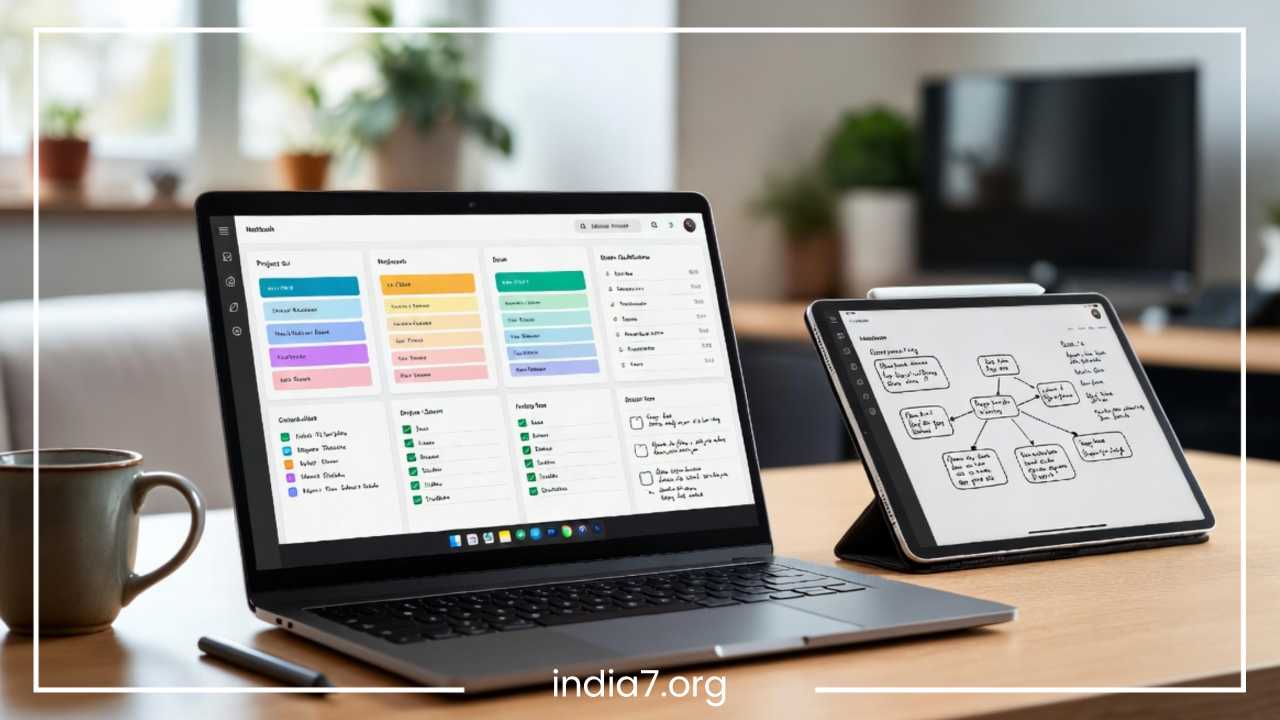
Best Advanced Note-Taking Techniques in OneNote
Best Advanced Note-Taking Techniques in OneNote | Productivity Tips & Strategies
Digital note-taking has evolved from a simple convenience into a critical infrastructure for managing modern information overload. As professionals, students, researchers, and project managers navigate an unceasing deluge of data, the ability to capture, process, and retrieve knowledge efficiently determines professional and academic success. Amidst a crowded marketplace of flashy, minimalist, or hyper-complex note-taking applications, Microsoft OneNote remains an absolute powerhouse of digital organization.
While millions of users open OneNote daily to type basic lists or back up meeting minutes, the vast majority only tap into roughly 20 percent of the platform’s actual capabilities. Treating OneNote as a digital typewriter ignores the sophisticated database architecture, optical character recognition (OCR) systems, and cross-application integrations hiding beneath its surface.
This comprehensive guide is designed for individuals who have mastered basic typing and section creation but find themselves buried under unorganized pages. By transforming your approach from basic text collection to implementing advanced OneNote tips, you can turn this application into a true system for personal knowledge management (PKM). Whether you manage corporate departments, balance complex academic semesters, or juggle diverse freelance clients, the following advanced note-taking techniques in OneNote will unlock a new tier of OneNote productivity and streamline your cognitive workflow.
Read: Tips for Vending Machine Business
Build a Powerful OneNote Structure
Effective digital organization relies on establishing an intuitive hierarchy. OneNote mimics traditional physical media while offering infinite spatial flexibility, yet users often stumble by overcomplicating their layouts or scattering information across too many detached files. To maximize OneNote organization, you must master its four-tier structural architecture: Notebooks, Section Groups, Sections, and Pages/Subpages.
Understanding where to separate information is the key to a frictionless workflow.
-
Notebooks should represent major, distinct life compartments or massive institutional boundaries, such as a business division, an entire degree plan, or a complete freelance business.
-
Section Groups act as folders within those compartments, bundling related tracks together.
-
Sections represent active projects or continuous streams of specific information.
-
Pages and Subpages hold the actual granular content.
To create an environment where information is found in seconds rather than minutes, consider implementing the PARA method within OneNote. Originally developed by productivity expert Tiago Forte, PARA stands for Projects, Areas, Resources, and Archives.
| PARA Category | OneNote Structural Implementation | Structural Purpose |
| Projects | Section Group: Active Initiatives | Contains sections for individual jobs with fixed deadlines and specific goals. |
| Areas | Section Group: Ongoing Responsibilities | Contains sections for continuous long-term maintenance items like Finance or Health. |
| Resources | Section Group: Knowledge Databases | Contains sections for reference material, swipe files, code snippets, or research text. |
| Archives | Notebook or Section Group: Inactive items | Houses completed projects or outdated resources to keep current workspaces completely clean. |
Let us look at how different user personas should map this advanced framework across OneNote:
Academic/Student Setup
Create a single notebook labeled Academic. Use Section Groups for each individual semester. Within each semester’s Section Group, build individual Sections for every course code. Use Pages for specific lecture dates, and leverage Subpages to attach reading summaries, assignment rubrics, and exam prep directly beneath the relevant lecture notes.
Corporate/Business Setup
Establish a notebook for your Department or Organization. Use Section Groups to partition distinct client accounts, large product lines, or individual team members. Use Sections for tracking specific monthly deliverables, recurring staff meetings, and standard operating procedures (SOPs). Pages serve as the active workspaces for individual agenda items and strategic brainstorms.
Freelancer/Agency Setup
Dedicate a single notebook to Active Clients. Every section represents an individual client name or contract. Pages within the section track project scopes, design brief feedback, and invoicing timelines. Use Subpages to group specific asset revisions, ensuring old concepts stay stacked neatly beneath active goals.
A major organization mistake to avoid is nested over-structuring. Creating five tiers of subpages or spinning up a new notebook for minor tasks creates massive friction, making it painful to file quick notes. Keep your structure as flat as possible, relying on robust titles and clear naming conventions, such as using a standard Date-Topic format like Year-Month-Day Meeting Name for page headlines.
Read: What Should a CEO Do for a Small Business?
Use Tags Like a Productivity System
Basic note-taking uses tags merely as visual highlighters. Advanced OneNote task management, however, turns these tags into a dynamic relational database. Instead of treating text as a static block of words, power users utilize tags to build an interactive task manager directly inside their knowledge bases, allowing them to extract actionable tasks out of massive pages of raw notes.
While OneNote comes with a suite of built-in tags like To Do, Important, and Question, the real power comes from building a custom priority tagging system that aligns with your specific cognitive workflow. For those implementing a Getting Things Done (GTD) system, custom tags can act as contextual indicators or status flags.
Read: How to Cut Down on Start-Up Business Costs?
Creating a Customized GTD System
Design custom tags centered on contexts or energy levels rather than arbitrary topics. You can build tags such as Next Action for immediate execution, Waiting On for dependencies blocking your progress, or Deep Work for tasks requiring focused concentration.
To prevent tag bloat, implement a clear priority matrix. Limit your custom tags to a small set of highly distinct actionable indicators as shown in this tracking setup:
| Tag Level | Task Context | Active Work Item Example |
| Priority 1 | High Urgency / Immediate Focus | Finalize financial spreadsheet for executive review |
| Discuss with Team | Collaborative Agenda Items | Ask marketing team about updated asset delivery dates |
| Waiting On | Blocked / External Dependencies | Awaiting legal approval on third-party contractor agreement |
| Follow Up | Future Outreach Required | Check in with client regarding project scope approval |
The true power of this methodology becomes apparent when you utilize the Find Tags function found in the Home ribbon. This action opens the Tags Summary pane, which crawls across your entire digital library to compile tagged entries into a single workspace view. You can filter this summary by specific sections, section groups, or entire notebooks, and choose to display only unchecked items.
By selecting the Create Summary Page button, OneNote automatically generates a consolidated dashboard of your action items. Integrating this into a weekly review workflow allows you to instantly scan across separate client notebooks or academic courses, gather all stray action items, clear out checked tasks, and build an organized agenda for the upcoming week without hunting through hundreds of pages.
Master Linked Notes & Internal Linking
True personal knowledge management treats information not as a list of isolated data points, but as a dense, connected ecosystem. To build an efficient research repository, study guide, or corporate directory, you must step away from linear, chronological note-taking and master internal linking workflows. OneNote allows you to easily create wiki-style links and cross-reference pages, transforming your notebook into an interconnected knowledge web.
The absolute fastest way to build an internal link in OneNote is the bracket syntax trick. By typing double brackets around any existing page title, OneNote transforms that text into a live internal hyperlink. For instance, you can reference a project overview by typing [[Project Alpha Specifications]]. When you close the brackets, OneNote instantly links to that page. If the page title inside the double brackets does not exist yet, OneNote will automatically generate a brand-new page with that exact title in your current section, serving as an outstanding tool for real-time brainstorming and rapid wiki outline development.
For highly detailed technical documents, legal summaries, or lengthy research reports, linking purely to a page is not specific enough. In these cases, right-click on any individual paragraph, heading, or bullet point and select Copy Link to Paragraph. You can paste this hyperlink anywhere across your notebook, allowing you to build deep connections that leap directly to specific sentences or data blocks inside entirely separate notebooks.
Advanced Knowledge Network Workflows
-
Research Database: Write summary thoughts on a main thesis page, using paragraph links to connect individual observations directly back to source transcripts or raw data quotes located in your background research sections.
-
Client Documentation: Build a central index page for a client, using links to map historical timelines, project proposals, previous design audits, and individual meeting minutes into an easy to use directory.
-
Study Systems: Create high level concept maps for course topics, linking dense terms directly to detailed subpages containing technical breakdowns and specific diagrams.
By adopting this wiki-style organization technique, you eliminate the cognitive friction of searching through deep folder systems. Your notes naturally mirror your thought patterns, allowing you to move through complex projects by following logical, interconnected contextual pathways.
Advanced Search Techniques in OneNote
The ultimate measure of any digital note-taking system is not how easily you store information, but how quickly you retrieve it. When your notebook library grows to thousands of pages, standard keyword queries can fall short. Mastering advanced OneNote search tips allows you to pull precise information out of massive data piles instantly, saving hours of manual digging.
OneNote features a powerful search engine capable of parsing text far beyond standard typed words. Understanding and utilizing search modifiers is your first line of defense against information overload:
-
Quotation Marks: Searching for a specific phrase like
"marketing strategy outline"ensures the engine locates that exact sequence of words, rather than pulling every page containing the word marketing or strategy. -
Boolean Operators: Use capitalized operators such as AND, OR, and NOT to precisely filter your searches. For example, typing
"Project Alpha" NOT "Completed"isolates your active initiatives while filtering out archived text. -
Scoping Commands: Pressing Ctrl + E expands your search scope across every single notebook you own, while pressing Ctrl + F targets your search explicitly to the current page.
Beyond text queries, OneNote stands out due to its built-in Optical Character Recognition (OCR) engine. The software automatically scans images, receipts, whiteboards, and PDFs inserted into your notes, making the text within those images fully searchable.
| Source Media Type | OCR Search Behavior | Actionable Benefit |
| Whiteboard Photos | Indexes handwritten marker strokes | Recovers brainstorms from past meetings |
| Document Scans | Parses text from images and receipts | Eliminates manual typing of paper forms |
| Inserted PDFs | Maps vocabulary across all printed sheets | Makes locked text layouts fully interactive |
This OCR capability applies to handwritten inputs as well. The indexing engine constantly reads digital ink, making searchable handwritten notes fully accessible without requiring manual text conversion. Furthermore, if you record audio inside the application, OneNote can index phonemes, allowing you to run audio search for spoken keywords across your recordings, provided the audio feature is enabled in your search settings.
Finally, you can find misplaced files using the Recent Edits dropdown menu inside the History tab. This tool lets you view all changes made within specific timelines, such as today, yesterday, or the last 30 days. It sorts everything chronologically, providing a reliable safety net when you forget where you filed a quick note earlier in the week.
Use Templates for Faster Workflows
Starting every note from a blank white page introduces unnecessary decision fatigue and wastes valuable time. OneNote templates bring structural consistency to your workflows, ensuring you capture all necessary data points automatically. Whether you are running a business sync, compiling research fields, or tracking a project, standardizing your layouts helps you focus entirely on content rather than design.
To build a reusable template system, design a page with your ideal layout, including headers, tables, task lists, and recurring metadata blocks. Navigate to the Insert tab, click Page Templates, and select Save Current Page as Template at the bottom of the pane. You can choose to make this layout the default style for every new page added to that specific section, automating your structural filing.
Standardizing templates across teams reduces organizational friction and ensures everyone records notes uniformly. Different workflows benefit significantly from distinct, structured page designs:
Professional Meeting Template
A clean table at the top captures the Date, Time, Chair, and Attendees. Beneath that, a two-column table divides the main Discussion Topics from the immediate Action Items. A specific block at the very bottom is reserved exclusively for setting the Next Meeting Agenda and Deadlines.
Lecture Notes Template
The upper header tracks Course Name, Professor, Lecture Title, and Core Readings. The page body is split using a modified Cornell Note-taking layout: a wide right column for raw lecture text, a narrow left column for key concepts and active recall questions, and a bottom row dedicated to a high-level summary of the lecture.
Project Planning Template
This framework uses structured rows to outline Project Scope, Key Stakeholders, Milestones, and Resource Links. It includes an embedded, pre-tagged task matrix that allows project managers to assign tasks directly to team members right from the initial kickoff note.
Standardizing your templates keeps your notebooks clean and highly predictable. When every meeting or lecture follows an identical layout, your eyes instantly know where to look for action items or takeaways, drastically speeding up your information retrieval across large notebooks.
Handwriting, Ink-to-Text & Stylus Techniques
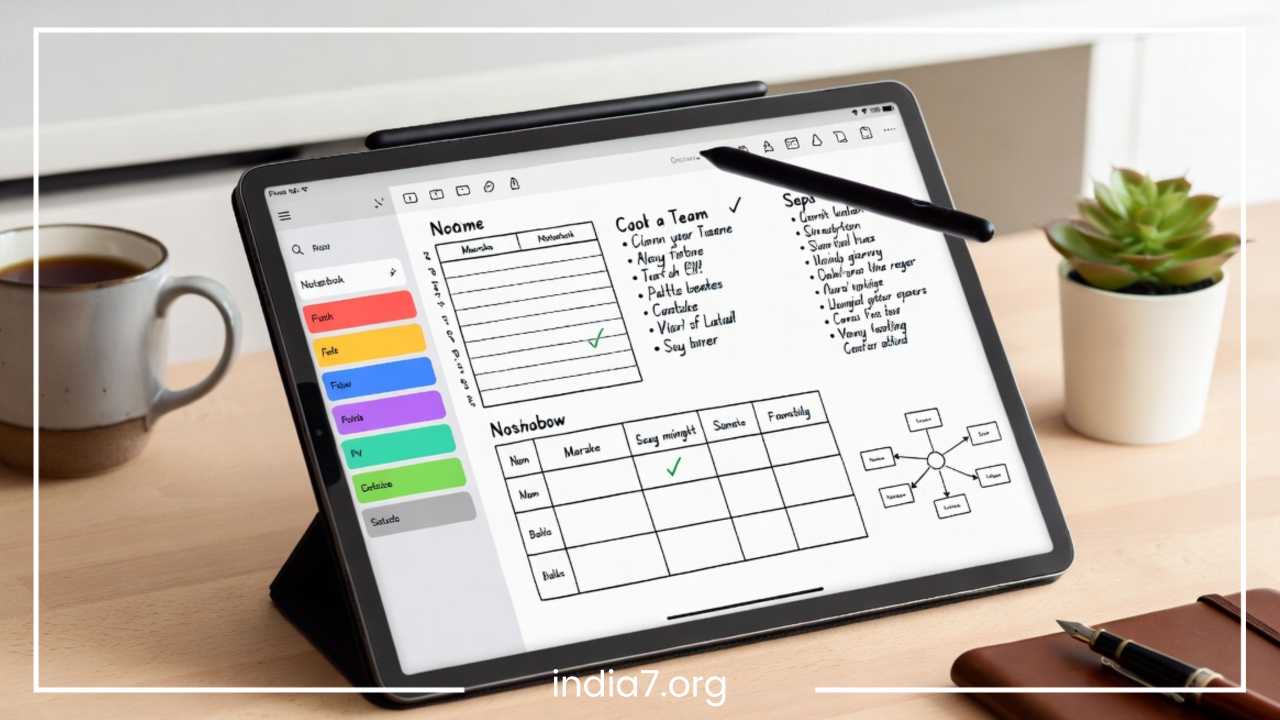
For tablet and 2-in-1 device users running hardware like the Surface Pro, iPad with OneNote, or touchscreen laptops, OneNote offers an exceptional digital canvas for handwritten notes. The platform successfully bridges the cognitive benefits of tactile handwriting with the power of a digital database, making it a premier environment for sketching, brainstorming, and editing.
To make the most of handwriting in OneNote, you should master the Ink to Text engine. By selecting handwritten inputs with the Lasso Tool, you can click Ink to Text on the Draw tab to instantly convert messy handwriting into clean, searchable digital typography. This tool handles complex text blocks while preserving your original paragraph spacing and list structures.
For technical fields, the Ink to Math engine functions similarly. It parses handwritten formulas, symbols, and algebraic structures, translating them into beautifully formatted mathematical equations that can be integrated directly into engineering reports or study guides.
Ink-to-Math Workflow Conversion Example:
Handwritten Input Canvas:
f(x) = x² + 2x + 1
Dynamic Transformation Action:
Select the equation with the Lasso Tool and click “Ink to Math.”
Digital Production Output:
f(x) = x² + 2x + 1
When it comes to reading and reviewing material, inserting document files as printouts is an incredibly efficient workflow. Go to Insert, select File Printout, and embed your entire PDF document directly onto the canvas. This allows you to use your digital stylus to highlight passages, write notes in the margins, and sketch arrows connecting related ideas. This approach mimics working with physical paper while keeping your notes backed up, searchable, and infinitely scalable.
For unstructured brainstorming sessions, treat OneNote as an infinite digital whiteboard. Using features like Draw with Touch and Snap to Shape allows you to quickly sketch out neat mind maps, process flows, and architectural diagrams. Your hand-drawn circles and boxes automatically convert into perfect geometric shapes, keeping your design work clean and professional.
Audio, Video & Screen Clipping Techniques
Text captures analytical details well, but it often misses the rich context of a fast-paced conversation, a dense lecture, or multi-faceted web research. Using advanced media capture allows you to build multi-dimensional notes that blend audio, text, and visual clippings into highly comprehensive reference material.
The most powerful feature for students and corporate recorders is Audio Recording Synchronization. When you start recording audio inside OneNote, the application binds your live typing to that exact timestamp in the audio track. The tracking behaves seamlessly across your session timeline:
| Tracked Audio Timeline | Typing Interaction Triggered | Captured Inline Notebook Reference |
| 01:15:00 | Audio Input Begins | (Recording active in background) |
| 01:22:40 | User Types Annotation | “Key project milestone adjustment explained here” |
| 01:45:12 | User Types Annotation | “Budget allocation approval discussion” |
When reviewing your notes later, hovering over any line of text reveals a small Play button. Clicking it plays the audio exactly as it sounded the moment you typed that note. This feature ensures you never lose the context behind a brief or ambiguous note taken during a fast-moving meeting.
For web research and content curation, the Screen Clipping tool and the OneNote Web Clipper extension are invaluable assets. Pressing Windows + Shift + S or using the dedicated clipping tool pulls raw visual data into your notebooks instantly.
| Clipping Mode | Data Captured | Ideal Use Case |
| Full Page Clip | Captures the entire article layout, text, and imagery. | Storing long-form industry reports or permanent blog essays. |
| Article Mode | Strips away ads, banners, and sidebars, extracting clean text. | Reading clean distraction-free articles and research papers. |
| Bookmark Mode | Pulls a small visual card, key summary blurb, and root link. | Building asset directories, tools links, or inspiration design boards. |
Crucially, every time you execute a screen clip from a web browser, OneNote automatically appends the source URL and the exact timestamp to the image entry. This tracking prevents the common frustration of finding an excellent chart or quote later on but having no idea what website it originally came from.
Collaborating in OneNote Like a Pro
While many treat notebooks as personal journals, OneNote excels as a shared workspace for distributed teams, academic study groups, and client agency collaborations. Moving away from email attachments and adopting real-time shared notebooks establishes a single, reliable source of truth for entire projects.
To set up a collaborative workspace, share your notebook via the Share pane, managing user permissions carefully:
-
Executive Steering Committee Dashboard
-
Permission Level: Shared using View Only privileges to prevent accidental structural shifts or deletion of corporate goals.
-
-
Core Project Delivery Workspace
-
Permission Level: Shared using full Can Edit access to allow team members to track daily updates and update task items.
-
When multiple users work in a notebook simultaneously, keeping track of contributions can become chaotic. To manage this, navigate to the History tab and select Find by Author. This filters changes by individual team members, allowing managers to see updates from specific contributors instantly. Additionally, clicking Hide Authors toggles initials next to altered sentences, immediately highlighting who wrote which update or task.
To keep group workspaces organized, establish a few clear collaboration best practices:
-
Page Ownership Fields: Use a clear metadata table at the top of shared pages to show who is leading the page and who is assigned to it, keeping team responsibilities completely transparent.
-
Version History Auditing: If a team member accidentally overwrites a complex technical layout, right-click the page and select Page Versions. OneNote saves past iterations, allowing you to compare changes and restore previous layouts in a click.
-
Real-Time Notification Management: Use the Unread Changes tool to quickly catch up on team activity. Any section or page updated by someone else appears in bold text, guiding your attention right to their latest work.
Integrate OneNote With Other Productivity Tools
An isolated note application creates an informational silo. True power users build a highly efficient productivity ecosystem by connecting OneNote directly to their wider workplace software stack. Deep integration with the Microsoft ecosystem and third-party automation tools allows information to flow across your applications completely automatically.
The connection between OneNote and Outlook provides a massive productivity boost for managing professional communications. By using the Meeting Details button, you can pull complete calendar metadata directly onto your page, automatically importing the meeting date, location, description link, and a full attendee checklist.
Conversely, you can highlight action items on your page, click Outlook Tasks, and instantly push them into your calendar or Microsoft To Do list, syncing your project notes with your master daily schedule.
Integrating your notebooks into broader platforms expands your workspace utility:
Microsoft Teams Integration
Pin critical project notebooks directly to shared channels as custom tabs. This gives your entire team instant access to central documentation, asset requirements, and ongoing meeting notes without ever needing to leave the primary communication channel.
Microsoft Loop & OneDrive
Embed modern Loop components to build responsive tables and living status trackers that update automatically across Word, Outlook, and Teams, keeping your documentation linked perfectly with external files.
Zapier & Power Automate
Build automated pipelines to streamline your administrative tasks. You can set up workflows that automatically generate a new OneNote page every time a client project kicks off in Asana, create backup pages for starred emails, or append captured voice memos directly into a running daily log section.
By turning these automation hooks on, you build a reliable OneNote productivity stack. OneNote moves from a passive storage bin to an active operational hub that handles administrative filing automatically, leaving you with more time to focus on your core work.
Advanced OneNote Productivity Habits
Tools are only as effective as the personal systems driving them. To truly maintain an advanced digital second brain, you must cultivate consistent habits around how you capture, process, and retrieve your daily information. Without structured routines, even the most beautifully designed notebook layouts will eventually break down into cluttered digital noise.
An essential discipline is separating your Capture phase from your Organize phase. When you are sitting in a fast-paced meeting or listening to a dense lecture, do not waste focus trying to perfectly file, color-code, or tag your notes. Instead, establish a streamlined staging routine:
The Processing Chain:
Raw Incoming Updates $\rightarrow$ Collected in an Inbox Staging Section $\rightarrow$ Evaluated during the Weekly Review Routine $\rightarrow$ Distributed to the PARA Architecture
Set aside fifteen minutes at the end of every week to process your Inbox. During this routine review, evaluate your raw notes and organize them systematically:
-
Move project pages out of the Inbox and file them into their proper PARA notebooks.
-
Clean up unstructured sentences, clarify abbreviations, and build clear headings.
-
Apply actionable Priority Tags or task markers to outstanding items.
-
Link new observations to existing pages using double-bracket wiki links (
[[Page Name]]).
Integrating these methodologies prevents your notebooks from becoming unmanageable collections of random thoughts. By combining structured frameworks like PARA, Zettelkasten, and Getting Things Done (GTD) into your regular routine, you ensure your workspace scales smoothly as your data grows, keeping your digital system efficient, clean, and completely reliable.
Common Mistakes Advanced Users Avoid
As note-taking systems grow more powerful, it is easy to over-engineer your environment. Advanced users understand that efficiency relies on simplicity. Avoiding common structural traps is vital for keeping your system fast, reliable, and easy to use.
Over-Organizing and Creating Too Many Layers
Building an overly complex web of notebooks, section groups, and endless subpages creates massive friction. If filing a simple note requires navigating through seven layers of nested folders, you will eventually abandon the system entirely. Keep your structures simple and flat, and let the search tool handle the heavy lifting.
Relying on Massive, Unsplittable Notebook Files
Stuffing a decade of dense high-resolution image printouts, audio clips, and endless sections into a single notebook file can degrade performance. Giant notebooks sync slowly and can occasionally run into conflicts. Split large portfolios into distinct topic-specific notebooks to ensure fast syncing and reliable data management.
Creating Too Many Custom Tags
Using thirty distinct custom tags for every possible nuance creates confusion. If you have to spend a minute deciding whether a line is a task, an idea, a follow-up, or an administrative note, your system is slowing you down. Limit your active tag library to a small set of highly functional indicators.
Ignoring Consistent Naming Conventions
Giving pages vague titles like Notes or Update makes your search dashboards confusing. Always use structured, descriptive page headlines that include clear project names or dates, allowing you to identify the right file at a glance in search lists.
Final Thoughts
Transforming OneNote from a simple scratchpad into a powerful digital second brain requires moving from passive data collection to intentional knowledge management. The application’s true value comes to life when its structural framework, tagging systems, internal links, and integrations work together as a single, cohesive system. Small, steady improvements to your digital workflow compound over time, drastically reducing cognitive fatigue and saving hours of searching.
You do not need to overhaul your entire digital library overnight. Begin by introducing these advanced workflows step by step:
-
Start by configuring a clear PARA structure for your active projects.
-
Build a few custom tags to streamline your task management.
-
Use bracket links to connect related pages into an intuitive wiki network.
-
Automate your workflows with structured templates and Outlook integrations.
By building these workflows into your daily routine, you will protect your focus, organize your knowledge cleanly, and turn OneNote into an elite hub for personal and professional productivity.
Frequently Asked Questions
How does OneNote’s personal knowledge management handle large PDF printouts without slowing down?
OneNote handles large PDF documents by rendering pages as flat image assets on an infinite canvas. To maintain fast performance across large files, avoid keeping dozens of extensive multi-page PDF printouts inside a single notebook page. Instead, distribute long documents across separate subpages grouped by chapter or section, which keeps your page load times fast and ensures smooth syncing.
Can I retrieve deleted sections if a notebook sync is interrupted?
Yes, OneNote features built-in safety measures to protect your work from accidental deletion or sync issues. Every notebook maintains its own Notebook Recycle Bin, accessible via the History tab. Deleted sections are retained there for 60 days before permanent removal. Additionally, the app automatically stores local page backups, allowing you to restore earlier versions of your work if a sync error occurs.
What is the most reliable way to sync complex notebooks across Windows, Mac, and iOS devices?
For reliable cross-platform syncing, house your master notebooks within OneDrive or SharePoint rather than storing files locally. Use clean, standardized page titles and avoid mixing massive video files into your text sections. Allow the application to complete its background sync before closing the software on mobile devices, ensuring your updates carry over smoothly across all platforms.