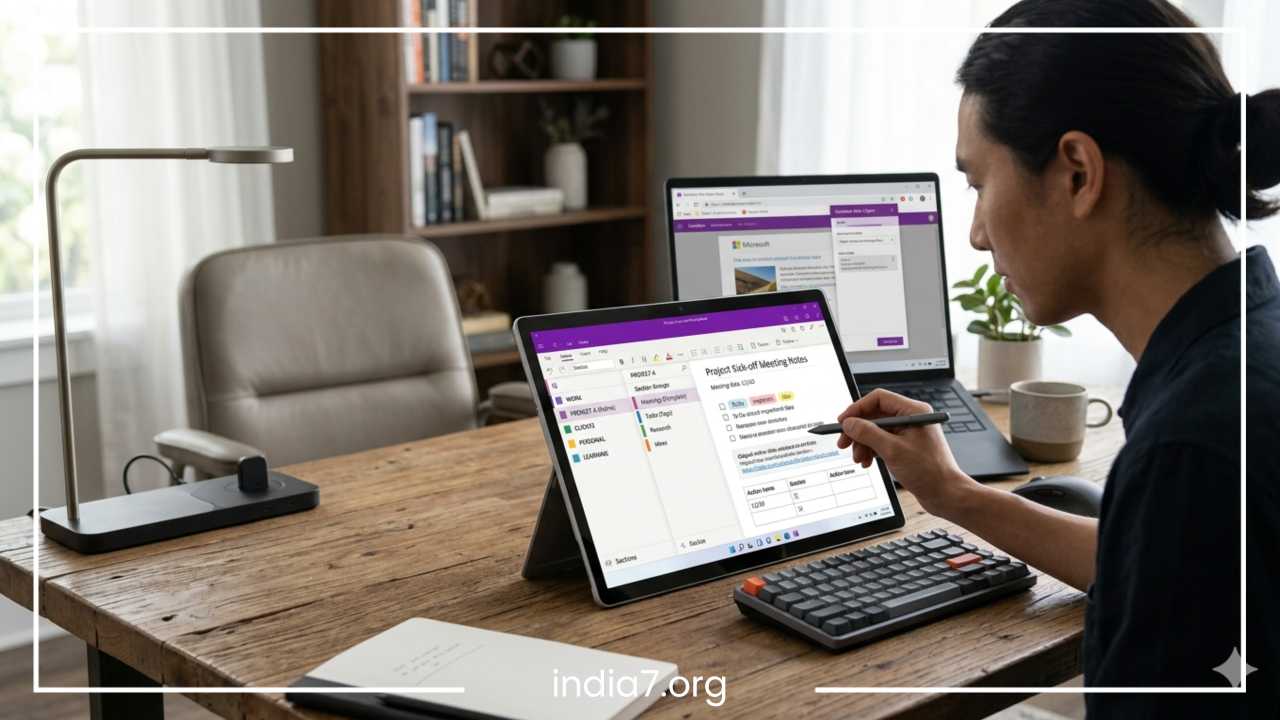
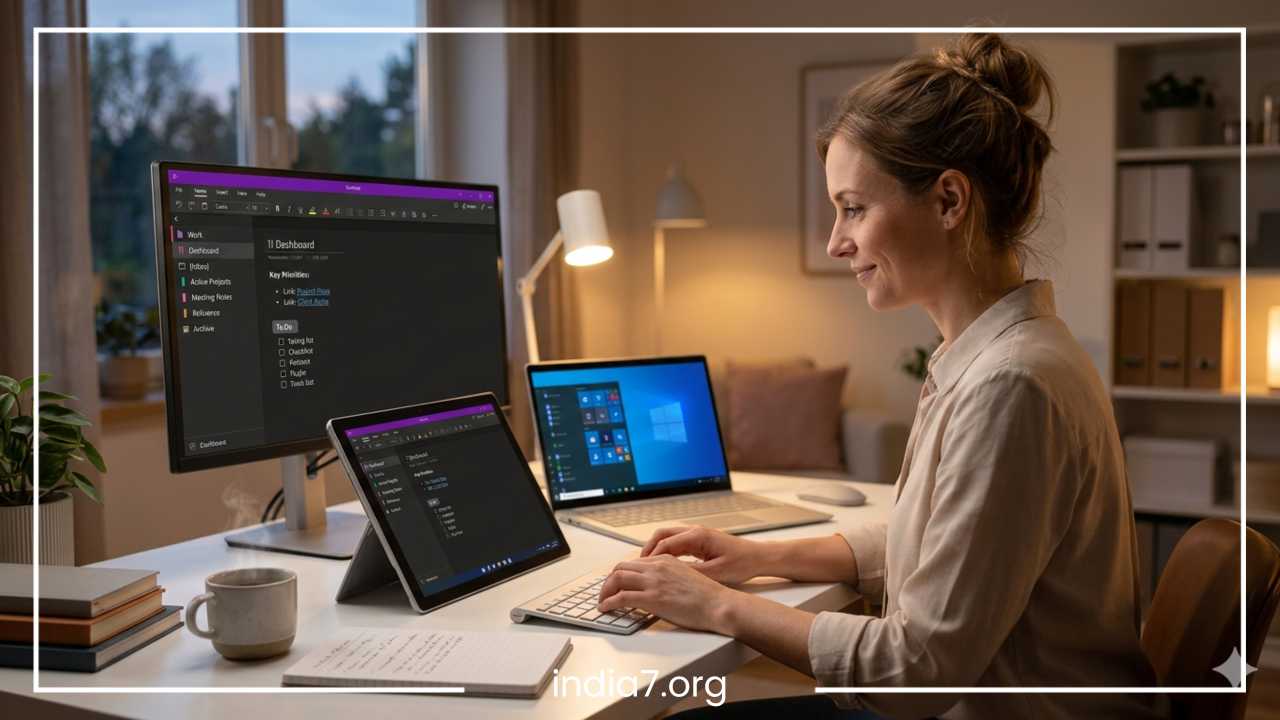
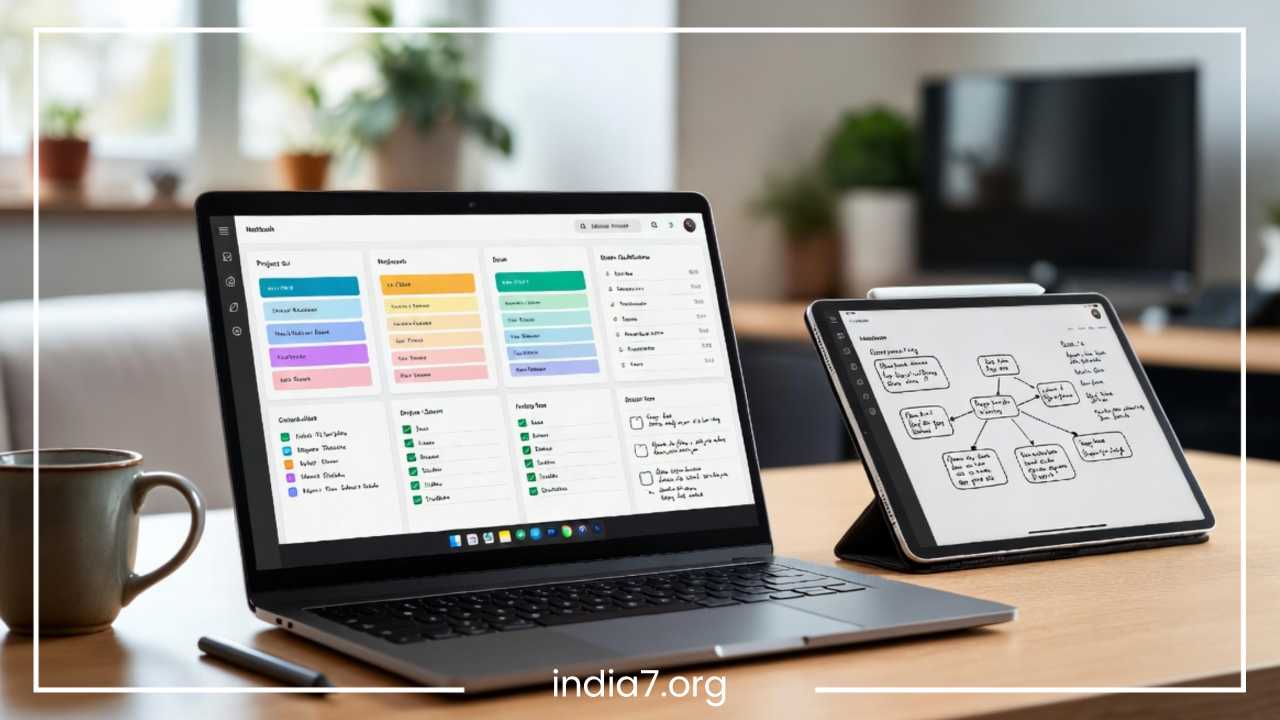
Best Ways to Sync Notes Across Devices in OneNote

Best Ways to Sync Notes Across Devices in OneNote | Easy and Fast Guide
In the modern digital landscape, the ability to capture an idea on one device and have it instantly available on another is no longer a luxury—it is a fundamental requirement for productivity. This process, known as synchronization or syncing, refers to the automatic coordination of data across multiple platforms so that the most recent version of your work is always at your fingertips. Whether you are a student transitioning from a lecture hall to a library, or a professional moving from a desktop computer to a mobile phone during a commute, syncing ensures that your workflow remains uninterrupted.
The importance of syncing cannot be overstated. Beyond simple accessibility, it serves as a robust backup mechanism. If your laptop suddenly fails, your notes are not lost; they reside safely in the cloud, ready to be pulled down onto a new machine. It bridges the gap between different hardware ecosystems, allowing a Windows PC, an iPad, and an Android smartphone to function as a single, unified workspace.
Microsoft OneNote stands out as one of the most powerful and flexible tools for this purpose. Unlike traditional document editors, OneNote is built with a “sync-first” mentality. It utilizes a sophisticated cloud architecture to manage digital notebooks that can contain text, images, ink, and file attachments. This guide explores the best ways to optimize OneNote syncing to ensure your notes are always updated, secure, and accessible, regardless of which device you happen to be holding.
Read: Are Your Blog Posts Effective?
How OneNote Sync Works
To master OneNote, one must first understand the “engine under the hood.” OneNote does not save files in the traditional sense where you click a disk icon and choose a folder on your hard drive. Instead, it operates through a continuous communication loop with Microsoft’s cloud servers.
Cloud-Based Syncing and OneDrive Integration
The backbone of OneNote is OneDrive. Every notebook you create is essentially a collection of folders and files stored in your personal or business OneDrive space. When you make a change—such as typing a sentence or highlighting a phrase—OneNote identifies that specific “chunk” of data. Instead of re-uploading the entire notebook, it only sends the modified chunk to the cloud. This “delta-sync” technology is what makes OneNote feel so fast even with large notebooks.
Automatic vs. Manual Sync
OneNote is designed to be “invisible.” By default, it operates on an automatic sync schedule. On a high-speed connection, this happens almost in real-time. However, OneNote is also intelligent enough to handle offline scenarios. If you are in a “dead zone” without internet, OneNote saves your changes to a local cache. The moment you reconnect to the internet, the app compares your local cache with the version on the server and merges the changes.
Manual sync remains an option for users who want absolute certainty. By triggering a manual sync, you force the app to prioritize the data handshake with the server immediately, which is useful before shutting down a laptop or switching to a mobile device for a meeting.
Real-Time Collaboration Basics
Because the sync happens at the paragraph level, OneNote allows for “Co-authoring.” If two people are editing the same page, OneNote manages the traffic. You might see a small bracket with a colleague’s initials appearing next to a line of text they just wrote. This makes it a premier tool for project management, where multiple stakeholders contribute to a single source of truth simultaneously.
Read: Business Blogging: 6 Tricks to Finding the Right Spin
Requirements for Syncing OneNote
Before diving into the “how-to,” ensure your environment meets these four pillars of synchronization.
1. A Valid Microsoft Account
Your Microsoft account (Outlook, Hotmail, Live, or a corporate Microsoft 365 account) acts as your digital passport. It links your identity to your data. Without being signed in, OneNote acts as a local-only scratchpad, and your notes will remain “trapped” on that specific piece of hardware.
2. Stable Internet Connection
While OneNote works offline, syncing is an online activity. A common misconception is that OneNote requires high-speed fiber at all times. In reality, text-based notes sync perfectly fine over 3G or 4G mobile data. However, if your notes contain high-resolution photos, PDF printouts, or audio recordings, a stable Wi-Fi connection is highly recommended to avoid “Sync Timeout” errors.
3. Sufficient OneDrive Storage
Every free Microsoft account comes with 5GB of OneDrive storage. While this sounds like a lot for text, it can fill up quickly if you use OneNote for school or research (which often involves heavy PDF attachments). If your OneDrive storage limit is reached, syncing will halt entirely until space is cleared or a subscription is purchased.
4. Updated Software
Microsoft frequently updates the “Sync Engine” to improve conflict resolution. Using an old version of OneNote (like OneNote 2016 without updates) alongside a modern mobile app can lead to “Version Mismatch” errors. Always ensure your apps are updated via the Microsoft Store, App Store, or Google Play.
Read: Does Your Business Blog Need Video?
Best Ways to Sync Notes Across Devices
This section covers the core strategies for maintaining a “Perfect Sync” environment.
1. Use OneDrive for Automatic Sync
The “Golden Rule” of OneNote is to never store notebooks locally on your “C:” drive if you intend to use them on other devices.
-
How to Check: On the desktop version, go to File > Info. You should see a URL under each notebook name starting with
https://d.docs.live.net. If you see a file path likeC:\Users\Documents, your notebook is local and will never sync to your phone. -
How to Move: If your notebook is local, use the Share button to “Move” it to OneDrive. OneNote will handle the migration of your data to the cloud automatically.
2. Enable Auto Sync on All Devices
On mobile devices, battery optimization settings sometimes “put to sleep” apps that are trying to sync in the background.
-
Android/iOS: Ensure that “Background App Refresh” is enabled for OneNote.
-
Windows: In the OneNote app, go to Settings > Options and ensure the toggle for “Sync notebooks automatically” is set to “On.” This ensures that even if you aren’t actively typing, OneNote is fetching updates from your other devices.
3. Manually Sync Notes When Needed
There are times when the automatic trigger doesn’t fire fast enough.
-
On Desktop: Right-click the notebook name in the sidebar and select Sync This Notebook Now. Alternatively, pressing Shift + F9 is the global shortcut for a forced sync.
-
On Mobile: Go to the notebook list and pull down from the top of the screen (the “pull-to-refresh” gesture).
4. Use the Same Microsoft Account Everywhere
It sounds simple, but this is the number one cause of sync issues. Many users have a “Work” email and a “Personal” email. If you create a notebook on your work laptop but sign into your personal account on your iPad, you will see a blank screen. OneNote allows you to be signed into multiple accounts simultaneously; ensure the specific notebook you need is “Open” from the correct account.
5. Keep Notebooks Organized to Prevent “Sync Bloat”
A notebook that is 2GB in size will sync significantly slower than ten notebooks that are 200MB each.
-
Strategy: Create separate notebooks for different years or major projects. For example, instead of one “College” notebook, have “College – Freshman Year” and “College – Sophomore Year.”
-
Benefit: When you open OneNote on a new device, it only has to sync the “active” notebook you are working in, saving bandwidth and local storage.
6. Use OneNote Web for Instant Access
If you are ever in doubt about whether a note has synced, visit www.onenote.com.
The web version of OneNote reads directly from the OneDrive server. If your note appears on the web version but not on your phone, you know the “upload” from your computer was successful, and the issue is with the “download” on your phone. This “Middle-Man” check is the fastest way to troubleshoot sync lag.
7. Collaborate with Shared Notebooks
OneNote is more than a personal diary; it is a collaborative workspace. When you share a notebook with a teammate:
-
The sync engine prioritizes these “Shared” files to ensure all members see the same data.
-
You can see who wrote what by going to the History tab and selecting Find by Author.
-
This real-time visibility is why OneNote is often preferred over Word for meeting minutes.
How to Sync OneNote on Different Devices
Every device has a slightly different “personality” when it comes to data management.
📱 On Mobile (Android and iOS)
The mobile app is optimized for viewing and quick capture. Because mobile devices have limited storage, OneNote does not download your entire notebook history by default.
-
Initial Setup: When you first log in, tap “More Notebooks” to see a list of everything stored in your cloud.
-
Selective Sync: Only open the notebooks you currently need.
-
Data Savings: Under settings, you can toggle “Sync on Wi-Fi only” to save your mobile data plan, though this will delay updates until you reach a hotspot.
💻 On Windows and Mac
The desktop version is the “Powerhouse.” It maintains a full local cache of your notebooks so you can work during a flight or in a coffee shop without Wi-Fi.
-
Windows 10/11: Most users have “OneNote” (the desktop app) installed. It lives in the system tray and often syncs in the background even if the main window is closed.
-
Mac: The Mac version is remarkably similar to the Windows version but relies heavily on the “Microsoft AutoUpdate” tool to keep the sync engine current.
🌐 On Web
The web version requires no installation. It is the best choice for “Quick Edits” on a borrowed computer. Because it is browser-based, there is no “Syncing” process—you are editing the live file on the server. However, it lacks some of the advanced features like “Ink to Text” or “Record Video.”
Common OneNote Sync Problems and Fixes
Even the best systems encounter friction. Here is how to resolve the most common “Sync Error” codes and behaviors.
1. “Notes Not Syncing” (The Red X)
If you see a red circle with an X on your notebook icon, it means OneNote has stopped trying to sync because of a persistent error.
-
The Fix: Often, this is a “Handshake” error. Sign out of OneNote, restart the device, and sign back in. This clears the temporary credentials that might be causing the block.
2. Conflicting Changes (The “Misplaced Sections” Tab)
This happens when two devices edit the same sentence at the same time. OneNote doesn’t want to delete your work, so it creates a temporary section.
-
The Fix: Manually review the “Misplaced Sections” tab, copy any text you need, paste it into the original notebook, and then delete the misplaced section.
3. “Page Never Synced” Error
This occurs when a page contains a corrupt element, usually a large image or a buggy file attachment.
-
The Fix: Create a “New Page” in the same section. Copy the text from the “Broken” page and paste it into the “New” page. Delete the broken page. Usually, the new page will sync without issue.
4. Storage Full Error
If your OneDrive is at 100% capacity, OneNote will go into “Read-Only” mode.
-
The Fix: Go to your OneDrive recycle bin and empty it, or delete large, unused files (like old video recordings) from your OneDrive folders. Once you are under the limit, sync will resume automatically.
Tips to Improve Sync Speed and Reliability
If you find that OneNote feels “sluggish,” these professional tips will streamline your experience.
Use Stable Internet
Public Wi-Fi (like in hotels or airports) often has “Timed Out” sessions that require you to log in via a browser every hour. If you forget to log in, OneNote will fail to sync silently in the background. If you are doing important work, using a dedicated mobile hotspot is often more reliable than public Wi-Fi.
Avoid Large Attachments
OneNote is a note-taking app, not a file-hosting service. If you have a 1GB video, do not drag and drop it into a OneNote page.
-
Better Way: Upload the video to a OneDrive folder, right-click it to “Copy Link,” and paste that link into your OneNote page. This keeps the notebook “light” and ensures it syncs in seconds rather than minutes.
Close Unused Notebooks
Every open notebook consumes a small amount of system memory and “Sync Bandwidth.” If you finished a project three years ago, “Close” the notebook. It remains safely in the cloud, but the app no longer has to check it for updates every five minutes.
Limit the Number of Sections per Notebook
A notebook with 500 sections is harder for the sync engine to index than a notebook with 20 sections. Use “Section Groups” to create a hierarchy that keeps the top-level structure clean.
OneNote Sync vs. Other Note Apps
How does OneNote’s syncing stack up against the competition?
OneNote vs. Evernote
Evernote was the pioneer of cloud syncing, but its free tier is heavily restricted (limiting you to only two devices). OneNote offers full cross-device syncing for free, provided you have OneDrive space. Furthermore, OneNote’s “Free-form” canvas is more data-intensive to sync than Evernote’s “Document-style” pages, yet Microsoft’s infrastructure handles it with comparable speed.
OneNote vs. Notion
Notion is a “Web-First” app. This means it is great when you are online, but its “Offline Mode” is notoriously weak. If you edit a Notion page while offline, you run a high risk of losing those changes if the browser tab refreshes. OneNote’s “Local Cache” system makes it much safer for users who frequently travel or work in areas with spotty internet.
OneNote vs. Google Keep
Google Keep is faster than OneNote because it only handles simple text and small images. However, Keep lacks the organizational depth required for long-term projects. OneNote is for the “marathon,” while Keep is for the “sprint.”
Security and Privacy of Synced Notes
When your data is in the cloud, security is a valid concern. Microsoft employs several layers of protection.
Encryption in Transit and at Rest
When your notes travel from your laptop to OneDrive, they are encrypted using industry-standard protocols (TLS/SSL). While sitting on the server, the data is encrypted so that unauthorized parties cannot read the raw files.
Two-Factor Authentication (2FA)
The greatest security risk is not the cloud itself, but someone stealing your password. By enabling 2FA on your Microsoft account, a hacker would need both your password and your physical phone to access your notes. This is the single most important step for protecting sensitive synced data.
Password-Protected Sections
For highly sensitive information (like medical notes or passwords), you can right-click a section and select Password Protect This Section. Even if someone gains access to your unlocked computer, they cannot see the contents of that section without the specific password. Note: Microsoft cannot reset this password; if you lose it, the data is gone forever.
Final Thoughts
Mastering OneNote synchronization is the key to unlocking a truly paperless and mobile lifestyle. By understanding the role of OneDrive, maintaining a consistent Microsoft account, and following organizational best practices, you can ensure that your thoughts and data move with you.
The power of OneNote lies in its “set it and forget it” nature. Once your notebooks are properly configured for automatic sync, the technology fades into the background, leaving you free to focus on what matters most: your ideas. Whether you are troubleshooting a minor sync error or setting up a shared notebook for a large team, the steps outlined in this guide provide a roadmap for a fast, reliable, and secure note-taking experience.
The evolution of digital note-taking has reached a point where your location no longer limits your access to information. By following these “Best Ways to Sync,” you ensure that your digital brain is always available, always backed up, and always ready for your next big project.