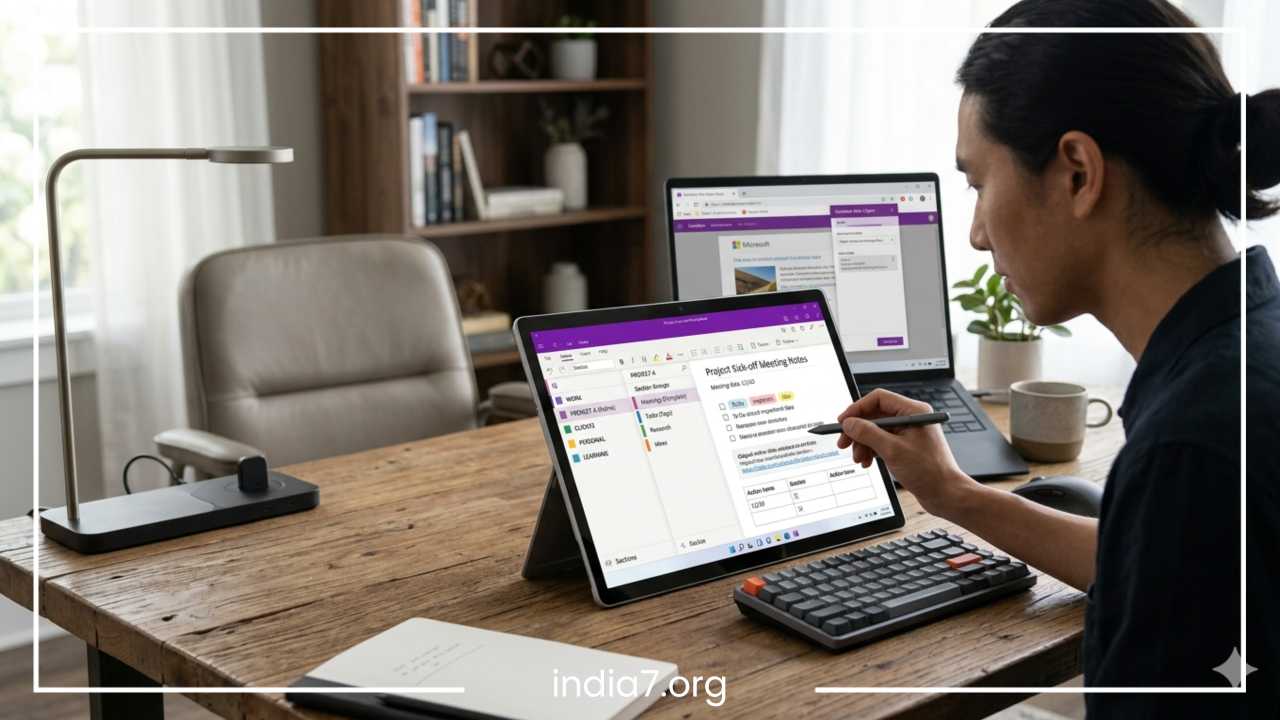
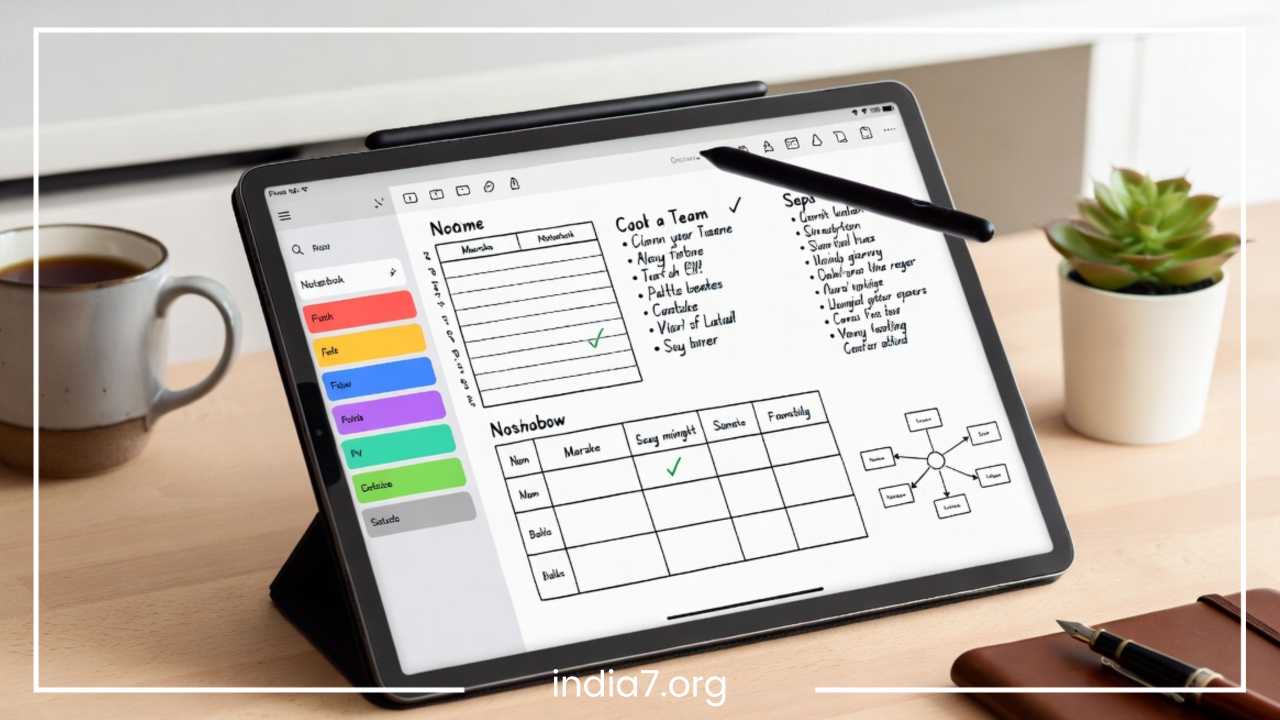
Best Ways to Organize OneNote Notebooks

7 Best Ways to Organize OneNote Notebooks (and Stay Clutter-Free)
OneNote is one of the most versatile digital note-taking tools available, yet its greatest strength is often its biggest weakness: the infinite canvas. Because you can put anything anywhere—text, images, file printouts, and ink—users often find themselves drowning in a sea of miscellaneous notebooks, unnamed pages, and fragmented thoughts.
If you have ever opened OneNote only to realize you have no idea where you saved that critical meeting note from last week, you are not alone. Digital clutter is a silent productivity killer. It creates mental friction, making you dread the act of note-taking rather than feeling empowered by it. When your workspace is messy, your brain spends unnecessary energy just trying to locate information rather than processing it.
A well-organized OneNote system is not about creating a complex web of folders that looks impressive; it is about building a structure that allows for effortless retrieval. The goal is to spend less time managing your notes and more time doing the work that matters. This guide explores seven practical, sustainable strategies to transform your OneNote from a digital junk drawer into a streamlined productivity engine.
Read: Brand Identity: The Secret Weapon for Success
Understanding the OneNote Hierarchy
Before diving into specific organizational strategies, it is essential to understand the “physics” of OneNote. Many users struggle with organization because they treat OneNote like a standard Word document or a simple list app. In reality, OneNote mimics a physical filing system, and if you ignore that hierarchy, the system breaks down.
The Five-Level Structure
To organize effectively, you must understand how the layers interact. Think of it as a nesting doll of information:
-
Notebooks: These are your filing cabinets. They represent the highest level of organization and should be used sparingly.
-
Section Groups: Think of these as drawers within the filing cabinet. They allow you to cluster related sections together, which is vital for large projects.
-
Sections: These are the colored tabs at the top (or side) of your screen. They represent individual folders within a drawer.
-
Pages: These are the individual sheets of paper inside your folders. This is where the actual work happens.
-
Subpages: These allow you to nest pages underneath a parent page. You can have up to two levels of subpages, creating a multi-level outline that is perfect for breaking down complex topics.
-
Tags: These are like sticky notes or labels that cut across the entire hierarchy, allowing you to find specific types of information regardless of where they are stored.
The Common Hierarchy Mistake
The most frequent mistake users make is “flat filing.” This happens when a user creates one massive notebook and populates it with fifty different sections. Conversely, some create a separate notebook for every tiny project, leading to “notebook bloat.”
Both approaches lead to a cluttered interface. Flat filing makes it impossible to find specific categories, while notebook bloat slows down the software and makes syncing across devices a nightmare. Understanding that you have five levels of depth allows you to spread your information out logically. You can use section groups to hide complexity until you actually need to see it.
Read: Team Building 101: Strategies for Peak Performance
Way #1 — Use Fewer Notebooks Than You Think
The foundational rule of a clutter-free OneNote is simplicity at the top level. While it is tempting to create a new notebook for every new client, every class, or every hobby, this is a recipe for disaster.
The Problem with Notebook Overload
Every time you create a new notebook, you add weight to the OneNote application. More importantly, you add weight to your brain. Each notebook requires syncing, takes up space in your sidebar, and forces you to remember which specific “container” holds your information. If you have twenty notebooks open, the search function becomes your only way to find anything, and the visual clutter becomes overwhelming.
Furthermore, if you are using OneNote on a mobile device, having dozens of notebooks makes navigation nearly impossible. Opening and closing notebooks on a phone is slow, so you want your core information to be accessible within a few taps.
The Broad Category Approach
Instead of specific notebooks, use broad, high-level categories. For most users, four to five notebooks are more than enough. Consider a structure like this:
-
Work: All professional obligations, meeting notes, and company-wide information. Use section groups for specific clients or departments.
-
Personal: Household management, health, finances, and travel.
-
Projects: Deep-dive notes for active, time-bound endeavors that require significant space (like a home renovation or a book launch).
-
Learning/Reference: Notes from books, courses, or long-term interests that are not currently “active” but are valuable for future use.
-
Archive: The place where completed projects go to live so they do not clog up your active notebooks.
When to Create a New Notebook
You should only create a new notebook if:
-
Permissions differ: You need to share a specific set of notes with a client or teammate without giving them access to your entire “Work” notebook.
-
The topic is massive: You are writing a dissertation or completing a multi-year specialized program.
-
Account separation: You want to keep your personal Microsoft account notes entirely separate from your employer’s professional account.
By keeping your notebook count low, you ensure that you always know which high-level “cabinet” to open.
Read: Most Successful Startup Projects Till Now
Way #2 — Create a Consistent Naming System
Clutter is often the result of ambiguity. When you see a section named “General” or a page named “Notes,” your brain has to work harder to identify the content. A consistent naming convention acts as a map for your digital environment, allowing you to scan and find what you need in a fraction of a second.
Naming Notebooks and Sections
Use prefixes or categories to group related items together. This is especially helpful because OneNote usually sorts items alphabetically.
-
Project Prefixes: Use codes like
[PROJ]for active projects or[ADMIN]for administrative tasks to keep similar sections grouped together in the sidebar. -
Status Indicators: Some users like to use symbols (though avoid emojis for a cleaner look) to indicate priority. For example, starting a section name with a period (
.Work) will often force it to the top of an alphabetical list.
Naming Pages with Dates
For meeting notes, logs, or journals, the date is the most important piece of metadata. However, standard date formats (like 5/7/25) do not sort well because the computer sees the month first rather than the year. Use the ISO format: YYYY-MM-DD.
-
Example:
2025-05-07 - Marketing Strategy Session -
Example:
2025-06-12 - Q2 Budget Review
By putting the year, then the month, then the day, your pages will naturally stay in chronological order when sorted alphabetically. This makes it much easier to scan through a long list of entries to find a specific historical note.
The Benefit of Clear Labels
A naming system reduces the “search tax.” If you know every meeting note starts with a date and every client page starts with the word “Client,” you can use the search bar more effectively. You aren’t just searching for “budget”; you are searching for Client - Acme - Budget, which yields much more precise results.
Way #3 — Organize by Workflow, Not by Topic
Most people naturally organize by topic. They have a “Marketing” section, a “Design” section, and a “Human Resources” section. While this seems logical on the surface, it often fails during high-pressure work periods because it does not reflect how we actually move through our day.
Action-Oriented Organization
Instead of organizing by what the information is about, try organizing by what you are doing with it. This is a concept borrowed from the Getting Things Done (GTD) methodology. Topic-based filing is great for libraries, but workflow-based filing is better for active offices.
Example Workflow Structure:
-
Inbox: For rapid capture of thoughts you haven’t processed yet.
-
Active: Projects and notes you are working on this week. This keeps your most important work front and center.
-
Waiting: Information related to tasks where you are waiting for someone else’s input before you can move forward.
-
Review/SOPs: Standard operating procedures or reference material you use frequently to perform your job.
-
Done/Holding: A temporary holding pen for finished work before it is moved to a permanent archive.
Why This Reduces Fatigue
When you organize by topic, you have to make a decision about where a note belongs the moment you create it. If a note touches on both “Marketing” and “Sales,” you face a minor “where do I put this?” crisis. This decision fatigue adds up over the day.
When you organize by workflow, the answer is simple: is it something you are working on right now? Put it in “Active.” Is it a random thought you just had? Put it in “Inbox.” You can decide on the final “topic” later during your weekly review. This keeps you in your flow state and prevents “filing friction” from stopping you from taking notes in the first place.
Way #4 — Use Tags and Search Instead of Over-Filing
One of the most common pitfalls in OneNote is “over-nesting.” This occurs when a user creates a notebook, inside a section group, inside another section group, with five layers of subpages. While it looks organized, it is a nightmare to navigate. Every click is a barrier to entry. If you have to click six times to reach a page, you will eventually stop using that page.
The Power of OneNote Search
OneNote’s search engine is incredibly robust. It can search text within images (using Optical Character Recognition) and even handwritten notes if you use a stylus. Because the search is so powerful, you do not need a perfect folder structure to find your information. In fact, a deep structure can actually make searching harder by burying results in collapsed groups.
Leveraging Custom Tags
Tags allow you to categorize information across different notebooks and sections without moving the actual note. Instead of moving a note to a “To Do” section, simply apply a “To Do” tag to the paragraph where it sits.
-
Contextual Tags: Use tags like “Discuss with Manager,” “Financial Expense,” or “Research Source.”
-
Priority Tags: Use the built-in Star or Checkbox tags to highlight critical items.
-
Search by Tag: You can use the “Find Tags” feature to generate a summary page of every item tagged with a specific label across your entire OneNote account. This is a game-changer for project management.
Retrieval vs. Storage
There is a major difference between organizing for storage (making it look pretty) and organizing for retrieval (making it easy to find). If you use a simple, flat structure combined with strategic tags, you can find anything in seconds using the global search bar (Ctrl + E). Stop trying to build the perfect tree of folders. Build a “flat” enough structure that you can see most things at a glance, and let the software do the heavy lifting of retrieval.
Way #5 — Build an “Inbox” Section for Quick Capture
Digital clutter often starts with “temporary” notes. You take a quick phone call, scribble some notes on a random page, and then leave that page in whatever section happened to be open at the time. Over months, your notebooks become littered with these orphaned pages that have no clear purpose.
The Concept of the Digital Inbox
Create a section in your primary notebook titled “Inbox.” This is your default landing zone for everything new. By having one designated “catch-all” area, you eliminate the stress of finding the perfect home for a note while you are in the middle of a task.
-
Web Clips: If you use the OneNote Web Clipper, send everything to the Inbox by default.
-
Mobile Notes: Set your OneNote mobile app to default to the Inbox section so you can jot down ideas while on the go.
-
Quick Ideas: Instead of opening a specific project notebook, just type the idea in the Inbox and move on.
The Weekly Review Process
The Inbox only works if you empty it regularly. It is not a permanent storage unit; it is a transit station. Once a week (perhaps on Friday afternoon), go through your Inbox and perform “triage”:
-
Delete: If the note was a temporary reminder for a task you have already finished, delete it immediately.
-
File: If it is a valuable piece of information, move it to the appropriate notebook or section.
-
Action: If it contains a task, tag it with a “To Do” tag or move the information to your dedicated task management system.
By funneling all new information into one place, you prevent the “drift” of miscellaneous notes that usually ruins a good organization system.
Way #6 — Archive Old Notes Regularly
A system that never discards anything will eventually become a digital swamp. Even the best-organized notebook becomes cluttered when it contains three years’ worth of completed projects, inactive client details, and outdated reference material.
The Archive Strategy
Do not simply delete old notes. You may need them for a performance review, a tax audit, or a future project. Instead, move them out of your active sightline. This is the digital equivalent of moving old files from your desk to a storage box in the basement.
-
The Archive Notebook: Create a dedicated notebook named “Archive.” This should be the only notebook that is allowed to be messy.
-
Annual Sections: Within that notebook, create section groups for each year (e.g.,
Archive 2024,Archive 2025). -
Closing Notebooks: If a project notebook is completely finished, you can simply close it. It remains saved in your cloud storage, but it no longer appears in your OneNote sidebar.
What to Move
At the end of every quarter, perform a “digital sweep.” Look for:
-
Project sections that haven’t been touched in 90 days.
-
Meeting notes for committees or groups you no longer serve on.
-
Drafts of documents that have since been finalized and stored elsewhere.
Archiving keeps your “Active” notebooks lean. This improves sync speeds on your devices and ensures that when you look at your sidebar, you only see things that are relevant to your current life and work.
Way #7 — Create a Dashboard or Home Page
As your notebooks grow, navigating between different sections and notebooks can become tedious. A “Dashboard” page acts as a central hub or a “table of contents” for your digital life. It is the one page you return to every morning to get your bearings.
How to Build a Dashboard
Create a page at the very top of your most-used notebook. Name it something obvious like !! DASHBOARD or 00_START_HERE. On this page, use internal links to connect to your most important areas.
-
Active Project Links: Right-click a page or section and select “Copy Link to…” then paste it onto your Dashboard. This creates a clickable shortcut.
-
Frequently Used Templates: Create links to blank meeting note pages or weekly planners so you don’t have to go looking for them.
-
Current Goals: Keep a brief list of your top three priorities for the month visible on this page.
Benefits of a Central Hub
Instead of clicking through three notebooks and four section groups to find your “Client Strategy” page, you simply go to your Dashboard and click the shortcut. It turns OneNote into a custom-built productivity app tailored specifically to your workflow.
A dashboard also provides a mental “reset.” Whenever you feel overwhelmed by the volume of information in your notebooks, returning to the Dashboard reminds you of your current priorities and gives you a clear path forward.
Common OneNote Organization Mistakes
Even with the best intentions, it is easy to fall into bad habits that lead back to clutter. Here are the most common “clutter traps” to avoid:
-
The “General” Trap: Avoid naming sections “General,” “Misc,” or “Stuff.” These are magnets for clutter. If a note doesn’t have a specific home yet, put it in the Inbox until you can categorize it properly.
-
Unlabeled Images: OneNote can search text in images, but it is much more reliable if you give the page a descriptive title. Don’t just dump a screenshot and leave the page named “Untitled Page.”
-
Duplicating Files: Instead of attaching a massive PDF or Word document to a page (which bloats the notebook size and can cause sync errors), link to the file on OneDrive or SharePoint when possible.
-
Ignoring the Sidebar: If your notebook list is so long you have to scroll to find your main work notebook, it is time to close the notebooks you aren’t using daily. You can always re-open them from the “More Notebooks” menu later.
Recommended OneNote Structure Examples
To help you visualize these strategies, here are three ways to structure your environment based on your specific needs.
The Student Setup
-
Notebook: University
-
Section Group: Current Semester
-
Section: Biology (Pages: Lecture Notes, Lab Reports)
-
Section: Calculus (Pages: Practice Problems, Formulas)
-
-
Section Group: Past Semesters (Keep these collapsed)
-
Section: Admin (Syllabus, Tuition, Housing)
-
Section: Inbox (Quick captures during orientation or club meetings)
-
The Freelancer Setup
-
Notebook: Client Work
-
Section Group: Active Clients
-
Section: Client A (Pages: Contract, Meeting Notes, Deliverables)
-
Section: Client B
-
-
Section: Leads/Inquiries (Notes from discovery calls)
-
Section: Admin/Finance (Invoices, Contract templates)
-
-
Notebook: Archive
-
Section Group: Completed Projects
-
The Small Business Manager Setup
-
Notebook: Operations
-
Section: SOPs (Standard Operating Procedures for the team)
-
Section: Team Meetings (Dated pages for weekly syncs)
-
Section: Hiring (Candidate notes, Job descriptions)
-
-
Notebook: Project Lab
-
Section Group: Website Redesign
-
Section Group: Annual Event Planning
-
Staying Clutter-Free for the Long Haul
Organization is not a one-time event; it is a recurring habit. The most sophisticated system in the world will fail if it isn’t maintained. However, the beauty of the strategies outlined above—especially the Inbox and the Archive—is that they are designed to be low-maintenance. They acknowledge that life is messy and that you won’t always have time to file things perfectly in the moment.
The goal of OneNote organization is to reduce the cognitive load of your digital life. When your notebooks are structured logically, your brain stops worrying about “where” things are and starts focusing on “what” those things are.
Start small. You do not need to overhaul every single notebook today. Pick one strategy—perhaps creating an Inbox or implementing the ISO date format—and use it for one week. Once that feels natural, add another layer. Over time, you will find that OneNote is no longer a source of stress, but a powerful, organized extension of your mind. Simplicity always wins in the end; build a system that serves you, rather than one that requires you to serve it.
Frequently Asked Questions About OneNote Organization
To help you further refine your digital workspace, here are some of the most common questions regarding OneNote efficiency and how to handle specific organizational hurdles.
How do I organize OneNote for maximum productivity?
The key to maximum productivity in OneNote is reducing the number of clicks between you and your information. Instead of building a complex web of section groups, aim for a flatter structure. Use a dedicated Dashboard page with internal links to your most-visited sections. Combine this with the Inbox method for quick capture so you never lose a thought while trying to find the “right” folder. By prioritizing retrieval over storage, you ensure that the tool supports your work rather than becoming a task in itself.
What is the best way to organize OneNote for work projects?
For professional environments, organization should be action-oriented. Create a primary Work notebook and use Section Groups for major projects or departments. Within each project, use a consistent set of sections such as “Meetings,” “Resources,” and “Timeline.” To keep things clutter-free, use Tags to mark action items and “Waiting For” status. This allows you to use the “Find Tags” feature to see all your responsibilities across every project in a single summary view.
How can I declutter my OneNote notebook quickly?
If your notebook has become overwhelming, start by moving all “orphaned” or miscellaneous pages into a new section titled Inbox. Next, look for completed projects and move those entire sections to a separate Archive notebook. Finally, close any notebooks that you do not need to access daily. You can always re-open them from the cloud later. This “sweep” immediately clears your sidebar and allows you to focus on current, relevant information.
Is it better to have many small notebooks or one large OneNote notebook?
For most users, a few broad notebooks are significantly better than many small ones. Having too many notebooks leads to slower sync times and makes it difficult to remember where specific notes are stored. A broader structure (e.g., Work, Personal, Reference) utilized with Section Groups provides the same level of organization without the technical and mental overhead of managing dozens of individual notebook files.
How do I use OneNote tags for better organization?
Tags should be used to categorize the type of information rather than the topic. For example, instead of a tag for “Marketing,” use tags for “To Do,” “Critical Priority,” or “Question for Team.” This allows you to pull information from different notebooks into one view. To stay organized, regularly use the Tag Summary pane to review outstanding tasks and ensure that important items haven’t been buried in older pages.
How do I manage shared OneNote notebooks without creating a mess?
When working with a team, establish a Naming Convention early on. Agree on a standard format for page titles (such as Date - Topic - Initial) so the sidebar remains scannable. Use a “Read Me” page at the top of the notebook to outline where specific information should be placed. This prevents team members from creating duplicate sections and ensures the shared workspace remains a reliable source of truth for everyone involved.