Top OneNote Organization Tips

10 Top OneNote Organization Tips to Stay Organized
In our modern digital landscape, the volume of information we manage daily can quickly become overwhelming. From professional project pipelines and academic research to personal journal entries, receipt scans, and daily to-do lists, we are constantly bombarded with data. Without a deliberate strategy for capturing and structuring this information, digital clutter inevitably takes over.
Microsoft OneNote stands out as one of the most versatile, robust, and accessible digital note-taking platforms available today. Designed to mimic a traditional physical multi-subject binder, it offers unparalleled flexibility for managing personal, academic, and professional spheres within a single application.
However, this high degree of freedom can be a double-edged sword. When left unstructured, users frequently encounter a series of frustrating organizational hurdles:
-
Scattered Notes: Jotting down thoughts on the nearest blank canvas results in critical data being spread across random pages and misplaced sections.
-
Search Inefficiency: Spending valuable time digging through unlabelled notes trying to pinpoint a specific detail from a meeting that happened months ago.
-
Bloated Notebooks: Accumulating outdated action items, duplicate brainstorms, and irrelevant reference materials that cloud your daily view.
-
Lack of Hierarchy: Failing to distinguish between high-level project goals, temporary scratchpads, and permanent reference resources.
If your current digital workspace feels more like a chaotic junk drawer than an efficient engine for productivity, it is time to establish an intentional note-taking framework. By implementing a systematic approach to your digital workspace, you can transform OneNote into a streamlined, stress-free repository that adapts perfectly to your unique workflow.
Read: 301 Redirects Explained: Do 301 Redirects Hurt SEO?
Create a Clear Notebook Structure
The foundation of any successful digital organization system rests upon its structural framework. OneNote uses a rigid, four-tiered architectural hierarchy designed to mimic a traditional multi-subject binder: Notebooks → Section Groups → Sections → Pages → Subpages. Understanding how to properly segment your work within this hierarchy is the first step toward long-term clarity.
The most common mistake new users make is falling into the “one giant notebook” trap. Jamming your work life, fitness goals, grocery lists, and financial planning into a single default notebook quickly causes the application to feel sluggish and chaotic. Conversely, creating a brand new notebook for every minor task or short-term project creates a fragmented experience that makes navigation cumbersome.
To strike the perfect balance, you should create distinct notebooks centered around the major, permanent pillars of your life. For most individuals, this translates to five primary categories:
-
Work/Career: Client deliverables, long-term corporate projects, performance reviews, and career development tracking.
-
Personal Life: Home maintenance logs, financial budgets, fitness plans, travel itineraries, and creative hobbies.
-
Learning/Academics: Lecture notes, textbook summaries, skill acquisition courses, and research papers.
-
Projects: Active initiatives that require dedicated focus, temporary timelines, and collaborative workspaces.
-
Meetings: Dedicated logs for standalone discussions, one-on-one syncs, and recurring team status updates.
To visualize how this looks in practice, consider a standardized corporate workspace. Instead of mixing long-term planning with daily administrative tasks, a robust structure maps out clear, functional pathways for your information:
| Notebook | Section | Subpage / Topic |
| Work Portfolio | Executive Goals | Annual KPIs, Quarterly OKRs |
| Strategic Research | Competitive Analysis, Industry Trends | |
| Reference Materials | Standard Operating Procedures, Brand Guidelines | |
| Active Projects | Website Redesign | UI/UX Mockups, Content Migration Schedules |
| Product Launch | Marketing Timelines, Press Release Drafts | |
| Meeting Archive | Team Syncs | Weekly Standup Logs, Department Retrospectives |
Before creating a new notebook, ensure it serves a distinct, long-term purpose. Ask yourself whether the content can simply live as a section within an existing notebook. By keeping the total number of notebooks manageable, you establish a clean workspace where you always know exactly where to go to find or store information.
Read: How to Get Google to Index Your Website
Use Sections and Section Groups Effectively
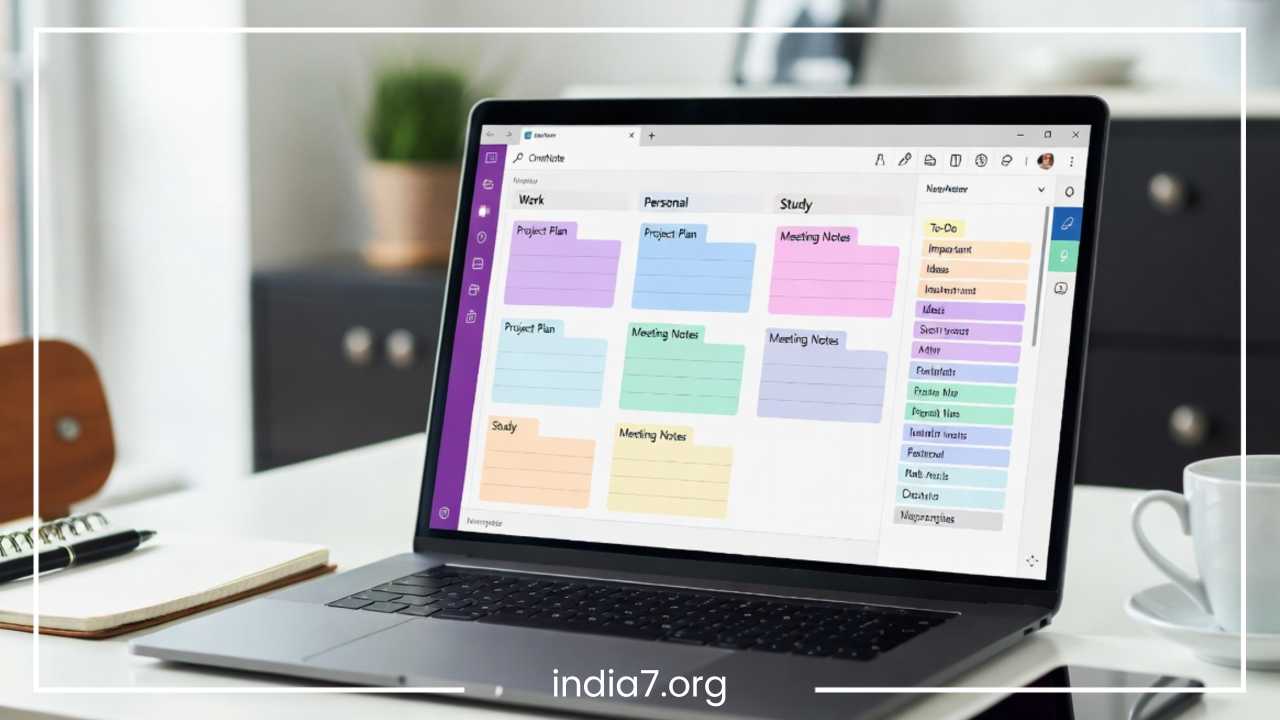
Once your high-level notebooks are established, you need to master the secondary layers of OneNote’s hierarchy: Sections and Section Groups. Sections act as the color-coded tabs in your digital binder, allowing you to categorize different topics within a broader notebook theme.
When a single notebook begins to accumulate dozens of sections, navigating the horizontal tab bar or the vertical left panel becomes highly inefficient. This is where Section Groups become invaluable. A Section Group allows you to bundle related sections together, creating a collapsible folder structure that tidies up your workspace and hides non-essential data from your immediate view.
Consider how different users can implement this dual-layer categorization system to handle complex datasets:
Project-Based Frameworks
For professionals managing multi-phased initiatives, a Section Group can represent an entire client account or major corporate project. Inside that group, individual sections can be allocated to specific components such as “Contracts & Admin,” “Brainstorming,” “Milestones,” and “Client Feedback.” This keeps all project-related assets bundled together without cluttering the main notebook navigation pane.
Academic Frameworks
Students can utilize Section Groups to manage their academic journey by semester. A Section Group titled “Fall Semester” can contain individual sections for each class, such as “Introduction to Finance,” “Macroeconomics,” and “Business Law.” As the semester concludes, the entire group can be collapsed, keeping past coursework accessible for future reference without taking up prime digital real estate.
Departmental Frameworks
Managers and team leads can organize shared team notebooks by department or function. A Section Group dedicated to “Human Resources” might house separate sections for “Onboarding Checklists,” “Training Modules,” and “Policy Documentation.” This ensures that team members can quickly jump to relevant content without sifting through unrelated operational notes.
To maximize the efficiency of your sections, embrace the built-in color-coding system. Assign distinct colors to sections to visually differentiate them at a glance (e.g., warm tones like red or orange for urgent or high-priority areas, and cool tones like blue or green for administrative or completed projects). If your workflows shift over time, remember that you can easily drag and drop sections to rearrange their order, or right-click to rename them instantly.
Read: Blogger Outreach: How to Do It Right and Boost Your Brand’s Visibility
Develop a Consistent Naming System
A common obstacle to long-term digital organization is a chaotic, unpredictable naming scheme. When pages are hurriedly titled “Notes,” “Ideas,” “Meeting,” or left completely “Untitled,” the visual layout becomes messy, and the platform’s robust search tools are rendered far less effective. Developing a structured, highly predictable naming system across all notebooks ensures your notes remain clean and scannable.
Consistent naming conventions act as metadata for your notes, giving you immediate context before you even click on a page. The most reliable way to build an effective page title is to combine a standardized date format with a clear, concise topic descriptor.
Standardizing Meeting Logs
For recurring or standalone meetings, always prepend the title with a standardized date format (such as YYYY-MM-DD). This ensures that pages sort chronologically by default, allowing you to track the historical progression of a project or team dynamic.
-
Poor Example: Meeting with Marketing
-
Optimized Example: Marketing Team Weekly Alignment Meeting
Managing Project Deliverables
When organizing project initiatives, state the overarching project name first, followed by a specific functional descriptor. This makes it incredibly simple to distinguish between disparate tasks that fall under the same broader umbrella.
-
Poor Example: Brainstorming ideas
-
Optimized Example: Website Redesign – Copywriting Brainstorm
Structuring Educational Content
For research, books, or courses, use a clean prefix system that clearly denotes the source material before highlighting the specific chapter or module topic.
-
Poor Example: Chapter 1 notes
-
Optimized Example: Book Notes – Atomic Habits – Chapter 01
When creating pages, strictly avoid vague, single-word titles like “Important,” “To Do,” or “Random.” These titles offer zero context when viewed in global search results. By taking an extra three seconds to properly title your pages, you ensure your future self can navigate the notebook smoothly.
Use OneNote Tags to Prioritize and Track Tasks
While notebooks, sections, and pages provide a macroscopic structure for your data, OneNote Tags allow you to classify individual lines of text within those pages. Tags introduce a dynamic, cross-functional layer of organization, transforming static blocks of text into highly interactive, searchable elements.
Instead of writing out long paragraphs, you can use tags to visually highlight actionable items, urgent questions, or key takeaways. OneNote comes pre-loaded with an extensive library of default tags, but it also allows you to design custom tags tailored precisely to your operational workflow.
-
To Do: A simple interactive checkbox used to build action lists directly within your meeting or project notes.
-
Important: A star icon designed to immediately draw the eye to critical deadlines, project boundaries, or key constraints.
-
Question: A question mark icon used to flag items that require further clarification from a supervisor, client, or professor.
-
Remember for Later: A yellow highlight marker meant for vital pieces of information, insights, or reference data that you will need to recall down the road.
-
Contact: A person icon used to highlight names, external vendors, or team members responsible for specific project components.
The real power of tags is unlocked when you combine them with the Find Tags feature. Instead of manually clicking through dozens of pages to find your assigned duties, clicking “Find Tags” aggregates every single tagged item across your entire notebook ecosystem into a centralized, interactive summary pane.
For instance, during an intense team sync, you can take unstructured notes freely. As action items arise, simply use the built-in application shortcut to apply a To Do checkbox next to that line. At the conclusion of the meeting, running a quick tag search compiles all your checkboxes into a neat, actionable list, ensuring that no critical deliverables slip through the cracks. This simple workflow takes you effortlessly from chaotic meeting notes, to tagged action items, to a compiled search pane, and finally to completed tasks.
Master OneNote Search Features
No matter how meticulous your organizational structure is, there will inevitably be times when you cannot remember exactly where a specific piece of information was saved. Fortunately, OneNote features a deeply integrated, highly intelligent search engine that can scour your entire database in milliseconds. Mastering the system’s advanced search capabilities means you will never lose a critical note again.
OneNote’s search capability extends far beyond simple text matching on a page. The application automatically indexes a wide variety of data types, enabling deep, comprehensive searches:
-
Global Notebook Search: Using the global search shortcut field scans across every single section, notebook, and account connected to your application, presenting results grouped clearly by notebook location.
-
Handwritten Note Indexing: If you prefer using a stylus to write out notes on a tablet or touchscreen device, OneNote’s handwriting recognition engine indexes your digital ink, allowing you to search handwritten text just as easily as typed font.
-
Optical Character Recognition (OCR): When you insert an image, screenshot, or PDF printout into a page, OneNote automatically runs a background OCR scan. This means if you upload a photo of a whiteboard session or a PDF receipt, searching for a word contained within that image will successfully bring up the page.
To get the absolute most out of this powerful search engine, you must write your notes with clear context. Avoid storing images or documents in isolation without supporting text. If you upload a budget screenshot, take a moment to type out a highly descriptive caption beneath it.
Instead of naming an asset simply Budget, expand it to Marketing Budget Planning Notes. Adding these descriptive keywords naturally into your notes provides the search engine with the rich context it needs to surface relevant results instantly when you need them most.
Create Templates for Frequently Used Notes
Repeatedly setting up the exact same page layout for recurring events—such as weekly status reports, client intake calls, or lecture frameworks—is a major drain on daily productivity. Creating standardized page templates eliminates this repetitive overhead, ensuring your notes remain clean, consistent, and structured while saving you valuable setup time.
A well-designed page template outlines a predictable, highly scannable grid that guides your thought process during fast-paced note-taking sessions. Effective templates typically feature a dedicated metadata header, a core contents block, and an actionable footer.
Meeting Notes Template
-
Metadata: Date, Time, Attendees, and Primary Meeting Objective.
-
Core Discussion Area: Bulleted sections for broad discussion topics, design decisions, and project updates.
-
Action Items: A dedicated section at the bottom pre-populated with To Do checkboxes to track immediate next steps.
Project Planning Template
-
Project Overview: High-level summary statements outlining scope, target delivery dates, and key stakeholders.
-
Milestones & Deliverables: A structured tracking framework to log major project phases.
-
Resources & Links: Centralized repositories for quick access to shared slide decks, asset folders, and contracts.
Weekly Review Template
-
Accomplishments: A space to log major wins and completed tasks over the past week.
-
Current Bottlenecks: A section to flag stuck items, missing resources, or dependencies.
-
Priorities for Coming Weeks: A strategic roadmap detailing the highest-leverage tasks to tackle next.
To turn a custom layout into a reusable asset, simply design your page perfectly within OneNote, navigate to the Insert tab, click Page Templates, and save your current layout. You can even configure specific sections to automatically apply your custom template every time you add a new page, guaranteeing complete structural consistency across your entire notebook.
Use Links, Attachments, and Cross-References
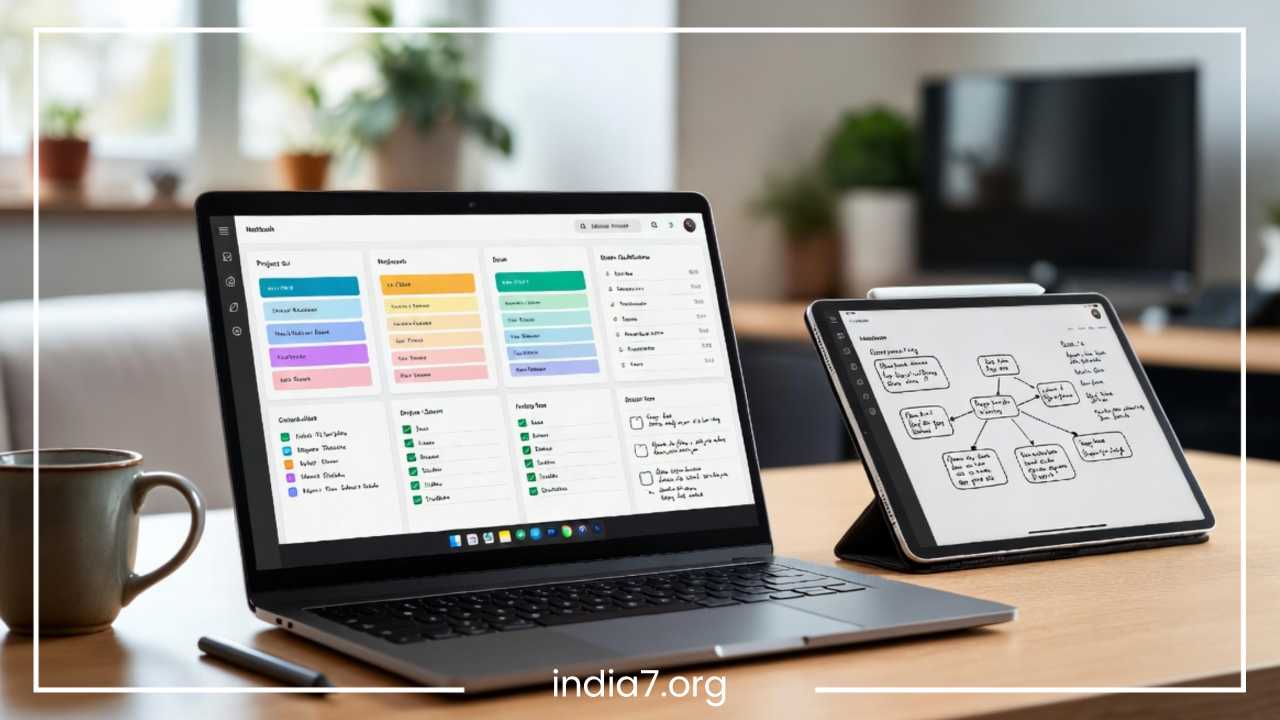
A digital notebook shouldn’t just mirror its physical counterpart; it should surpass it by acting as an interconnected web of knowledge. OneNote allows you to break out of rigid, linear structures by linking separate pages, sections, and external resources together. This creates an interconnected web of information, often referred to as a personal knowledge management system.
Instead of navigating back and forth through your notebook sidebar to find related content, you can drop direct hyperlinks right where you need them. To link to another page instantly, highlight your text, right-click, and select the linking options, or use the convenient double-bracket text shortcut to instantly link direct matching pages together.
This cross-referencing system shines across several common everyday scenarios:
-
Integrated Project Hubs: You can maintain a master project overview page that contains direct links to individual brainstorming pages, team meeting summaries, and post-mortem reviews scattered across different sections. This gives you a centralized dashboard that tracks all related assets in one convenient place.
-
Embedded Document Libraries: Instead of leaving important reference documents buried deep inside your computer’s local file explorer, you can attach files or embed live PDF printouts directly onto relevant OneNote pages. This keeps your user manuals, vendor contracts, and price sheets living directly alongside your everyday project commentary.
-
Contextual Meeting Connections: When referencing a strategic choice made during a past alignment meeting, simply insert a direct link to that specific historical meeting log page. This allows any team member reviewing the notes to quickly click through and review the full historical context behind the decision.
By building out these digital bridges between related pieces of information, you drastically reduce the time spent hunting for documents across disparate platforms, keeping all relevant context right at your fingertips.
Organize Notes with Colors and Visual Elements
Human brains process visual assets much faster than dense blocks of monochromatic text. If your notebook pages consist entirely of long, uninterrupted paragraphs of plain text, they become incredibly difficult to skim effectively during a busy workday. Integrating deliberate visual cues dramatically improves the scannability of your pages.
However, the key to successful visual organization is restraint. Excessive decoration, dozens of competing neon highlights, and random imagery create visual noise that degrades clarity. Instead, use a structured, minimalist system where colors and visual elements serve a clear functional purpose:
-
Tables for Data Alignment: Use tables to organize disparate data points, structure project roles, track budgets, or compare competing options. Tables instantly bring neat, structured alignment to chaotic lists.
-
Standardized Color Highlighting: Establish a highly disciplined color hierarchy to signal status at a glance. For instance, you can use red highlighting for critical blockers or imminent deadlines, yellow highlighting for core conceptual definitions or key takeaways, and green highlighting for fully completed deliverables.
-
Callout Boxes for Visual Contrast: Use single-cell tables with light background shading to create elegant callout boxes. Use these boxes to isolate important warnings, core project rules, or inspiring quotes from the rest of your text.
-
Screen Snippings & Annotations: Utilize the built-in screen clipping tool to capture software bugs, website layouts, or inspirational designs. You can then use the drawing tools to sketch directly on top of the image to point out exactly what needs adjustment.
When you open a page, your eyes should be naturally drawn to the most critical information within a few seconds. By combining a clean typographic layout with structured tables and purposeful color coding, you turn heavy text blocks into clean, highly scannable resources.
Keep OneNote Clean with Regular Reviews
An organizational system is only as good as its maintenance routine. Even if you design a flawless notebook architecture, your digital workspace will naturally gather clutter over time as you take fast-paced notes, save temporary links, and sketch out rough ideas. To prevent your workspace from degrading into disorder, you need to commit to a regular digital decluttering routine.
Set aside ten to fifteen minutes at the end of every week or month to perform a comprehensive maintenance review. Approach this cleanup process with a systematic checklist to keep your database lean and responsive:
-
Process the Inbox: Sort through any quick notes or web clippings captured on the go. Move them out of your temporary scratchpad and into their permanent notebook locations.
-
Refine Page Titles: Review recently created pages to ensure their titles match your standardized naming conventions, adding dates and project prefixes where necessary.
-
Archive Completed Work: Move completed projects or past semesters out of your active view. Create a dedicated archiving area to keep old data searchable without cluttering your daily workspace.
-
Consolidate and Merge: Look for duplicate notes or overlapping brainstorms. Merge these matching pages together into a single, comprehensive guide to keep your content streamlined.
-
Audit Open Action Items: Review your unresolved tags. Delete outdated tasks that are no longer relevant, and reschedule pending items onto your calendar or master task tracker.
Treating digital organization as a continuous, habit-based practice rather than a massive, once-a-year project prevents information overload. Regular maintenance ensures that your notebooks always accurately reflect your current active priorities.
Sync and Backup Your OneNote Data
The absolute best organizational structure is useless if your data isn’t reliably saved, securely backed up, and available when you need it. Because we constantly move between desktop computers, laptops, tablets, and mobile devices throughout the day, establishing a seamless, secure synchronization workflow is crucial for uninterrupted productivity.
OneNote handles cloud storage beautifully via deep integration with cloud storage portfolios. By saving your notebooks to cloud accounts rather than storing them locally on a single machine, you unlock several critical operational advantages:
-
Cross-Device Access: Cloud synchronization ensures you can access your entire database from anywhere. You can capture a quick thought on your smartphone while commuting, expand upon it on your office desktop, and present it from a tablet in the boardroom.
-
Automatic Background Backups: Working within a cloud-synced notebook means your changes are saved automatically in the background. You never have to worry about hitting a manual save button, protecting your notes against sudden hardware failures or power losses.
-
Version History Recovery: If you accidentally delete a critical block of text or overwrite a page, OneNote allows you to check the page history to view and restore older versions, making it easy to recover lost work.
To maintain a healthy sync status, always verify the synchronization status indicators located next to your notebook name before closing the application on a device. Avoid closing your laptop lid immediately after importing large file printouts or heavy media assets; give the application a brief moment to fully upload its data to the cloud. By prioritizing a healthy sync routine, you ensure your complete repository remains safe, secure, and accessible around the clock.
Advanced OneNote Organization Ideas
Once you have mastered the core organization fundamentals, you can begin transforming OneNote from a simple notebook into an advanced personal knowledge management ecosystem. The platform’s open flexibility allows you to integrate it deeply with the rest of your productivity suite, paving the way for advanced workflows:
Build a Dynamic Digital Planner
Instead of buying a separate planner app, you can build a customized dashboard directly inside OneNote. Set up a section group for the current year, with individual sections for each month. Use simple tables to create daily agendas, habit trackers, and progress logs, keeping your personal growth tracking alongside your professional projects.
Connect with Broader Task Suites
Take advantage of OneNote’s deep integration within productivity ecosystems. You can import full calendar event details—including time, location, and attendee lists—straight onto a page with a single click. Furthermore, utilizing cross-application task triggers allows you to flag notes and automatically sync those items to external to-do applications, allowing you to track deadlines across platforms seamlessly.
Establish a Centralized Research Wiki
If you are working on a thesis, writing a book, or collecting deep industry research, use OneNote as a personal Wikipedia. Combine web extension tools to save full online articles, use internal page linking to connect related concepts, and use the advanced search tools to surface cross-disciplinary insights instantly.
Final Thoughts
Building a highly efficient OneNote organization system does not require you to master every single advanced feature overnight. True organization depends on structural clarity, predictable consistency, and regular habit-based maintenance.
By starting with a clear, intentional notebook hierarchy, establishing a rigid page-naming system, and leveraging tags to track your actionable tasks, you instantly cut through the digital noise. This transforms your digital notebook from a chaotic dumping ground for scattered thoughts into a highly tuned engine for personal and professional growth.
Do not let information overload overwhelm your day. Pick just one disorganized notebook today, break it down into clean sections, and begin building a structured system that matches your workflow.
Frequently Asked Questions
What is the best way to organize OneNote for work?
The best way to organize OneNote for work is to use a “One Notebook per Major Area” rule rather than jamming everything into a single file. Create a dedicated Work Portfolio notebook, and divide it into clear functional section groups like Active Projects, Administrative/HR, and Meeting Archives. Within your project sections, use a standardized naming convention (such as Project Name - Component Name) and use the To Do tag tool (Ctrl + 1) on your meeting pages to instantly pull your daily action items into a single, searchable list.
How do I structure a OneNote notebook for multiple projects?
To structure a notebook for multiple projects without cluttering your sidebar, make extensive use of Section Groups. Right-click your notebook navigation pane and select New Section Group for each major project or client. Inside that specific group, create separate sections for Contracts, Milestones, Brainstorming, and Deliverables. This multi-tiered structure allows you to collapse inactive or secondary projects, keeping your current focus areas clean and easily accessible.
Can you search text within an image or PDF printout in OneNote?
Yes, OneNote features a powerful built-in Optical Character Recognition (OCR) engine that automatically indexes text within images, screenshots, and PDF printouts. Once you insert an image or a file printout onto a page, OneNote reads and indexes the embedded text in the background. You can then use the global search shortcut (Ctrl + E) to find keywords located entirely inside those files, making it incredibly easy to surface text from handwritten whiteboard photos or receipt scans.
How do I create a custom page template in OneNote to save time?
To create a custom page template, design your ideal page layout on a blank canvas—including standard tables, headers, and task lists. Next, navigate to the Insert tab on the top ribbon, click on the Page Templates dropdown, and select the Page Templates option at the bottom of the menu. A task pane will open on the right side of your screen; click Save current page as a template, give it a predictable name, and check the box to set it as the default template for that specific section.
How do I link pages together in OneNote to build a personal wiki?
You can easily link pages together to create an interconnected knowledge base by using the double-bracket text shortcut. Simply type [[Page Name]] anywhere on your canvas, and OneNote will instantly convert that text into a live hyperlink directing straight to that page. If the page name you typed does not exist yet, the application will automatically generate a brand new, blank page with that title in your current section, allowing you to build out your digital database on the fly.