Best Methods for Note Taking in OneNote: Top Tips & Techniques

Best Methods for Note Taking in OneNote: Top Tips & Techniques
In our information-heavy world, capturing, organizing, and retrieving thoughts efficiently is a foundational skill for academic, professional, and personal success. Whether you are a student processing complex lecture material, a professional managing multiple project streams, or a lifelong learner tracking personal insights, the way you take notes dictates how well you retain and apply knowledge. Traditional paper notebooks possess tactile appeal, but they fall short when it comes to searchability, infinite space, and cross-device accessibility.
Digital note-taking has revolutionized this landscape, and Microsoft OneNote stands out as one of the most robust, versatile, and enduring platforms available. By offering a digital equivalent of a multi-subject binder paired with an unconstrained canvas, it accommodates a vast array of organizational systems.
This comprehensive guide will explore the best methods for note taking in OneNote. You will discover how to maximize its underlying architecture, implement popular frameworks like the Cornell and Outline methods, leverage hidden productivity features, and adapt the software to your specific workflow. By mastering these Top tips and techniques, you will transform OneNote from a simple digital scratchpad into a highly efficient external brain.
Read: Reciprocal Links: Will They Hurt Your SEO?
Why Use OneNote for Note Taking?
Selecting a digital note-taking platform requires weighing factors like cost, accessibility, and feature sets. Microsoft OneNote remains a market leader for several compelling reasons:
-
Completely Free and Cross-Platform: Unlike many contemporary applications that lock advanced capabilities behind a subscription paywall, OneNote offers its full suite of core tools for free. It syncs across Windows, macOS, iOS, Android, and web browsers, ensuring your documentation is always accessible.
-
The Notebook, Section, and Page Hierarchy: OneNote mirrors the physical world by organizing content into distinct Notebooks, Sections, Section Groups, and Pages. This structural familiarity makes it exceptionally intuitive for users transitioning from paper to digital systems.
-
An Unconstrained Canvas: Unlike traditional text editors that enforce strict left-to-right, top-to-bottom structures, OneNote features a free-form canvas. You can click anywhere on a page to insert a text box, image, drawing, or table, allowing for dynamic, non-linear layouts.
-
Robust Cloud Synchronization: Operating through OneDrive, OneNote automatically saves and updates your changes in real time across all connected devices, minimizing the risk of data loss.
-
Deep Search Capability: OneNote does not just search typed text; it scans handwritten notes, text embedded within inserted images via Optical Character Recognition (OCR), and even spoken words inside attached audio recordings.
-
Simultaneous Handwriting and Typing: The software features top-tier digital inking tools, making it a perfect fit for stylus users on tablets or 2-in-1 laptops who want to mix handwritten sketches with typed summaries.
-
Integrated Audio Recording: You can record audio directly onto a page while typing. OneNote timestamps your notes relative to the audio recording, letting you jump to the exact moment a specific point was discussed.
-
Ecosystem Integration: As part of the Microsoft 365 suite, OneNote interacts natively with Outlook, Word, Excel, and Teams, facilitating effortless task extraction and collaborative workflows.
Read: How to Outsource Your Content to Freelance Writers
Understanding OneNote’s Note Organization System
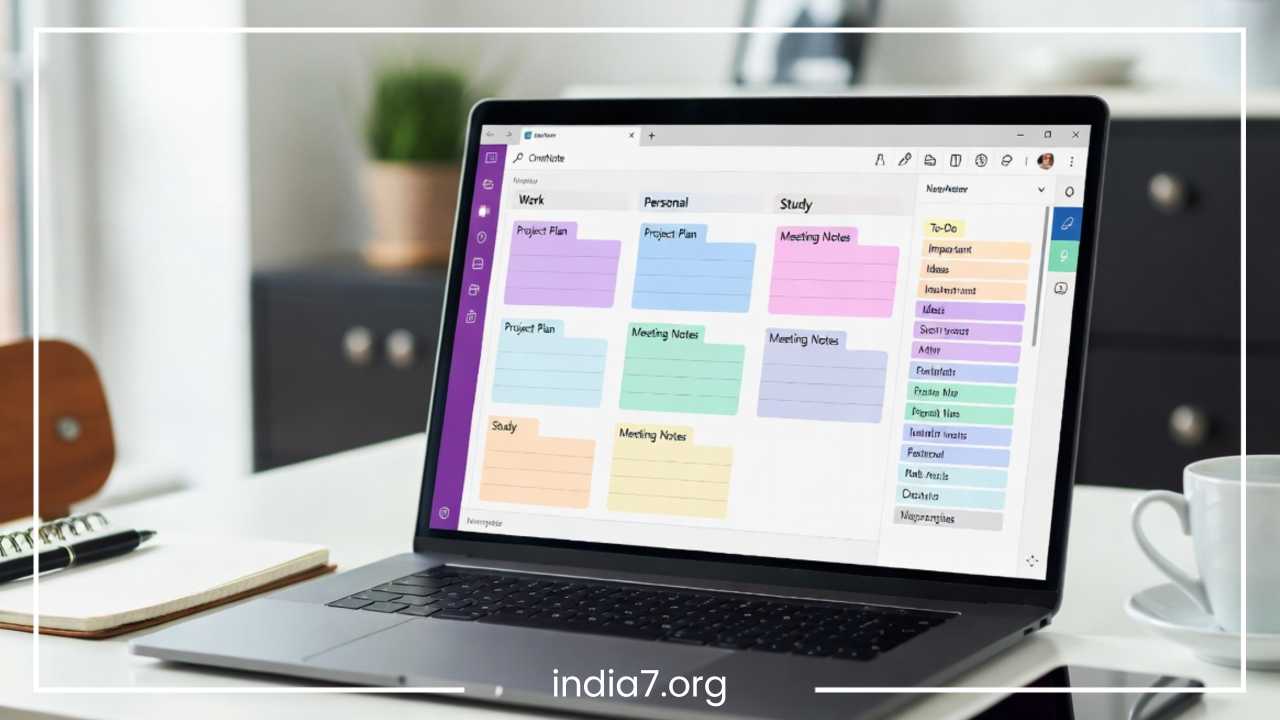
To maximize the efficacy of your OneNote note-taking methods, you must first understand the hierarchy that governs the application. Properly structuring your digital workspace prevents clutter and ensures long-term searchability.
-
Notebooks: The highest tier of organization. Notebooks represent broad domains of your life, such as Academic Studies, Corporate Projects, or Personal Life.
-
Section Groups: An optional but valuable layer that clusters related sections together. For instance, within an Academic Studies notebook, you might create a Section Group for Fall Semester.
-
Sections: Tabbed divisions within a notebook or section group that house individual topics or modules. For example, a section could be dedicated to Chemistry 101 or Weekly Marketing Alignments.
-
Pages: The individual sheets where your notes reside. There is no structural limit to the length of a page, though keeping them focused on singular topics improves navigation.
-
Subpages: OneNote allows you to indent pages up to two levels deep beneath a primary page. This is incredibly useful for grouping sequential lectures, daily journal entries, or project sub-tasks under a main heading.
-
Tags: Metadata markers that can be applied to any individual line of text, image, or component. Tags allow you to categorize information cross-sectionally, marking items as important, requiring follow-up, or acting as a to-do list.
Read: Do Links From Pages With Traffic Help You Rank Higher?
Example Notebook Architecture
To visualize how to organize notes in OneNote, examine this clear, structured layout for a professional environment:
-
Notebook: Corporate Operations
-
Section Group: Client Accounts
-
Section: Acme Corporation
-
Page: Q1 Strategy Briefing
-
Subpage: Initial Discovery Notes
-
Subpage: Action Items & Milestone Tracker
-
-
Page: Monthly Review Deliverables
-
-
Section: Beta Industries
-
-
Section Group: Internal Management
-
Section: Standard Operating Procedures
-
Section: Team Performance Metrics
-
-
Best Methods for Note Taking in OneNote
The unconstrained, flexible layout of OneNote makes it an ideal environment for deploying diverse digital note-taking methodologies. Depending on your learning style, professional needs, or the nature of the information you are capturing, you can easily implement any of the following seven systems.
The Outline Method
The Outline Method is one of the most reliable systems for structured information gathering. It relies on a strict hierarchical format, using bullet points, numbered lists, and staggered indentations to show relationship depths between parent topics and subordinate details.
This method is exceptionally well-suited for professional meetings, structured lectures, or textbook summaries where information flows logically from high-level concepts to granular specifications.
Implementation Steps
To execute the Outline Method in OneNote, start at the far-left margin with your primary topic. When a supporting detail is introduced, hit Enter and press the Tab key to indent your text box eastward. For deeper evidence or examples, press Tab once more. You can use OneNote’s native formatting bar to alternate between Roman numerals, letters, or customized bullet characters for each tier.
Structured Example
Main Topic: Digital Transformation Strategy
 Supporting Concept: Cloud Migration
 Detailed Metric: Transition 85% of legacy infrastructure to Azure
 Detailed Metric: Reduce on-premise hardware overhead by 40%
 Supporting Concept: Cybersecurity Training
 Detailed Metric: Implement mandatory quarterly phishing simulations
OneNote enhances this classic framework by allowing you to collapse and expand individual branches. By hovering your mouse cursor over a top-level bullet point, a small gray handle appears. Double-clicking this icon collapses all indented sub-bullets beneath it, letting you easily toggle between a high-level overview and a deep-dive view.
The Cornell Note-Taking Method
Developed at Cornell University, this systematic framework is designed for deep comprehension and long-term retention. It divides a single note page into three distinct, functional territories: a notes column for real-time capture, a cue column for questions or keywords, and a summary section for synthesizing information after the session concludes.
The Cornell method in OneNote is highly effective for students preparing for exams or professionals analyzing complex regulatory updates, as it actively forces you to review and condense your thoughts.
Implementation Steps
While OneNote does not have an explicit Cornell button, you can build a reusable layout using its built-in table tool:
-
Insert a table with two columns and two rows.
-
Adjust the left column (Cue Column) to be roughly two inches wide.
-
Stretch the right column (Notes Column) to fill the remainder of your screen.
-
Merge the two cells in the bottom row to create your full-width Summary Section.
-
Apply a light background shading to the headers or borders to make the layout visually distinct.
Structured Table Layout
| Cue Column (Keywords & Questions) | Notes Column (Real-Time Ingestion) |
|
What is the primary cause of system latency? Key Term: Monolithic Architecture |
* Legacy databases struggle with high concurrent traffic volumes.
* Monolithic frameworks create systemic bottlenecks during peak user hours.
* Microservices offer an alternative by decoupling compute resources. |
| Summary Section | |
| System latency is primarily driven by centralized monolithic database constraints. Transitioning to a decentralized microservices architecture allows independent resource scaling and mitigates single-point bottlenecks. |
The Mapping Method
For visual learners, linear text blocks can sometimes obscure the relationships between interconnected ideas. The Mapping Method translates concepts into a graphic layout, linking central ideas to peripheral details using lines, shapes, and floating text fragments.
This approach excels during unstructured brainstorming sessions, project ideation phases, or when deconstructing highly integrated ecosystem dependencies.
Implementation Steps
To maximize this method, take advantage of OneNote’s digital inking canvas. If you are using a stylus-equipped device, select a pen tool from the Draw tab and sketch your primary idea directly in the middle of the screen. Draw explicit radial branches outward to represent secondary attributes, circling or highlighting critical nodes in contrasting colors.
For mouse and keyboard users, you can click anywhere on the page to spawn free-floating text containers. Arrange these boxes contextually across the workspace, then connect them using the shapes tool under the Draw ribbon. You can insert links between distinct sections or pages to build a digital web of references.
The Charting Method
When a lecture or corporate briefing focuses heavily on comparing entities across shared criteria, the Charting Method keeps your notes highly structured. This system uses explicit rows and columns to organize information systematically, reducing lengthy, narrative text into clear data points.
It is perfect for product research, competitive market analysis, historical timelines, or medical diagnostic comparisons.
Implementation Steps
Use the native OneNote table shortcut to spin up a grid instantly. Type your first header column title, press the Tab key to automatically generate an adjacent column, and hit Enter at the end of a line to establish a new row.
Structured Table Example
| Technology Stack | Scalability Index | Deployment Complexity | Maintenance Cost |
| Option A: Monolithic | Low | Low initial overhead | High long-term debt |
| Option B: Microservices | High | High initial configuration | Predictable, modular |
| Option C: Serverless | Dynamic | Medium infrastructure setup | Pay-per-use efficiency |
The Boxing Method
The Boxing Method groups related concepts into discrete, self-contained visual squares. By segregating text into designated geometric zones, you prevent separate topics from blending into an unreadable column of words.
This technique is highly valuable for multi-topic agendas, quick brainstorming exercises, or when managing separate project deliverables on a single canvas.
Implementation Steps
Because OneNote treats every separate mouse click as the origin point for an independent text box container, implementing this method is incredibly straightforward:
-
Click on an empty canvas coordinate and type your notes for a specific sub-topic.
-
Click elsewhere to generate an adjacent block for a different subject thread.
-
Select an entire text block container, navigate to the Draw menu, and select the rectangle shape tool to draw a border around your text.
-
Use different background colors within the boxes to establish an intuitive, color-coded workspace.
The Sentence Method
The Sentence Method involves documenting every new idea, fact, or quote on a separate, sequentially numbered line. It abandons complex structural hierarchy in favor of pure speed, capturing as much information as possible without pausing to organize.
This is a great fallback method during fast-paced lectures, rapid-fire executive meetings, or intense investigative interviews where you cannot predict the flow of conversation.
Implementation Steps
Open a fresh page in OneNote, activate the numbered list shortcut, and type sentences continuously. Do not worry about nested items or indents during the event.
-
Pros: Ensures you capture a high percentage of raw data; requires very little cognitive overhead while typing; prevents you from falling behind a fast speaker.
-
Cons: Resulting notes can feel disconnected and disorganized; requires a mandatory post-session review to sort, tag, and extract actionable elements into subpages.
The Flow-Based Method
Popularized by learning experts, the Flow-Based Method encourages holistic, real-time synthesis rather than passive, verbatim transcription. Instead of copying a speaker word-for-word, your goal is to construct a personalized mental map on the canvas, using arrows, shorthand abbreviations, and annotations to show how concepts connect.
This framework is highly beneficial for conceptual subjects, strategic planning sessions, and high-level architectural overview meetings.
Implementation Steps
Actively listen to the presenter and record only core concepts using highly abbreviated text blocks. Use your stylus or mouse to draw arrows indicating causal loops, dependencies, or contradictions. If a point reminds you of a concept discussed three weeks ago, insert an internal link directly to that historical page, keeping your information dynamically cross-referenced.
Best OneNote Features That Improve Note Taking
To elevate your workflows, you should look beyond basic text formatting and weave OneNote’s specialized, built-in features directly into your daily note-taking routines.
-
Tags and To-Do Checkboxes: Pressing Ctrl + 1 instantly inserts an interactive checkbox next to any text line. You can apply custom tags like Important (star icon) or Question (question mark icon) to flag crucial data.
-
Page Templates: Prevent administrative fatigue by using OneNote templates. You can design an idealized corporate meeting structure or lecture layout, save it as a default design, and have OneNote automatically apply it whenever you generate a new page in that section.
-
Quick Notes: Think of Quick Notes as digital sticky notes. By pressing Windows + Alt + N at any point, a small, minimized scratchpad window opens over your current application, allowing you to capture fleeting thoughts without opening the main OneNote interface.
-
Ink to Text: For those who prefer the kinetic feel of handwriting with a digital stylus, OneNote can convert handwriting into standard text, preserving the natural flow of writing while gaining the clean look of typography.
-
Dictation and Audio Recording: If you are tired of typing, use the Dictate button on the Home tab to convert your spoken words into text. Alternatively, record high-fidelity ambient audio directly into a page using the Audio Recording feature.
-
File Attachments and Printouts: You can embed live Excel spreadsheets, PDFs, or Word documents directly onto a page. Choosing the “Insert as Printout” option flattens the file’s pages visually onto your canvas, allowing you to annotate, highlight, and write notes directly on top of the document.
-
Screen Clipping: Using the built-in screen clipping tool, you can grab snapshots of websites, data dashboards, or video slides. Once pasted into your notes, OneNote indexer scans the image text, making it searchable later.
-
Internal Hyperlinking: Right-click any notebook, section, or individual page and choose “Copy Link to Paragraph” or “Copy Link to Page.” You can paste this link elsewhere to build wiki-like cross-references throughout your digital ecosystem.
-
Password Protection: Keep sensitive intellectual property, financial planning charts, or personal journals secure by right-clicking a section tab and applying a strong password lock.
-
Version History: If you accidentally delete a paragraph or overwrite critical data, right-click the page tab and view past iterations under the Page Versions menu to restore historical snapshots instantly.
Organizing Notes Effectively in OneNote
Having access to top-tier note-taking frameworks is meaningless if your storage system turns into an unsearchable digital junk drawer. Keeping your workspace neat and easy to navigate requires an intentional structural strategy.
-
Implement Descriptive Naming Conventions: Avoid ambiguous, single-word titles like “Notes” or “Meeting.” Instead, use a standardized date and context prefix pattern, such as
YYYY-MM-DD | Project Alpha StatusorCHEM101 | Lecture 04 | Covalent Bonds. -
Utilize Systematic Color Coding: Assign explicit color rules to your section tabs. For instance, color academic sections green, financial sections blue, and career management tabs deep red. This makes visual scanning much faster.
-
Consolidate via Section Groups: When a notebook accumulates more than a dozen sections, use Section Groups to bundle older materials. You can group things by project phase, business quarter, or academic term.
-
Establish an Archive Section: Move completed projects or past courses into a designated Archive section group. This keeps your active workspace clean while keeping historical data indexed for search queries.
-
Pin Critically Important Pages: If you have an active reference index or a rolling to-do sheet that you open every day, right-click the page and pin it to the top of your page list for immediate entry.
OneNote Tips for Students
Academic workloads require high-speed lecture capture, document annotation, and long-term exam preparation. Here is how students can adapt OneNote for learning:
-
Annotate Presentation Slides directly: Download lecture slide decks as PDFs before class, import them into OneNote using the File Printout option, and write your professor’s commentary directly alongside the corresponding slides.
-
Track Assignments via Checkboxes: Build a master assignment tracking page within a dedicated section group, sorting obligations by due dates using interactive checkboxes.
-
Record Lectures for Context: Use the Audio Recording feature during complicated technical explanations. If you review your typed notes later and find a concept confusing, click the playback icon next to that specific sentence to hear exactly what the instructor said.
-
Leverage the Math Assistant: Type or write out a complex algebraic formula, select it with the Lasso tool, and click the Math button. OneNote will solve the equation and provide step-by-step instructions to help you understand the solution.
OneNote Tips for Professionals
In corporate environments, clear documentation, swift meeting execution, and cross-team alignment drive efficiency. Professionals can unlock high-value workflows with these OneNote productivity tips:
-
Integrate Meetings with Outlook: Click the “Meeting Details” button on the Home ribbon to pull scheduled calendar invites directly onto your page. This automatically populates the date, time, location, attendee list, and agenda description, giving you an instant foundation for your notes.
-
Extract Action Items into Outlook Tasks: Highlight an important action item line, click the Outlook Tasks flag, and assign a clear due date. This instantly syncs the item to your Outlook to-do list and Microsoft To-Do dashboard.
-
Build Centralized SOPs: Design clear Standard Operating Procedure (SOP) documentation templates for onboarding new team members, housing software access steps, configuration strings, and team workflows.
-
Maintain a Daily Work Journal: Dedicate a specific section to short, daily logs. Spend five minutes at the end of every day listing completed items, active blockers, and goals for the next morning. This is incredibly helpful for performance reviews and status updates.
OneNote Tips for Personal Productivity
Beyond classrooms and corporate boardrooms, OneNote functions as an excellent life organizer, centralizing goals, household management, and hobbies.
-
Track Long-Term Habits and Goals: Build a simple goal-tracking page, breaking yearly targets down into quarterly milestones with bulleted tracking lists.
-
Design a Travel Planning Dashboard: Create a dedicated page for upcoming vacations. Use the unconstrained canvas to arrange flight confirmations, hotel maps, embedded PDF tickets, and day-by-day itineraries side by side.
-
Manage Recipes and Meal Planning: Use the OneNote Web Clipper extension on your browser to extract recipes from the web, stripping out advertising clutter to keep only the ingredient lists and cooking steps.
-
Build a Household Inventory Registry: Maintain a running tab of appliance serial numbers, home repair color codes, and recurring subscription renewal dates.
Common Note-Taking Mistakes to Avoid
Even seasoned users can fall into habits that degrade OneNote’s overall performance and clarity. Be mindful of these common traps:
-
Creating Too Many Separate Notebooks: Generating a fresh notebook for every minor sub-project adds unnecessary friction. Keep your notebooks broad and rely on section groups and pages for more granular division.
-
Over-relying on Huge File Attachments: While embedding video files or large raw PDFs is convenient, doing it excessively can bloat your notebook size, slowing down sync speeds on mobile devices. Consider linking to large files on cloud storage like OneDrive or SharePoint instead.
-
Neglecting Your Post-Session Summaries: Passively capturing notes without reviewing them creates digital clutter. Schedule 10 minutes at the end of each week to clean up raw text, apply relevant tags, and clear out completed items.
-
Forgetting to Audit Shared Content: If you share notebook sections with external vendors or cross-functional team members, audit your access lists regularly to maintain data security.
OneNote Keyboard Shortcuts That Save Time
Memorizing keyboard shortcuts reduces mouse dependency, allowing you to format notes and navigate workspaces seamlessly.
| Shortcut | Function Executed |
| Ctrl + N | Generates an entirely new note page within the current section |
| Ctrl + Alt + 1 | Applies Heading 1 styling to the active line |
| Ctrl + Alt + 2 | Applies Heading 2 styling to the active line |
| Ctrl + 1 | Appends or clears an interactive To-Do checkbox tag |
| Ctrl + 2 | Appends or clears an Important star icon tag |
| Ctrl + E | Activates the global search box to query all notebooks |
| Ctrl + K | Inserts a hyperlink over highlighted text |
| Alt + Shift + Up Arrow | Moves the selected text paragraph upward on the page |
| Alt + Shift + Right Arrow | Indents the active paragraph line to create a sub-bullet |
| Ctrl + Shift + G | Creates a new Section Group within the active notebook |
Best Practices for Efficient Note Taking in OneNote
To ensure your digital note-taking remains sustainable, efficient, and clean over time, follow these core habits:
-
Enforce Single Notebook Frameworks for Major Life Areas: Keep your workspaces simple. Maintain one notebook for Career/Work, one for Academics, and one for Personal Logistics.
-
Use Templates Consistently: Do not re-invent the layout wheel every Monday morning. Build a clean, minimalist layout that works for you and set it as your default template.
-
Tag Judiciously: If you tag every single sentence, nothing remains scannable. Use tags exclusively for explicit action items, high-priority conceptual questions, or key takeaways.
-
Synchronize via Stable Networks: Give OneNote ample time to push background sync updates to OneDrive before closing your computer lid, ensuring you don’t run into version conflicts on other devices.
OneNote vs Other Note-Taking Apps
To help you understand where Microsoft’s platform shines compared to competitors, look at this high-level feature matrix:
| Feature Dimension | Microsoft OneNote | Evernote | Notion | Google Keep |
| Free Tier Value | Excellent (Full feature set) | Highly Restricted | Good for individual use | Basic (Free tool) |
| Structural Layout | Traditional Tabbed Binder | Stacked Folders & Notes | Relational Database Wiki | Floating Grid Cards |
| Canvas Styling | Free-form (Click anywhere) | Traditional Linear Editor | Block-based Editor | Simplified Single Column |
| Digital Handwriting | Advanced native ink tools | Basic sketch panels | Poor / External tools only | Basic sketching |
| Offline Functionality | Robust local caching | Restricted on free tier | Limited / Web-reliant | Basic local caching |
| OCR Capabilities | Deep image/audio indexing | Limited to paid tiers | No native OCR engine | Basic image scanning |
While tools like Notion excel at managing highly structured relational databases, and Google Keep is great for quick shopping lists, OneNote strikes an excellent balance for deep, free-form digital note-taking. It blends unstructured canvas writing with clear binder organization, making it a reliable choice for long-term knowledge management.
Final Thoughts
Mastering how to take notes in OneNote is a process of choosing the right structure for your needs rather than trying to use every single feature at once. Whether you prefer the clean logic of the Outline Method, the balanced setup of the Cornell Method, or the visual freedom of the Mapping Method, OneNote provides the flexible tools necessary to build your ideal workflow.
Take the time to organize your notebook architecture, play around with custom page templates, and build helpful habits like using keyboard shortcuts and regular note reviews. By applying these OneNote productivity tips consistently, your digital note-taking system will stop being just a storage space for random thoughts and become a powerful asset for your daily productivity.
Frequently Asked Questions
What is the best method for note taking in OneNote?
The absolute best method depends entirely on your specific workflow and learning style. For structured lectures and logical business meetings, the Outline Method is highly recommended due to its hierarchical bullet-point system. If you are studying for exams or analyzing technical documents, the Cornell Note-Taking Method is superior because its dedicated cue and summary sections actively promote memory retention.
How do I organize notes in OneNote efficiently?
To build a highly efficient organization system, implement a structured hierarchy using broad Notebooks for major life categories, Section Groups for chronological or thematic divisions, and individual Pages paired with nested Subpages for granular tracking. Additionally, apply consistent page-naming conventions and use interactive to-do tags to ensure your notes remain easily searchable.
Can I use the Cornell note-taking method in OneNote?
Yes, you can easily replicate the Cornell method in OneNote by utilizing the native table tool. Simply insert a table with two columns and two rows on your free-form canvas. Adjust the left column to serve as your narrow “Cue Column” for keywords and questions, stretch the right column to act as your “Notes Column,” and merge the bottom row’s cells to create your full-width “Summary Section.”
How can students use OneNote for digital note-taking?
Students can optimize OneNote for academic success by importing presentation slide decks or digital textbooks directly onto the canvas using the File Printout feature. This allows you to highlight and write handwritten notes with a stylus right on top of the lecture slides. Furthermore, using the built-in Audio Recording tool allows you to sync ambient classroom audio with your typed notes for easy exam revision.
What are the best OneNote productivity tips for professionals?
Professionals looking to streamline their daily workflows should use the Meeting Details integration to instantly pull Outlook calendar events, agendas, and attendee lists directly onto their note pages. Another top technique is highlighting action items within your meeting minutes and using the Outlook Tasks feature to assign deadlines that sync immediately with your master Microsoft To-Do list.
Is there a way to convert handwriting to text in OneNote?
Yes, OneNote features advanced Optical Character Recognition (OCR) and digital inking engines. If you prefer sketching or handwriting your notes with a digital stylus, you can select your handwriting using the Lasso Select tool on the Draw ribbon and click Ink to Text. OneNote will instantly convert your handwritten scribbles into clean, editable typography.
How do I use OneNote templates for faster note-taking?
To eliminate the hassle of formatting new pages manually, navigate to the Insert tab and select Page Templates. You can choose from a library of pre-designed layouts or customize your own structural outline. Once you have built an ideal meeting or lecture layout, click “Save current page as a template” at the bottom of the pane and toggle it as the default layout for that specific notebook section.