Best Methods for Note-Taking in OneNote

Boost Your Productivity: Best OneNote Note-Taking Methods
In an information-dense world, the ability to capture, process, and retain knowledge effectively is a foundational pillar of personal and professional success. Every day, individuals are inundated with streams of data from emails, virtual meetings, academic lectures, and independent research. Without a robust system to manage this influx, valuable insights are lost, deadlines are missed, and mental fatigue sets in. Traditional pen-and-paper methods, while tactile and intuitive, often fail to scale alongside modern demands due to their lack of searchability, physical vulnerability, and zero backup capabilities.
This is where digital note-taking strategies become essential. A structured digital note-taking system serves as an external brain, freeing up cognitive resources so that you can focus on critical thinking and execution rather than raw memorization. Microsoft OneNote stands as one of the most versatile and enduring tools available for this purpose, providing an expansive, free-form canvas that mirrors physical notebooks while offering powerful digital advantages.
However, simply opening a blank page and typing erratically will not yield true productivity. To unlock the full potential of the software, you must implement proven frameworks tailored to your specific cognitive processing style and current tasks. In this comprehensive guide, you will learn the best OneNote note-taking methods, including the Cornell, Outline, Mapping, Charting, and PARA techniques. You will also discover how to structure your environment, use tags, manage professional meetings, leverage templates, and apply advanced power-user tips to transform Microsoft OneNote organization into a high-yielding engine for your daily productivity.
Read: Local SEO Strategies for Small Businesses
Why OneNote Is a Powerful Productivity Tool
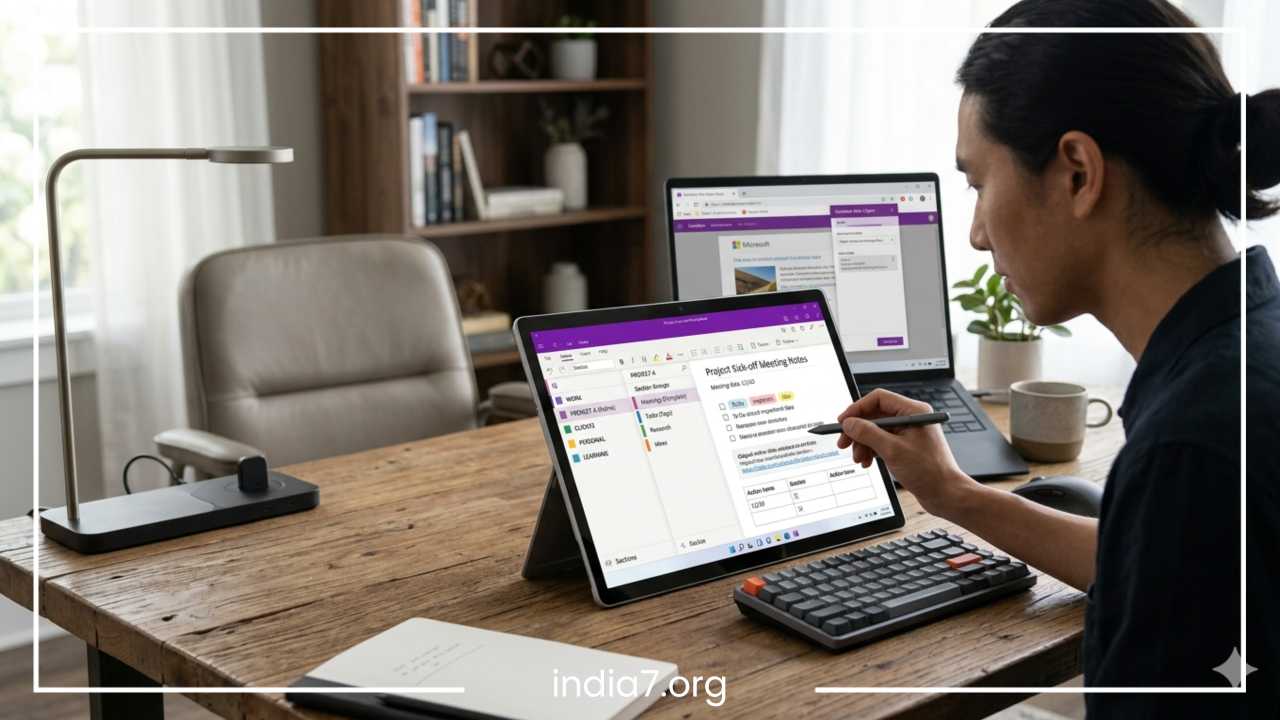
Microsoft OneNote operates on a digital notebook concept that fundamentally changes how information is aggregated and preserved. Unlike standard text editors that force users into rigid, linear margins, OneNote provides a literal unconstrained canvas. You can click anywhere on a page to start typing, drag and drop elements fluidly, and place multimedia components side-by-side. This layout flexibility mimics the spatial freedom of a physical binder while layering on the infinite scalability of cloud-based software.
One of the greatest operational strengths of OneNote is its seamless cross-device synchronization. Whether you are typing on a desktop computer in an office, reviewing annotations on a tablet while commuting, or quickly capturing a thought via a smartphone app, your data remains identical and up to date across all platforms. This deep mobility ensures that critical information is always accessible at the exact moment it is required. Furthermore, because it sits directly within the Microsoft 365 ecosystem, OneNote integrates flawlessly with enterprise tools like Outlook, Teams, and Word, facilitating frictionless task management and communications.
The search capabilities built into OneNote are an absolute game-changer for digital data retrieval. The system index goes far beyond basic text matching; it utilizes advanced Optical Character Recognition to read text contained inside uploaded images, scanned PDF documents, and even handwritten digital ink. This handwriting and multimedia support allows you to embed audio files, sketch structural diagrams with a stylus, clip web articles, and file away mixed-media logs without losing the ability to locate specific keywords in seconds.
These multi-faceted capabilities make OneNote uniquely suited for a wide variety of users:
-
Students can record audio lectures directly alongside their typed conceptual slides, using digital ink to sketch out intricate mathematical formulas or anatomical charts.
-
Professionals can aggregate cross-departmental communications, build individual client dossiers, and maintain quick access to regulatory standards.
-
Project managers can centralize project charters, track individual team member deliverables, and compile post-mortem reports.
-
Researchers can save massive volumes of web clippings, white papers, and interview transcripts, cross-referencing sources with internal links.
Read: E-commerce SEO: Boosting Sales Through Search Optimization
How to Structure Your OneNote Notebooks for Maximum Productivity
To prevent your digital workspace from deteriorating into a chaotic digital junk drawer, you must understand the organizational anatomy of OneNote. The application uses a strict four-tier hierarchy consisting of Notebooks, Sections, Section Groups, Pages, and Subpages.
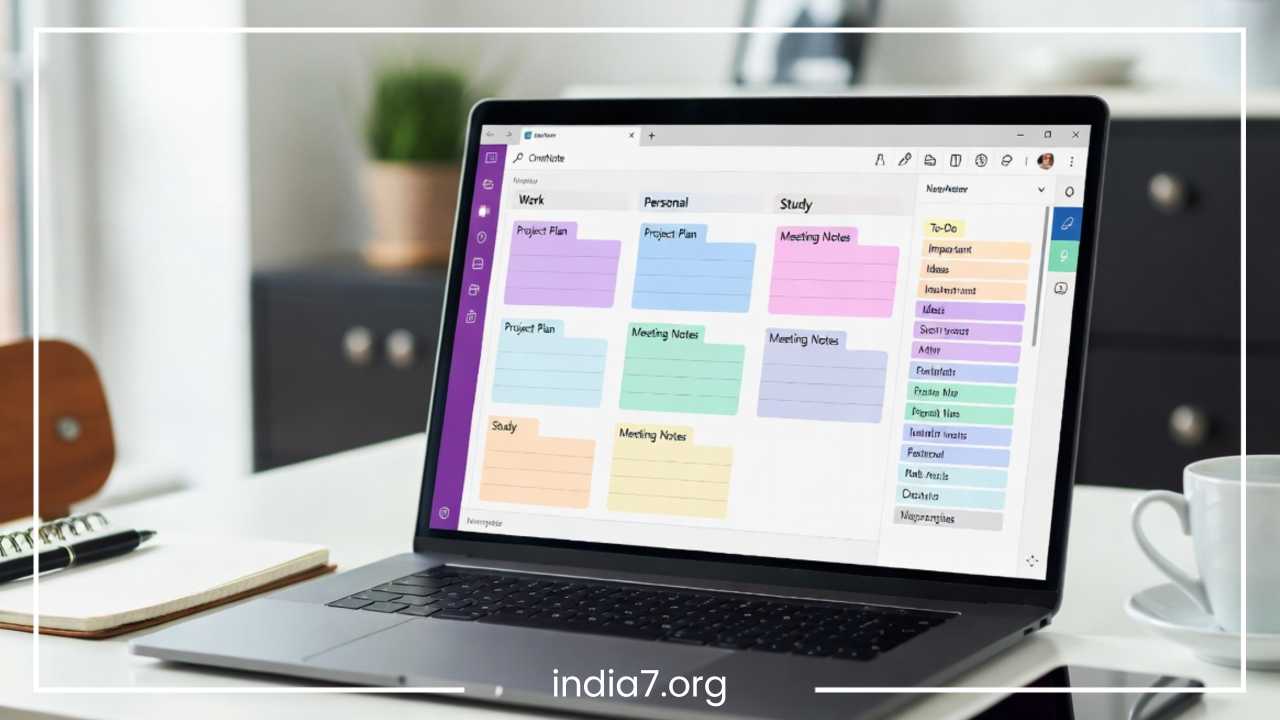
Notebooks act as the overarching boundaries, housing distinct life categories or major operational spheres. Inside each notebook sit Sections, which act like the colored tab dividers in a physical binder to categorize specific topics. For deeply complex subjects, Section Groups let you cluster multiple related sections together. Within sections are Pages, the actual canvases where you write, and these pages can be indented into Subpages (and even further into secondary subpages) to establish a clean, nested outline of content.
To maintain clarity and prevent cognitive overload, it is highly recommended to isolate your primary domains into dedicated notebooks. Mixing corporate tracking with weekend fitness plans leads to a cluttered visual interface and fragmented search environments.
Read: Technical SEO Basics: A Comprehensive Guide
Recommended Core Notebook Configurations
-
Work Notebook: Dedicated entirely to your primary professional employment. It should house separate sections for individual ongoing projects, administrative workflows, professional development, and recurring team meetings.
-
Personal Notebook: Your digital home for life management outside of employment. This includes sections for long-term fitness tracking, meal planning, home maintenance logs, financial budgets, and personal travel itineraries.
-
Study Notebook: Designed for academic tracks or intense professional certifications. Each notebook can represent an entire academic semester or certification pathway, with individual sections assigned to specific courses or exam modules.
-
Project Notebook: Used for massive, multi-faceted endeavors that would otherwise overwhelm a single section in your standard notebook. Examples include planning a complex corporate launch, writing a book, or managing a major home renovation.
Foundational Structural Architecture
The following structure shows how a functional hierarchy should look across notebooks, sections, pages, and subpages without unnecessary complexity:
-
Work Notebook
-
Meetings Section
-
Q1 Strategy Alignment Page
-
Weekly Operations Sync Page
-
-
Projects Section Group
-
Project Alpha Section
-
Project Charter Page
-
Vendor Contracts Subpage
-
-
Project Beta Section
-
Product Requirements Page
-
-
-
Ideas Section
-
Brainstorming: Marketing Campaigns Page
-
-
Reference Section
-
Corporate Brand Guidelines Page
-
Onboarding Documentation Page
-
-
The Cornell Note-Taking Method in OneNote
Developed in the 1940s by Walter Pauk at Cornell University, the Cornell Note-Taking Method remains one of the most enduring digital note-taking strategies for deep conceptual comprehension and rapid review. The method is deliberately structured to divide a single page into three distinct zones: a narrow left-hand column for cues, a wide right-hand section for core notes, and a single broad horizontal row across the very bottom for a summary. This division transforms passive reading or listening into an active learning process.
The Left Cue Column is used to write down keywords, overarching questions, or memory prompts immediately after a lecture or reading session. The Right Notes Section is your real-time processing zone during the actual event, used to capture main ideas, data points, diagrams, and supporting details. The Bottom Summary Section is filled out hours or days later, requiring you to synthesize the entire page’s worth of information into two to three impactful sentences.
Implementing the Cornell method within OneNote is straightforward when using native table structures. Rather than guessing column widths on a completely open canvas, you can build a clean framework that locks your formatting into place.
| Section | Dimensional Focus | Purpose and Content |
| Cue Column | Narrow Left Column (~30% width) | Questions, trigger words, main themes, and actionable vocabulary added post-session. |
| Notes Section | Wide Right Column (~70% width) | Primary lecture sentences, bulleted lists, technical data, sketched diagrams, and core facts. |
| Summary Section | Full Width Bottom Row | A brief, macro-level synthesis of the page’s insights, completed during review. |
To execute this quickly, create a page layout template with a table containing two columns for the upper portion and a merged row stretching across the bottom. Save this blank page structure as a default template within your study or research sections so that every time you generate a new page, your Cornell framework is instantly pre-populated and ready for entry.
The cognitive benefits of the Cornell method are profound. It prevents you from mindlessly transcribing text verbatim, forcing you to actively summarize information. This structure drastically accelerates review cycles before exams or major executive briefings; by simply covering the right-hand notes section, you can use the left-hand cue column as a flashcard system to test your active recall.
Using the Outline Method in OneNote
The Outline Method is perhaps the most universally adopted approach for linear thinkers who prefer highly ordered, structured data. It relies heavily on an intuitive hierarchical organization that groups information from broad macro-concepts down into granular details. This is achieved through the systematic application of indentation, bulleted points, and numbered lists.
When utilizing this approach, your primary topic serves as the main bullet point at the far-left margin. Sub-points detailing specific aspects of that topic are indented one tab stop to the right. Finer examples, supporting statistics, or secondary details are indented an additional tab stop further to the right. This clear spatial layout allows your eyes to instantly map out relationships, understand dependencies, and distinguish primary themes from supporting evidence at a glance.
This highly organized approach is particularly powerful in high-velocity situations such as live corporate meetings, fast-paced academic lectures, and structured training seminars. In these environments, you do not have the luxury of time to build custom tables or map visual ideas; you must capture incoming data fast, cleanly, and predictably.
OneNote makes outlining incredibly fluid through built-in keyboard shortcuts and interactive interface features. By using the Tab key, you instantly demote a bullet point to a lower hierarchical tier, while pressing Shift + Tab immediately promotes it back toward the left margin. Furthermore, OneNote automatically creates collapsible sections for indented content. When you hover your mouse cursor over a primary top-tier bullet point, a small handle appears allowing you to double-click and collapse all nested sub-bullets beneath it. This capability lets you compress a massive, ten-page outline of complex data down into a single page of core headings, keeping your workspace clean and allowing you to expand individual sections only when you need to study them closely.
The Mapping Method for Visual Thinkers
Not everyone processes information linearly or sequentially. For creative professionals, visual strategists, and spatial learners, traditional text lists can feel restrictive. The Mapping Method addresses this by treating a OneNote page as a completely non-linear space where concepts can expand outward in any direction from a centralized core idea.
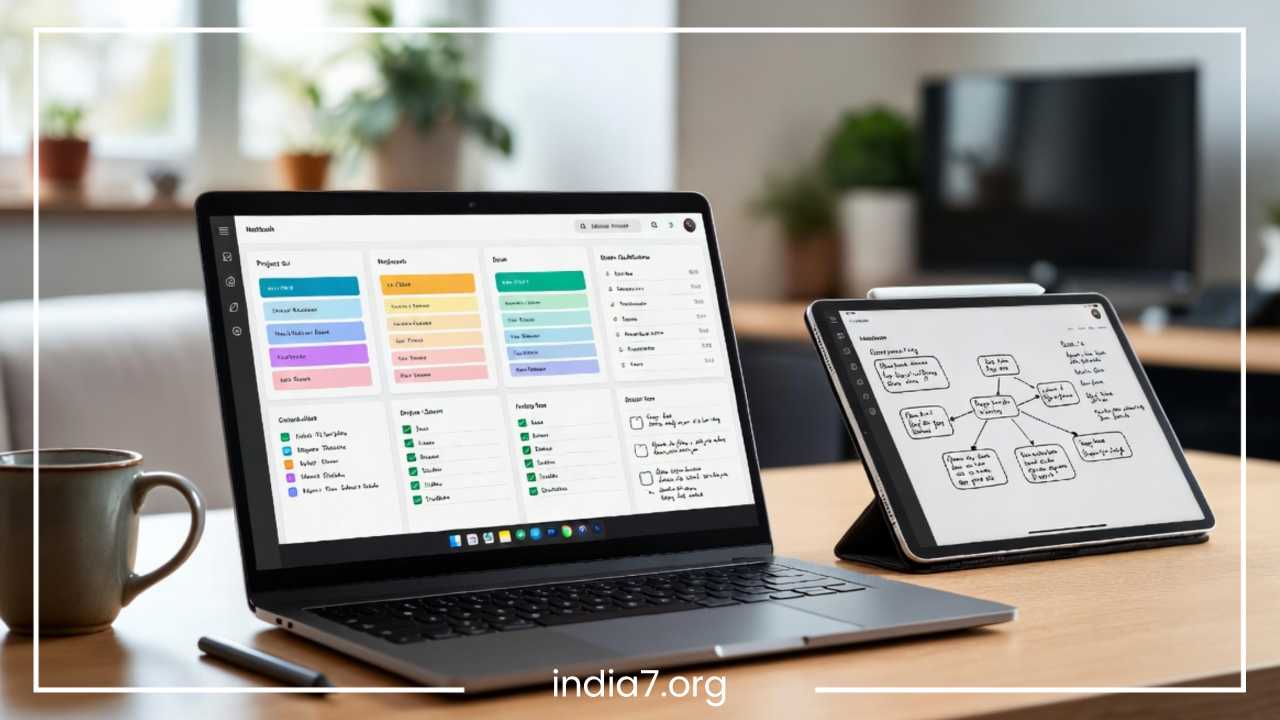
This method functions as a digital mind map. You place your main topic squarely in the middle of the digital canvas. From that central point, branches radiate outward to represent related sub-topics, which then split into even finer tertiary branches containing specific details, action items, or creative research notes. This visual layout allows you to brainstorm freely without being forced to decide on a perfect chronological order upfront, making it highly effective for tracing complex concept relationships and discovering unexpected connections between disparate pieces of information.
OneNote is an outstanding tool for mind mapping due to its rich collection of native drawing tools, shapes, and digital ink support. If you are working on a touch-enabled device with a digital stylus, you can switch to the Draw tab, select a preferred pen thickness, and physically sketch out your map just as you would on a physical whiteboard.
Core Mapping Elements in OneNote
-
Central Canvas Nodes: Use thick, colored digital ink or shapes (like rectangles or ovals) to clearly anchor your primary project goal in the center of the page.
-
Relational Connectors: Draw explicit arrows and directional lines between text boxes to visually communicate dependencies, workflow direction, or intellectual hierarchies.
-
Media Embeds: Insert relevant web images, icon files, or screenshots right next to your visual nodes to create a rich, comprehensive mood board or reference map.
This visual strategy is ideal for the early ideation stages of project planning, conducting deep academic research across interdisciplinary fields, and outlining comprehensive content strategies for digital media campaigns. It converts cold data into a highly spatial landscape that matches the natural associative way your brain generates ideas.
The Charting Method for Data-Heavy Notes
When notes consist primarily of comparative facts, performance metrics, product specifications, or highly structured historical timelines, narrative paragraphs become an obstacle to efficiency. The Charting Method strips away conversational filler and reorganizes information into an explicit, structured grid matrix.
This method relies completely on a distinct column-and-row format where separate columns represent fixed evaluation attributes and rows represent the items being analyzed. By placing data points into a clean comparative table, you can audit, contrast, and analyze extensive data sets without having to read through pages of text to find a single variable.
OneNote makes implementing the Charting Method incredibly easy. You can create a table instantly by simply typing a word and pressing the Tab key on your keyboard, which immediately generates a two-column row. Every subsequent press of the Tab key appends an additional column, while hitting Enter at the end of a line creates a brand-new row underneath. For advanced data sets that require complex mathematical sorting, filtering, or financial formulas, OneNote allows you to embed native Excel spreadsheets directly into the canvas, providing full spreadsheet functionality right inside your notebook page.
Example Comparative Framework for Competitor Analysis
The following matrix shows how the Charting Method organizes dense research into a highly scannable, comparative view:
| Target Entity | Core Competency | Pricing Tier | Operational Risk Level |
| Competitor Product A | Enterprise Security Protocols | High Premium | Low – Well Established |
| Competitor Product B | Lightweight Mobile UI | Mid-Range | Medium – Scaling Issues |
| Competitor Product C | Open-Source Customization | Free Entry | High – Lack of Direct Support |
The Charting Method is the perfect choice for conducting thorough product research, building competitive market analyses, documenting scientific experiment variables, or tracking historical dates and figures for comprehensive study guides. It turns high volumes of scattered data into a clear visual summary.
The PARA Method in OneNote
Popularized by productivity expert Tiago Forte in his Building a Second Brain framework, the PARA Method is an exceptionally popular and highly functional organizational system designed explicitly for digital information management. PARA is an acronym standing for four definitive categories of information: Projects, Areas, Resources, and Archives. This system organizes information entirely by its actionable relevance rather than its broad academic topic.
-
Projects: A collection of highly actionable, short-term endeavors that possess a concrete, definitive end date and are tied to a specific, measurable goal (e.g., “Launch Website Redesign” or “Move to New Office”).
-
Areas: Ongoing, long-term personal or professional responsibilities that require continuous, regular maintenance and do not have an ultimate end date (e.g., “Financial Health,” “Health and Fitness,” or “Direct Reports Management”).
-
Resources: Highly valuable topics of interest, research bases, reference manuals, or general knowledge repositories that could prove useful for a variety of future projects (e.g., “SQL Coding Tips,” “Graphic Design Inspiration,” or “Travel Guides”).
-
Archives: Any inactive item from the previous three categories that is no longer urgent or actionable but must be preserved for historical reference, legal auditing, or potential future reuse.
Structural Blueprint for the PARA Framework
To implement PARA effectively within OneNote, you can configure your digital notebooks to follow this exact functional hierarchy:
-
Primary Corporate Notebook
-
Projects Section Group
-
Section: Q3 Product Rollout
-
Section: Client Onboarding Redesign
-
-
Areas Section Group
-
Section: Professional Development
-
Section: Quarter Financial Auditing
-
-
Resources Section Group
-
Section: Market Research Trends
-
Section: Copier Documentation and Help
-
-
Archive Section Group
-
Section: Completed Q1 Projects
-
Section: Legacy System Operations Manual
-
-
The primary productivity advantage of the PARA method is that it significantly reduces visual clutter and mental friction. When you open OneNote to start your workday, you do not have to filter through old documents or finished tasks. You navigate straight to your active Projects section group, knowing that every single page stored there relates directly to your immediate priorities. It aligns your digital notebook with your actual daily workflow.
How to Use OneNote Tags for Faster Organization
One of the most frequent downfalls of digital notebooks is the “out of sight, out of mind” phenomenon. You type a brilliant idea or note down an urgent action item inside a subpage, close the application, and completely forget it exists because it is buried deep within your hierarchy. OneNote Tags solve this tracking problem by applying searchable meta-labels directly to individual sentences or paragraphs.
Tags act as functional visual flags that cross cut through your traditional notebook section boundaries. OneNote includes an expansive list of default tags, but it also allows you to create highly tailored custom tags.
Essential Tag Categories and Implementations
-
To-Do Tags: Places an interactive, clickable checkbox next to an item. This is ideal for quickly capturing unexpected action items during live group discussions.
-
Important Tags: Assigns a vivid star icon to a row of text, signaling at a glance that the marked sentence contains a critical policy constraint, deadline, or high-value insight.
-
Question Tags: Applies a distinct question mark icon to a line, indicating that the concept requires deeper investigation, an explanatory follow-up with a supervisor, or additional external verification.
-
Custom Tags: Tailored labels created by you to track highly specific indicators across your entire notebook, such as client names, specific budget codes, or project names.
The real productivity power of tagging is unleashed through the Find Tags feature. When you click this button on the Home tab, OneNote aggregates every single tagged line across all of your open notebooks and compiles them into a clean, unified summary pane on the right side of your screen.
You can group this summary pane by tag name, section, date, or page title. This means you can instantly generate a master list of every single uncompleted task or critical question across your entire professional life without having to manually open individual notebook pages. You can even click an action item inside the summary pane to jump directly to the exact page where that note was originally written, ensuring that important tasks never fall through the cracks.
Managing Meeting Notes Efficiently in OneNote
For corporate professionals, meetings can easily consume a significant portion of the standard workweek. If left unmanaged, the valuable decisions, action items, and project adjustments discussed during these collaborations are lost as soon as the session ends. Managing meeting notes efficiently inside OneNote requires an intentional structure that prioritizes speed and clarity.
To streamline this process, you must establish a standard layout for every meeting entry. This layout should separate corporate context from real-time dynamic discussion points, ensuring that anyone reviewing the document post-session can extract the core outcomes within thirty seconds.
Recommended Meeting Documentation Architecture
-
Meeting Objective: A single, clear sentence placed at the top of the canvas defining exactly what the session is designed to solve or decide.
-
Discussion Points: A clean, bulleted outline detailing the chronological conversation, main arguments presented, and data points shared.
-
Decisions: A highly visible, bold section summarizing the final consensus reached, policy changes approved, or strategic pivots selected.
-
Action Items: A dedicated checklist utilizing native To-Do tags to explicitly state individual assignments.
-
Deadlines: Clear dates assigned right next to each action item to ensure total accountability across the team.
The true operational efficiency of OneNote meeting management stems from its direct integration with Microsoft Outlook and Microsoft Teams. By clicking the Meeting Details button on the Home ribbon, OneNote displays an interactive calendar feed of your entire workday.
When you select the current meeting slot, the software automatically populates the page with the official subject line, exact date, scheduled time, invitee roster, and the original calendar invitation text link. During the session, you can check off attendee names as they arrive and link your notes directly back to the Outlook calendar event. This ensures that all team members remain completely aligned before, during, and after the collaboration.
Leveraging OneNote Templates to Save Time
One of the most persistent drains on daily productivity is repetitive setup friction. If you have to spend five minutes manually drawing a table, adjusting margins, font sizes, and adding standard headings every single time you want to capture a new meeting or class lecture, you create a psychological barrier to taking organized notes. OneNote Templates eliminate this administrative overhead entirely.
A template is a pre-designed page blueprint that contains fixed background styles, corporate branding assets, structural headers, specific section tables, and task checklists. When you apply a template, a brand-new page is generated with all of these structural elements locked into place, allowing you to instantly focus on capturing information.
High-Value Templates to Add to Your Workflow
-
Corporate Meetings: Pre-populates clean blocks for objectives, attendee roll calls, structured discussion outlines, and a distinct table for tracking action item accountability.
-
Daily and Weekly Planning: Features a clean layout containing a prioritized priority matrix, daily schedule calendars, habit trackers, and personal reflection text zones.
-
Project Management Trackers: Includes pre-formatted columns designed for rapid risk tracking, project milestone dates, and regular status updates.
-
Class Academic Notes: Pre-configures a clean Cornell note-taking layout complete with separate cue columns, notes rows, and summary blocks at the bottom of the canvas.
To leverage this capability effectively, navigate to the Insert tab and click on Page Templates. Here, you can explore an extensive library of built-in corporate, academic, and creative designs.
More importantly, you can design a custom page layout that matches your unique personal workflow, format it with headers, and select Save current page as template at the bottom of the template pane. You can also configure OneNote to automatically apply that specific template to every single new page generated within that notebook section, saving time and creating total structural consistency across your entire knowledge base.
Advanced OneNote Productivity Tips
To transition from a basic user to a true OneNote power-user, you must incorporate advanced functional capabilities into your daily operational habits. These features dramatically accelerate your data entry speed, automate content transformation, and build a cohesive ecosystem out of scattered thoughts.
Essential Keyboard Shortcuts
Mastering keyboard shortcuts keeps your hands on the keyboard and out of software menus, maintaining your focus during deep work states.
-
Ctrl + N: Instantly generates a brand-new page at the very bottom of your current section list.
-
Ctrl + Alt + 1 / 2 / 3: Instantly applies Heading 1, Heading 2, or Heading 3 formatting to the current line of text, allowing you to structure outlines rapidly without a mouse.
-
Ctrl + K: Opens the hyperlink dialog box, allowing you to build internal links to other notebooks, sections, or individual pages.
-
Windows + Shift + S: The global screen clipping tool. It lets you capture an image of any window on your desktop and send it straight to your current OneNote page.
Beyond basic navigation, OneNote possesses incredible automation features. The software includes a powerful Quick Notes engine, accessible by pressing Windows + Alt + N on your keyboard even when OneNote is completely closed. This action brings up a compact, floating sticky note pad over your desktop, allowing you to quickly capture an urgent phone number, an unexpected task, or an immediate idea without disrupting your active screen workflow.
Additionally, OneNote includes an exceptional OCR (Optical Character Recognition) tool. If you take a photo of a whiteboard after a strategy session or insert a scanned multi-page PDF document into a canvas, you can simply right-click the image file and select Copy Text from Picture. OneNote extracts the text from the image and places it onto your clipboard as editable text, saving you from tedious manual transcription.
Finally, you should prioritize building a personal knowledge base by utilizing internal page linking. By highlighting a word, pressing Ctrl + K, and selecting an existing page within your notebooks, you create a functional hyperlink. This capability allows you to build centralized dashboard hubs, table-of-contents pages, and interconnected wiki structures that link all of your separate projects, research notes, and personal records into a unified digital ecosystem.
Common Note-Taking Mistakes to Avoid
Even with the most advanced software tools at your disposal, your digital workspace can quickly become a bottleneck if you fall into poor organizational habits. Recognizing and intentionally avoiding these common pitfalls will ensure your system remains efficient, reliable, and clear over the long term.
Pitfalls and Corrective Strategies
-
Creating Too Many Separate Notebooks: Having thirty open notebooks forcing you to click constantly between them completely breaks search fluidity. Keep a small, tight set of core notebooks (e.g., Work, Personal, Reference) and leverage Section Groups to handle complex sub-categories instead.
-
Vague and Lazy Page Naming Conventions: Naming pages “Notes,” “Meeting,” or leaving them completely untitled turns your search indices and page lists into a confusing mess. Always use strict, specific titles that include dates, project identifiers, or explicit keywords (e.g., “2026-06-09 Marketing Alignment Sync”).
-
Failing to Maintain and Clean Tags: Applying to-do checkboxes to hundreds of minor, transient lines across your notebooks without ever completing or auditing them causes the Find Tags summary pane to become completely overwhelming. Dedicate ten minutes at the end of every Friday afternoon to review, complete, or delete your active tags.
-
Allowing Completely Unstructured Notes to Accumulate: Dropping mixed text boxes, random web links, and huge images onto a page without headers or a clear organizational framework makes reviewing that information later incredibly difficult. Spend an extra minute applying basic headers or an outline structure right when capturing information.
-
Hoarding Inactive Content in Active Sections: Leaving completed projects, expired guidelines, or old academic coursework sitting directly alongside your current daily priorities leads to continuous cognitive distraction. Build a clear, dedicated Archive section group using the PARA method and move inactive sections there immediately once a project concludes.
Final Thoughts
Maximizing your personal and professional productivity is not about working longer hours or frantically typing every piece of data that enters your field of view. It relies on establishing a reliable, structured framework that effectively handles information processing on your behalf. As we have explored, Microsoft OneNote provides an incredibly adaptive platform capable of supporting a diverse array of structural configurations and workflows.
The specific note-taking strategies discussed in this guide offer unique advantages depending on your goals and how you think:
-
The Cornell Method encourages active synthesis, making it ideal for deep study and rapid conceptual review.
-
The Outline Method creates clean, collapsible text structures for linear thinkers navigating high-velocity corporate environments.
-
The Mapping Method unlocks creative, spatial brainstorming on a non-linear digital canvas.
-
The Charting Method organizes dense, multi-variable data sets into clean, highly comparative grids.
-
The PARA Framework provides an actionable strategy to align your entire notebook architecture directly with your immediate daily priorities.
There is no single “perfect” note-taking method that fits every scenario. True productivity mastery comes from understanding the unique strengths of each framework and knowing exactly when to apply them. You might use the mapping method to brainstorm a new project launch, deploy the outline method to track the subsequent team status meetings, and use the charting method to audit the final vendor proposals.
The best path forward is to start experimenting with these systems today. Choose one or two methods that closely match your current responsibilities, play with OneNote templates, utilize tags, and build an organized digital environment that keeps your mind clear, focused, and ready to execute.
Frequently Asked Questions
What is the best way to organize OneNote for maximum productivity?
The best way to organize OneNote is to structure your workspace around relevance and action rather than broad academic topics. Implement a clean hierarchical system using a minimal number of high-level notebooks (such as Work, Personal, and Reference). Within these notebooks, group complex subjects using Section Groups and utilize Pages and nested Subpages to keep individual topics clean. For professionals, adopting a structured methodology like the PARA framework (Projects, Areas, Resources, Archives) ensures that your most urgent, active tasks are always front and center, while inactive reference items remain out of sight but completely searchable.
How do you set up a Cornell notes template in OneNote?
To set up a Cornell notes template in OneNote, you can easily build the layout using native tables.
-
Create a new page, go to the Insert tab, and add a table that is two columns wide and two rows high.
-
Adjust the first row so that the left column acts as your Cue Column (taking up roughly 30% of the page width) and the right column serves as your main Notes Section (taking up the remaining 70%).
-
Highlight the two cells in the bottom row, right-click, and select Merge Cells to create your full-width Summary Section.
-
Once your table structure is set up, go to the Insert tab, select Page Templates, and click Save current page as template at the bottom of the pane to use it instantly for future notes.
Can you build functional mind maps directly inside OneNote?
Yes, OneNote is an excellent tool for visual mind mapping due to its unconstrained, free-form canvas and infinite scaling. Visual thinkers can jump to the Draw tab to sketch out central nodes, draw relational arrows, and connect concepts by hand using a digital stylus on touch-enabled devices. If you prefer typing, you can simply click anywhere on the blank canvas to generate separate text boxes, arrange them non-linearly, and use the shapes tool to link ideas together, creating a comprehensive digital board for project brainstorming, research tracking, or content strategy.
How do I use OneNote tags to track tasks across multiple notebooks?
To track tasks efficiently, apply visual indicators like the built-in To-Do checkbox, Important star, or Question mark tags directly to lines of text on your pages. To aggregate these scattered action items, go to the Home tab and click the Find Tags button. This opens a centralized Tags Summary pane on the right side of your screen, which instantly compiles every single tagged line from all of your open notebooks. From this pane, you can filter your tasks by date, page title, or section name, and clicking any item in the summary list will jump your cursor straight to the exact notebook page where the note lives.
What are the top Microsoft OneNote keyboard shortcuts for fast note-taking?
Mastering a few core keyboard shortcuts will significantly speed up your workflow and help you maintain focus during fast-paced lectures or meetings:
-
Ctrl + N: Instantly generates a brand-new page at the end of your current section.
-
Tab / Shift + Tab: Indents a bullet point to a lower hierarchical tier, or promotes it back to the left margin—essential for the Outline Method.
-
Ctrl + Alt + 1 / 2 / 3: Instantly formats a line of text into Heading 1, Heading 2, or Heading 3 for fast visual structuring.
-
Ctrl + K: Opens the hyperlink box to quickly create internal links between different pages, sections, or external web assets.
-
Windows + Alt + N: Opens a compact, floating Quick Note window over your desktop without needing to launch the full OneNote application.