Best Ways to Reduce Spam in Outlook
Best Ways to Reduce Spam in Outlook | Stop Junk Emails & Improve Inbox Security
In the modern digital landscape, the email inbox has become the primary hub for both professional and personal communication. However, this accessibility comes with a significant downside: the relentless influx of spam. Spam is more than just a minor annoyance or a digital clutter problem; it is a sophisticated tool used by marketers, scammers, and malicious actors to infiltrate your digital life. For Outlook users, a bloated inbox can lead to decreased productivity, as valuable time is wasted sifting through junk to find critical messages.
Beyond the loss of time, spam poses a genuine threat to cybersecurity. Many unsolicited emails contain phishing links designed to steal credentials or malware attachments that can compromise entire systems. Furthermore, junk mail consumes valuable cloud storage space, potentially leading to situations where important incoming mail is bounced because a mailbox is full. Managing spam in Outlook is not just about organization; it is about establishing a robust line of defense for your data and your digital identity. By mastering the tools available within the Microsoft ecosystem, you can transform your inbox from a source of stress into a secure, streamlined communication tool.
Read: Ten Tips for Better Business Blog Traffic
Understanding Spam in Outlook
To effectively combat spam, one must first understand the enemy. Spam is generally defined as unsolicited, bulk-sent email, but it is not a monolith. It exists on a spectrum ranging from harmless but annoying advertisements to dangerous criminal enterprises.
Types of Spam Emails
-
Promotional Spam: These are legitimate but unsolicited marketing emails from companies you may have interacted with once, or who purchased your data from a third party. While not inherently malicious, they clutter the inbox and distract from important tasks.
-
Phishing Emails: These are deceptive messages designed to look like they come from a trusted source, such as a bank, a government agency, or even Microsoft itself. Their goal is to trick you into revealing passwords, credit card numbers, or social security details.
-
Malware and Ransomware Attachments: Some spam carries dangerous payloads. These emails often use social engineering—like claiming there is an unpaid invoice or a failed delivery—to prompt you to open an attachment that installs a virus or encrypts your files.
How Spammers Get Your Address
Spammers use several methods to harvest email addresses. Web scraping is common, where bots crawl websites to find any text formatted as an email address. If you have ever posted your email on a public forum or a social media profile, it is likely in a database. Data breaches are another major source; when a service you use is hacked, your email address is often sold on the dark web. Finally, some spammers use dictionary attacks, where they programmatically generate thousands of variations of names and numbers at common domains (like @outlook.com) to see which ones deliver.
Spam vs. Phishing
While the terms are often used interchangeably, there is a distinction. Spam is a broad category for any unwanted bulk mail. Phishing is a specific, criminal subset of spam focused on identity theft. All phishing is spam, but not all spam is phishing. Understanding this difference helps you prioritize which emails to simply delete and which ones to report to security teams.
Read: If You’re Not On Twitter, You May Not Exist
Built-in Spam Filters in Outlook
Microsoft Outlook comes equipped with a sophisticated Junk Email Filter that evaluates incoming messages based on several factors, including the time the message was sent, the sender’s reputation, and the content of the email. By default, this filter is active, but users have significant control over its aggressiveness.
Protection Levels
To adjust your spam protection, you can navigate to the Junk Email Options in Outlook. There are four primary levels of protection:
-
No Automatic Filtering: This turns off the automatic junk filter. You will only receive protection from addresses you have specifically added to your Blocked Senders list. This is generally not recommended for most users.
-
Low: This is the standard setting for many. It is designed to catch the most obvious spam—messages that lack proper headers or come from known blacklisted servers—without being so aggressive that it accidentally catches your legitimate newsletters.
-
High: This setting is for those experiencing a significant surge in junk mail. It catches most spam but carries a higher risk of “false positives.” If you use this setting, you must frequently check your Junk folder to ensure legitimate mail hasn’t been misidentified.
-
Safe Lists Only: This is the most restrictive setting. Only emails from people on your Safe Senders list or Safe Recipients list will reach your Inbox. Everything else is diverted to Junk. This is ideal for highly sensitive accounts or for children’s email addresses.
How Outlook Decides
The filter uses a proprietary algorithm that looks for “spam signatures.” This includes checking if the sender’s IP address is on a global blacklist, analyzing the email for “trigger words” (like certain pharmaceutical names or urgent financial demands), and checking for hidden HTML code that spammers use to track if an email has been opened.
Read: How to Recycle Old Posts, and Why You Should
How to Mark and Block Spam Emails
Even the best filters aren’t perfect. Manual intervention is a necessary part of maintaining a clean inbox. When a spam email bypasses the filter, how you handle it determines how well the filter performs in the future.
Manual Actions
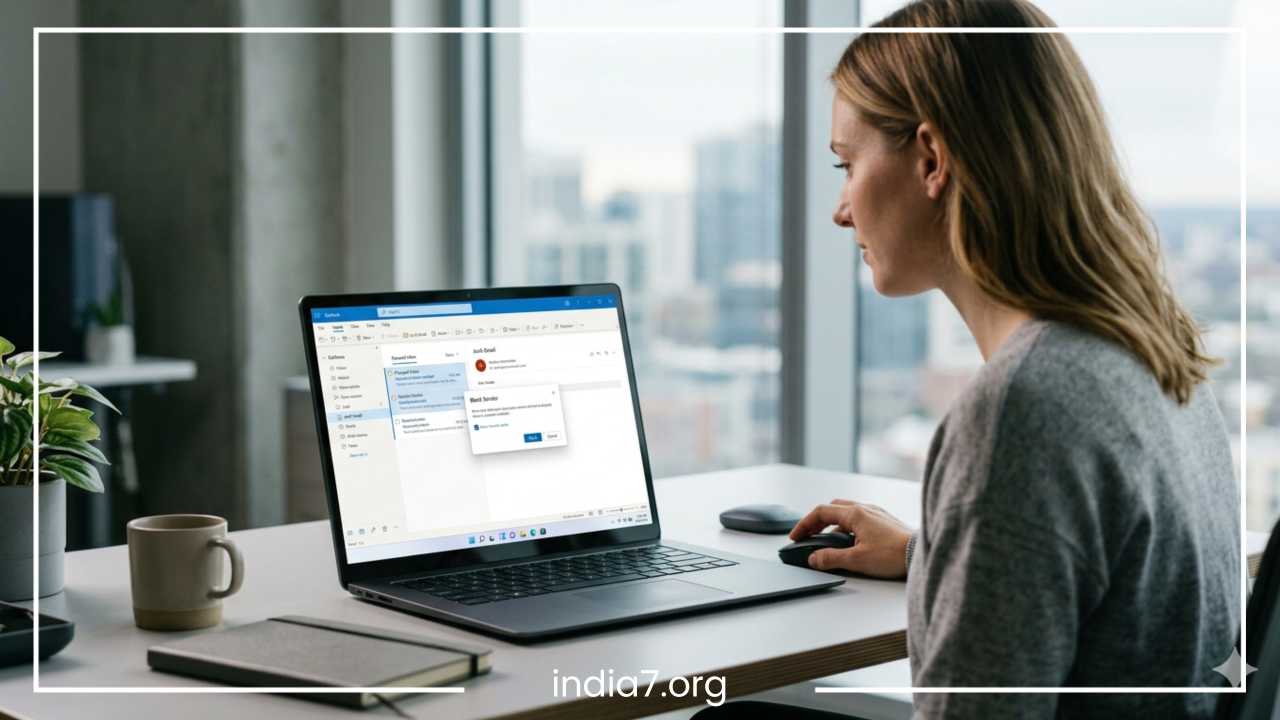
When you see a spam email in your Inbox, do not just delete it. Right-click the message, select Junk, and then choose Block Sender. This does two things: it moves the current message to the Junk folder and adds the sender’s specific email address to your Blocked Senders list, ensuring you never see a message from them again.
Blocking Domains
Sophisticated spammers often rotate their email addresses (e.g., info1@spam.com, info2@spam.com). In these cases, blocking an individual address is like a game of whack-a-mole. Instead, you can block the entire domain. By adding @spam.com to your blocked list in the Junk Email Options, you effectively shut the door on every address associated with that domain.
Reporting Phishing
If an email looks like a scam—such as a fake “Password Reset” notification—you should use the Report Message or Report Phishing button located in the Outlook ribbon. Reporting an email as phishing sends a copy of the message to Microsoft’s security team. This helps improve the global filters for all Outlook users, as the system learns to recognize the specific patterns of that new scam.
The Long-term Benefit
Consistency is key. Every time you mark a message as junk or report a phishing attempt, you are “training” your personal filter. Over time, Outlook learns your preferences and the specific types of junk that target you, leading to a much quieter and safer inbox.
Create Rules to Automatically Filter Spam
While the Junk Email Filter is a general-purpose tool, Outlook Rules allow you to create customized, surgical strikes against spam based on your specific needs. Rules act as a “if this, then that” system for your mail.
Setting Up a Rule
To create a rule, go to the Home tab, click Rules, and select Create Rule. You can also use Manage Rules & Alerts for more complex setups.
Effective Filtering Ideas
-
Keyword Filtering: If you notice a trend in your spam—for example, you keep receiving emails about “Weight Loss Supplements”—you can create a rule that looks for those specific words in the subject line or body. You can then set the action to “Permanently Delete” or “Move to Junk.”
-
Sender Filtering: If you want to block all mail from a specific country, you can create a rule that looks for specific top-level domains in the sender’s address (such as .ru or .biz) and automatically diverts them.
-
Recipient Filtering: If you have an old email alias that is now only receiving spam, you can create a rule that moves any mail sent to that specific alias directly into a separate folder for review, keeping your primary Inbox clean.
Examples of Useful Rules
A powerful rule for many is the “Unsubscribe” rule. Many legitimate-looking spam emails contain the word “unsubscribe” in the body. You can create a rule where if the body contains “unsubscribe” AND the sender is not in your Address Book, the message is moved to a “Potential Junk” folder. This keeps your main view clear of marketing clutter while ensuring you don’t lose emails from people you actually know.
Safe Senders and Safe Recipients Lists
The opposite of blocking is “whitelisting.” In Outlook, this is handled through the Safe Senders and Safe Recipients lists. These lists act as a “VIP pass,” ensuring that mail from these sources never, under any circumstances, ends up in the Junk folder.
Safe Senders List
You should add the email addresses or domains of your colleagues, family, and trusted services (like your bank or utility companies) to this list. If you find a legitimate email in your Junk folder, you can right-click it and select Junk > Never Block Sender. This automatically adds them to your Safe Senders list.
Safe Recipients List
This is particularly useful if you are part of a mailing list or a distribution group. By adding the mailing list’s address to your Safe Recipients list, you ensure that any mail sent to that group is delivered to your Inbox, even if the individual sender of the message is unknown to you.
Balancing the Lists
It is important to review these lists periodically. If you no longer use a particular service, remove them from your Safe Senders. A cluttered “Safe” list can occasionally be exploited if a trusted domain is compromised, so keeping it lean and updated is a best practice for inbox security.
Unsubscribe from Unwanted Emails
We often find ourselves subscribed to dozens of newsletters and promotional lists that we no longer want. While the “Unsubscribe” link is a standard part of email marketing, it must be used with caution.
Identifying Legitimate Links
Legitimate companies (like major retailers or well-known tech brands) are legally required to provide a working unsubscribe link. These links are usually found at the very bottom of the email in small text. If you recognize the company and remember interacting with them, it is generally safe to click unsubscribe.
Risks of Fake Links
For “true” spam—the kind from unknown senders offering dubious products—the “Unsubscribe” link is often a trap. Clicking it confirms to the spammer that your email address is active and that a real human is reading the messages. This often leads to more spam, not less. Furthermore, these links can sometimes lead to malicious websites that attempt to install “drive-by” malware on your computer.
Outlook’s Unsubscribe Feature
Modern versions of Outlook often detect mailing list headers and display a prominent Unsubscribe button at the top of the email, near the sender’s information. It is safer to use this built-in Outlook feature than to click links within the body of a suspicious email, as Microsoft attempts to process the request through standardized protocols.
Use Focused Inbox to Reduce Clutter
Outlook’s Focused Inbox is an intelligent organizational tool designed to help you stay on top of what matters most. It separates your inbox into two tabs: Focused and Other.
How it Works
The Focused tab contains emails that Outlook determines are important to you based on your past interactions and the content of the messages. The “Other” tab contains everything else—newsletters, automated notifications, and bulk mail. While the “Other” tab is not technically a Junk folder, it acts as a secondary filter that keeps non-essential mail out of your immediate sight.
Managing the Tabs
You can easily train Focused Inbox. If an important email ends up in “Other,” right-click it and select Move to Focused. If a promotional email keeps cluttering your “Focused” tab, select Move to Other. You can also choose “Always Move to Focused/Other” to automate the process for that specific sender. This doesn’t delete spam, but it significantly reduces the “noise” in your primary workspace, allowing you to focus on high-priority communication.
Advanced Spam Protection Techniques
For those who want to take their inbox security to the next level, several advanced strategies can be employed.
Use Email Aliases
An email alias is an additional email address that points to your primary Outlook account. You can create an alias specifically for online shopping or newsletter signups. If that alias starts receiving too much spam, you can simply delete it without affecting your primary email address. This keeps your “real” address private and limited to trusted contacts.
Avoid Public Exposure
Never post your email address in plain text on websites, forums, or social media comments. If you must share it, use a format that bots struggle to read, such as “name [at] domain [dot] com.”
Multi-Factor Authentication (MFA)
While MFA doesn’t stop spam from arriving, it prevents spammers from taking over your account if they manage to steal your password through a phishing link. Using the Microsoft Authenticator app ensures that even if you accidentally click a malicious link and enter your credentials, the attacker still cannot gain access.
Third-Party Tools
For business environments or individuals targeted by extreme amounts of spam, third-party anti-spam software can be integrated with Outlook. These tools often use more aggressive heuristics and global threat intelligence databases to block mail before it even reaches the Microsoft servers.
How to Handle Phishing and Suspicious Emails
Phishing is the most dangerous form of spam. These emails are designed to evoke an emotional response—fear, urgency, or curiosity—to make you act without thinking.
Signs of Phishing
-
Generic Greetings: Instead of your name, the email uses “Dear Valued Customer” or “Dear Member.”
-
Urgent or Threatening Language: Claims that your account will be deleted or that legal action is being taken if you don’t click immediately.
-
Mismatched URLs: If you hover your mouse over a link (without clicking!), the address that appears in the bottom corner of your screen doesn’t match the text of the link.
-
Poor Grammar and Spelling: While spammers are getting better, many phishing attempts still contain glaring errors or unusual phrasing.
What NOT to Do
If you receive a suspicious email, never click any links and never download any attachments. Even if the attachment looks like a harmless PDF or Word document, it can contain malicious macros. Do not reply to the email, as this confirms your address is active.
Real-World Example
A common tactic is the “Office 365 Storage Full” scam. You receive an email that looks exactly like a Microsoft notification stating you have exceeded your storage limit. It provides a “Click here to add storage” button. This button leads to a fake login page designed to harvest your Microsoft credentials. Always log in directly through outlook.com or the official app to check your account status rather than clicking links in an email.
Outlook Spam Settings for Business Users
If you use Outlook as part of a business or enterprise environment (Microsoft 365), your spam protection is significantly more powerful, though it is often managed by an IT administrator.
Exchange Online Protection (EOP)
EOP is the cloud-based filtering service that protects organizations against spam and malware. It works in the background to scan all incoming and outgoing mail. Admins can set global policies that are much stricter than individual settings, such as blocking all attachments with executable extensions (.exe, .scr, etc.).
Quarantine
In a business setting, highly suspicious emails are often held in “Quarantine” rather than being delivered to the Junk folder. This prevents users from accidentally opening them. Users may receive a periodic “Quarantine Report” allowing them to release legitimate emails that were caught by mistake, but the most dangerous items can only be cleared by an administrator.
Anti-Spoofing Policies
Business accounts benefit from advanced protocols like SPF (Sender Policy Framework), DKIM (DomainKeys Identified Mail), and DMARC. These technologies verify that the sender is who they say they are, making it much harder for spammers to “spoof” your company’s own domain to trick employees.
Common Mistakes to Avoid
Even with the best tools, human error is the most common cause of spam-related security breaches. Avoiding these common pitfalls will keep your inbox much cleaner.
-
Replying to “Remove Me” Requests: In a legitimate newsletter, this is fine. In a spam email, this is a signal to the spammer that they have a “live” target, which will lead to a surge in junk mail.
-
Opening “Receipt” Attachments: This is a classic malware delivery method. If you didn’t buy anything recently, that “Receipt.zip” or “Invoice.doc” is almost certainly a virus.
-
Using Your Work Email for Personal Signups: This increases the attack surface for your company and ensures that if a site you use is breached, your professional identity is compromised.
-
Ignoring the “Suspicious Sender” Warning: Outlook often places a yellow or red bar at the top of an email if it can’t verify the sender. Never ignore these warnings; they are the result of deep technical checks on the email’s origin.
FAQs
Why am I suddenly getting so much spam in Outlook?
This usually happens if your email address was recently included in a data breach or if you posted your email on a public website. It can also happen if you recently replied to or clicked a link in a spam message, marking your account as “active” in spammer databases.
How do I permanently block spam emails?
While you can’t stop spammers from sending mail, you can ensure you never see it. Use the “Block Sender” feature to send them to Junk, or create a Rule to “Permanently Delete” messages containing specific keywords so they don’t even sit in your Junk folder.
Can Outlook completely stop spam?
No system can stop 100% of spam because spammers are constantly evolving their tactics. However, by using a combination of “High” filtering, custom Rules, and Safe Senders lists, you can eliminate the vast majority of it.
Is it safe to unsubscribe?
It is safe to unsubscribe from reputable, well-known brands. It is not safe to click “unsubscribe” in an email that looks like a scam or comes from a sender you have never heard of. In those cases, use Outlook’s “Block” feature instead.
Final Thoughts
Managing spam in Microsoft Outlook is an ongoing process that requires a combination of automated tools and smart habits. By understanding the different types of junk mail and utilizing built-in features like the Junk Email Filter, custom Rules, and Focused Inbox, you can regain control over your digital communication.
The most important takeaway is to remain proactive. Security is not a “set it and forget it” task. Regularly update your Blocked Senders list, be cautious about where you share your email address, and always treat unexpected attachments with suspicion. A clean inbox is not just about aesthetics; it is a critical component of your overall cybersecurity posture. With the strategies outlined in this guide, you can significantly reduce the noise, protect your personal information, and ensure that your Outlook experience remains productive and secure.