Best Ways to Use Dictation in Office
Best Ways to Use Dictation in Office | Productivity Tips & Tools
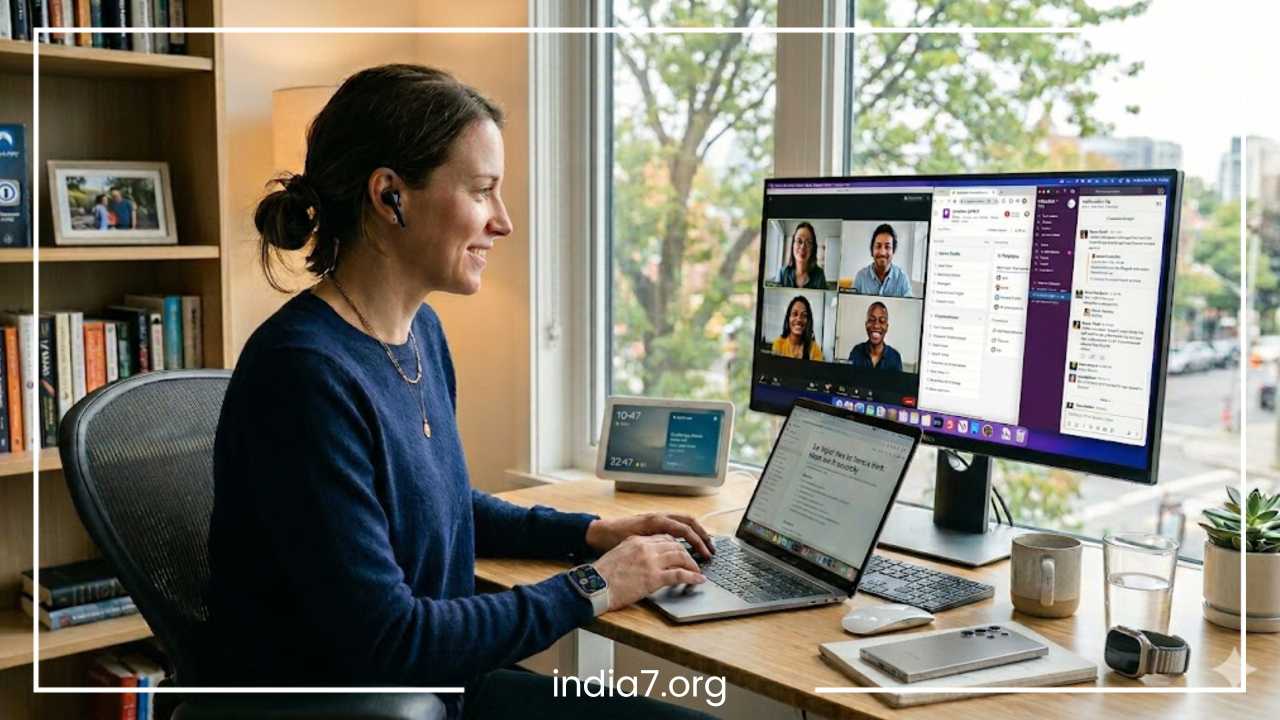
The modern workplace is defined by a relentless flow of information. Between the deluge of emails, the constant demand for reports, and the endless stream of meeting minutes, the average office professional spends a significant portion of their day tethered to a keyboard. However, as the digital landscape evolves, the traditional method of “typing it out” is being challenged by a more natural, efficient alternative: dictation.
Dictation in an office context refers to the use of speech-to-text technology to transcribe spoken words into digital text in real-time. While once reserved for medical professionals or legal stenographers using specialized, expensive hardware, modern dictation has become a mainstream productivity powerhouse. Today, dictation is more relevant than ever. The rise of remote and hybrid work models has forced us to communicate more frequently through written text, often leading to “keyboard fatigue” and significant physical strain.
Read: Restaurant Promotions that Drive Sales and Attract Customers
The primary appeal of dictation lies in the vast disparity between speaking and typing speeds. While an average professional types at roughly 40 to 60 words per minute, the average human speaking rate is closer to 130 to 150 words per minute. By bridging this gap, dictation offers a pathway to unprecedented efficiency. Beyond speed, it addresses critical ergonomic concerns, providing a hands-free alternative that reduces the risk of repetitive stress injuries like carpal tunnel syndrome or tendonitis.
This article serves as an exhaustive guide to mastering dictation in the workplace. We will explore the underlying technology, the multifaceted benefits for your professional health and output, and practical strategies to ensure your voice-to-text experience is seamless. Whether you are drafting a complex legal brief, responding to a hundred customer queries, or simply trying to clear your inbox before lunch, understanding how to leverage your voice is the ultimate productivity “life hack.”
Read: What You Need From a WordPress Hosting Company
Understanding Dictation Technology
To use dictation effectively, it is helpful to understand the engine under the hood. Dictation software, often categorized under the broader umbrella of Automatic Speech Recognition (ASR), utilizes complex algorithms and Artificial Intelligence (AI) to interpret acoustic signals and convert them into linguistic data.
What is Dictation Software?
At its core, dictation software is an interface that captures audio input and translates it into written characters. This can range from simple speech-to-text features built into a smartphone to highly sophisticated, enterprise-grade AI assistants that can distinguish between different speakers in a crowded boardroom.
How Dictation Works
The process begins with audio input, usually captured via a microphone. The software breaks down the audio into “phonemes,” which are the smallest units of sound in a language (like the “ch” sound in “chair”). Using Deep Learning and Neural Networks, the software compares these sounds against a massive database of words and phrases.
Modern software doesn’t just look for acoustic matches; it analyzes context through Natural Language Processing (NLP). For example, if you say “I’m going to buy a pear,” the AI uses the surrounding words to determine you mean the fruit (pear) rather than a couple (pair). This contextual awareness is what has allowed accuracy rates to climb from 70% a decade ago to over 95% today.
Types of Dictation Tools
-
Built-in Operating System Tools: Most modern platforms include robust dictation features for free. Windows Speech Recognition and macOS Voice Control allow users to dictate directly into any text field—from Word documents to web browsers—without installing extra software.
-
Third-Party Professional Software: Applications like Dragon Professional are the gold standard for high-stakes environments. They allow for deep “training,” where the software learns your specific accent, cadence, and industry-specific jargon.
-
AI Transcription Services: Tools like Otter.ai, Fireflies, and Rev focus on recording and transcribing multi-person conversations. These are designed more for “passive dictation” (recording others) than “active dictation” (composing text).
-
Browser-Based Hybrids: Google Docs Voice Typing is a popular, free tool that uses Google’s massive cloud-processing power to provide high accuracy within the browser environment.
Voice Commands vs. Pure Dictation
It is important to distinguish between dictation (turning words into text) and voice commands (using your voice to control the computer). Modern tools often combine both. For instance, you might dictate a paragraph and then say, “Select last sentence, bold that,” or “Insert signature,” to format your document without ever touching your mouse.
Read: Blogging for Business: The Complete Guide
Benefits of Using Dictation in the Office
The transition from typing to talking offers more than just a change of pace; it transforms the way you interact with your workload.
Unprecedented Productivity Boost
The most immediate benefit is sheer throughput. Because we speak significantly faster than we type, the initial “brain dump” or first draft of a long document can be completed in a fraction of the time. This is particularly useful for long-form content like reports, white papers, or manuscripts, where the primary goal is to get ideas onto the page before the creative spark evaporates.
Reduction of Physical Strain and Fatigue
Extended periods of typing lead to a variety of physical ailments: neck strain from looking down, shoulder tension, and wrist pain. Dictation allows office workers to lean back in their chairs, stand up, or even pace around the room while working. This postural flexibility is essential for maintaining long-term physical health in an increasingly sedentary office environment. For those already suffering from repetitive strain injuries (RSI), dictation is often the only way to remain productive.
Improved Accuracy of Notes and Records
In a fast-paced meeting, it is nearly impossible to type every word spoken while remaining an active participant. Dictation tools can capture the nuances of a conversation in real-time, ensuring that “action items” and “key decisions” are recorded with a level of detail that manual note-taking simply cannot match. This creates a “source of truth” for the team, reducing misunderstandings later.
Support for Multitasking and Focus
Dictation empowers users to stay productive in non-traditional settings. You can dictate a quick email response while reviewing a physical blueprint or checking a printed chart. Furthermore, for many people, the act of speaking aloud helps them focus. It forces the brain to linearize thoughts, which can lead to clearer, more logical writing than the “stop-and-start” nature of typing.
Accessibility and Inclusivity
Dictation is a vital accessibility tool. For professionals with visual impairments, dyslexia, or motor disabilities, dictation removes the physical and cognitive barriers between their ideas and the digital page. By normalizing dictation in the office, companies create a more inclusive environment where everyone’s voice can be heard—literally and figuratively.
Best Practices for Effective Dictation
The biggest hurdle for new users is often the “awkwardness” phase. Dictating requires a different mental process than typing. To achieve professional-grade accuracy, follow these essential strategies:
Speak Clearly, Not Robotically
You do not need to speak like a machine, but you should avoid mumbling or “slurring” words together. Enunciate your consonants and maintain a steady, conversational pace. If you speak too fast, the software may skip words; if you speak too slowly, it may interpret pauses as the end of a sentence and insert unwanted punctuation.
Master the Language of Punctuation
Dictation software usually does not know where a sentence ends unless you explicitly tell it. You must learn to vocalize your formatting. This feels strange at first but becomes second nature with practice. Common commands include:
-
“Period” or “Full stop”
-
“Comma”
-
“New paragraph” or “New line”
-
“Open parenthesis” … “Close parenthesis”
-
“Caps on” … “Caps off”
Optimize Your Acoustic Environment
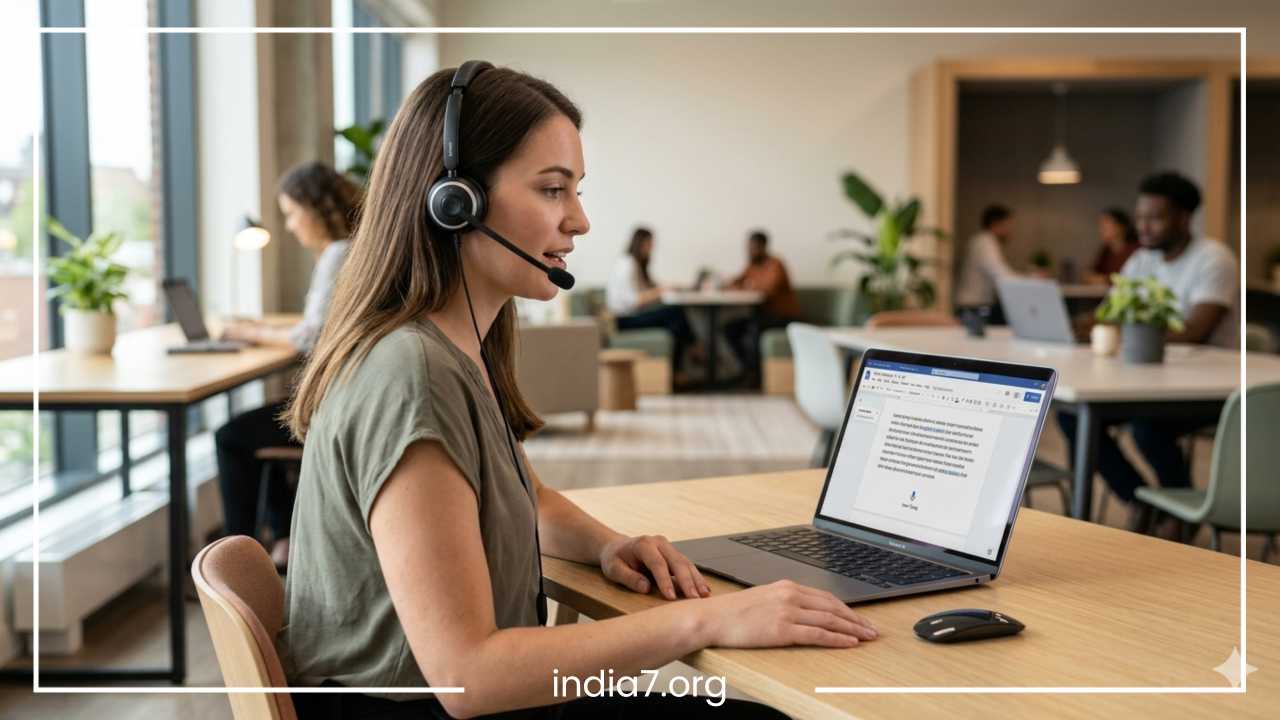
The quality of your microphone is the single most important factor in dictation accuracy. While built-in laptop microphones have improved significantly, they often pick up the sound of the computer’s internal fan or vibrations from the desk. A dedicated USB headset or a high-quality directional microphone will significantly reduce errors. Additionally, try to minimize background noise. High-frequency sounds like air conditioners, coffee grinders, or nearby office chatter can confuse the AI.
The Proofreading Rule: Dictate First, Edit Later
Never hit “send” on a dictated document without a quick visual scan. Dictation software is prone to “homonym errors”—writing “their” when you meant “there,” or “principal” when you meant “principle.” A common professional strategy is to dictate the entire document in one “flow” to maintain your train of thought, then switch back to the keyboard and mouse for a final editing pass.
Train Your Software and Yourself
Many professional tools have a “Vocabulary Training” feature. If you frequently use industry-specific acronyms, technical terms, or the unique names of your colleagues, add them to the software’s custom dictionary. This prevents the same error from occurring repeatedly. Simultaneously, “train” yourself by reviewing the mistakes the software makes; often, you’ll realize you are mispronouncing a specific word that the computer struggles to understand.
Dictation Use Cases in the Office
How does this look in a daily professional setting? Let’s break down the specific office workflows where dictation provides the highest return on investment.
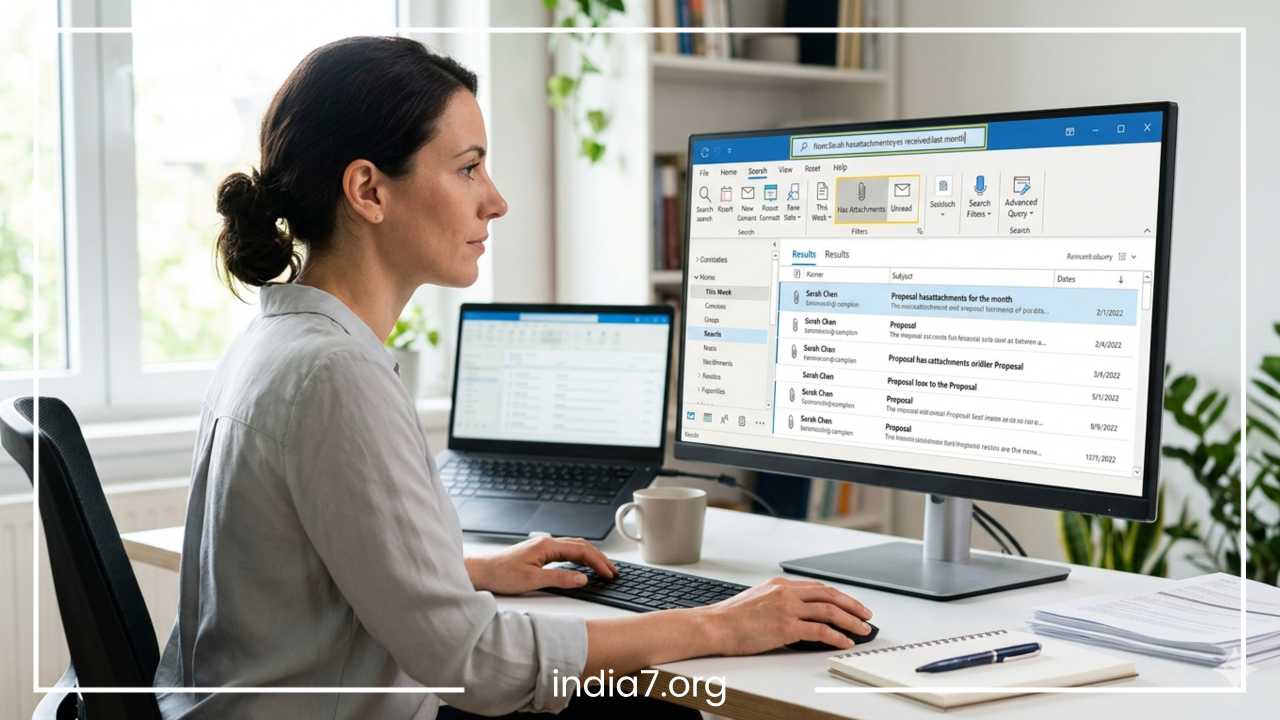
Email Drafting and Inbox Management
Email is often conversational. Using dictation allows you to maintain a natural, person-to-person tone that feels less “stiff” than typed text. It is the perfect tool for clearing out a cluttered inbox first thing in the morning. Instead of dreading the “mountain of replies,” you can talk your way through twenty emails while having your morning coffee, finishing in a quarter of the time it would take to type them.
Meeting Notes and Minutes
Using a tool like Otter.ai or the built-in transcription features in Microsoft Teams and Zoom, you can record a meeting and have a full text version ready the moment the call ends. This allows the designated note-taker to actually engage in the discussion and look their colleagues in the eye rather than hiding behind a laptop screen, frantically typing.
Document Creation: Reports, Proposals, and Memos
For long-form writing, many professionals find that “talking the first draft” helps overcome the paralysis of the blank page. Once you have 1,500 words of dictated text on the screen, the task shifts from creation to refinement. It is psychologically much easier to edit a messy dictated draft than it is to generate perfect sentences from scratch using a keyboard.
Brainstorming and Idea Capture
Great ideas rarely strike when you are sitting perfectly still at a desk. By using mobile dictation apps, you can capture creative thoughts during a commute, while walking between buildings, or during a lunch break. These “voice memos” can be instantly converted to text and synced to your office computer, ensuring that no flashes of brilliance are lost to forgetfulness.
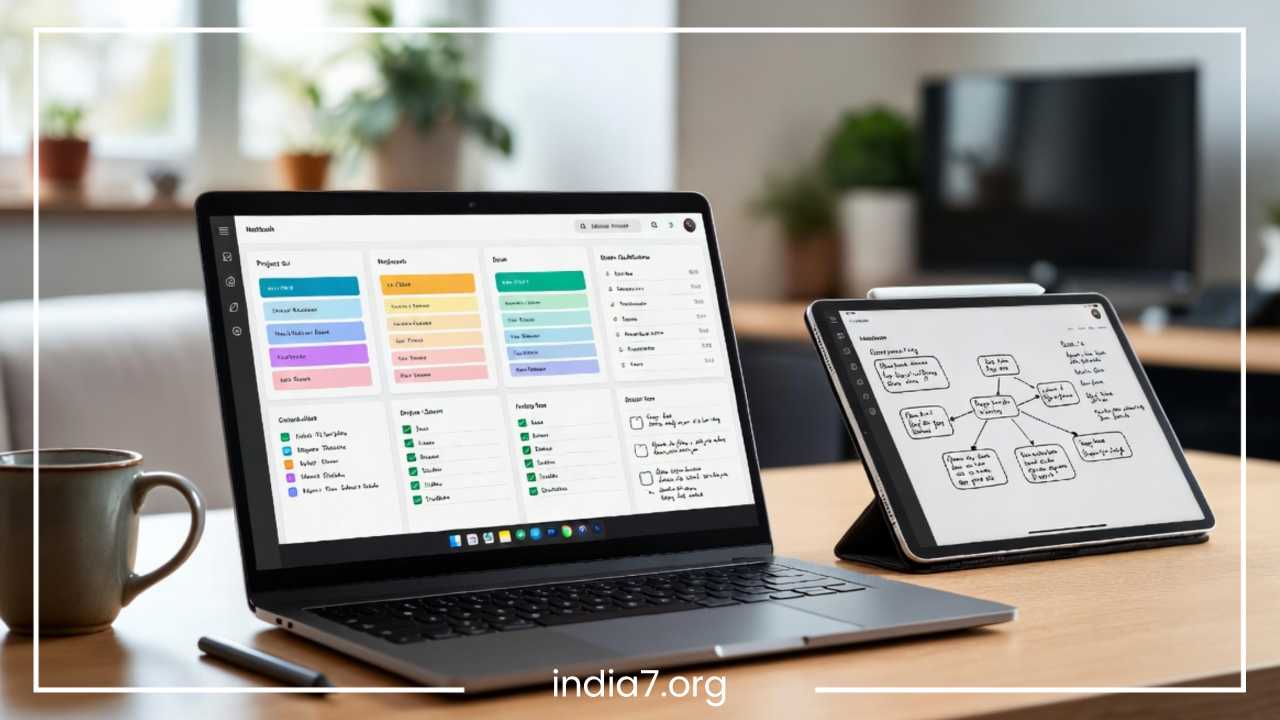
Task Management and Scheduling
Many task-tracking apps (like Todoist, Any.do, or Microsoft To Do) integrate with mobile voice assistants. Saying, “Add ‘Review the Q3 budget’ to my task list for Friday at 2 PM,” is significantly faster than opening the app, clicking ‘new task,’ typing the title, and manually selecting a date and time from a calendar picker.
Case Study: The Customer Support Specialist
Consider a customer support agent who handles 80 tickets a day. By using dictation combined with “text expansion” tools, they can speak the specific details of a customer’s problem and then use a voice command like “Insert Troubleshooting Steps” to populate the rest of the email. This reduces their physical typing load by 80%, allowing them to focus on the quality of their advice rather than the speed of their fingers.
Dictation Tools and Software Recommendations
Choosing the right tool depends entirely on your specific needs, your industry, and your budget. Below is a comparison of the leading options.
| Tool | Best For | Platform | Key Feature |
| Dragon Professional | Legal, Medical, and Power Users | Windows | Unrivaled accuracy and custom voice macros |
| Otter.ai | Meeting Minutes and Interviews | Web/Mobile | Excellent speaker identification and timestamps |
| Google Docs Voice Typing | Casual use and Students | Web (Chrome) | Completely free; supports over 100 languages |
| Microsoft Dictate | Office 365 Power Users | Windows/Mac | Built directly into Word, Outlook, and PPT |
| Apple Dictation | Mac and iPhone Users | macOS/iOS | Deeply integrated; works offline on newer chips |
| Speechnotes | Quick browser-based notes | Web | No login required; simple and clean interface |
Top Paid Options:
If your job depends on high-volume documentation (such as a lawyer or a journalist), Dragon Professional is worth the substantial investment. It allows for complex “voice macros”—for example, you can say “Insert Standard Contract Clause A” and the software will paste three pages of pre-written text. For those who spend their days in back-to-back meetings, Otter.ai is a game-changer because it can distinguish between different speakers and generate summaries.
Free and Accessible Options:
If you are just starting, Google Docs Voice Typing (found under the ‘Tools’ menu) is incredibly robust. It handles different accents with surprising grace. Similarly, Microsoft Dictate is a free feature for Office 365 subscribers that brings professional-grade recognition to the apps you already use daily.
Mobile Dictation:
Do not overlook the power of your smartphone. Both iOS and Android have sophisticated dictation buttons built into their default keyboards. For on-the-go productivity, these are often more than enough to handle quick emails or Slack messages.
Overcoming Common Challenges
Dictation is not a “set it and forget it” solution. Like any professional skill, it has a learning curve and environmental requirements.
Dealing with Background Noise
In a modern open-plan office, background noise is the primary enemy of accuracy. If you cannot find a quiet “focus room” or “phone booth,” you must rely on hardware. A noise-canceling microphone with a “cardioid” or “unidirectional” pickup pattern is essential. These microphones are designed to listen only to the sound directly in front of them (your mouth) while ignoring the chatter of the colleague sitting three feet away.
Addressing Software Errors and Misrecognition
Expect mistakes, especially in the first week. The goal of dictation is not 100% perfection on the first pass; it is speed. If the software writes “The board met” instead of “The bored met,” do not stop your flow to fix it. Maintain your momentum. If you stop every five seconds to correct a minor typo, you lose the primary benefit of dictation: cognitive flow.
Privacy and Data Confidentiality
Most modern, free dictation tools (like Google or Apple) process your audio in the cloud. If you are handling highly sensitive legal, financial, or medical data, you must check your company’s IT and privacy policies. In these cases, you should look for software that offers “On-Device Processing,” which means the audio never leaves your computer.
Adapting to Office Culture
Talking to your computer in a room full of people can feel socially awkward. This is part of a shifting office culture. To mitigate this, many professionals save their heavy dictation tasks for “Work from Home” days or use a “low-voice” technique with a highly sensitive headset. As voice interfaces become more common, the “stigma” of dictating is rapidly disappearing, much like the once-strange sight of people walking down the street talking into Bluetooth earpieces.
Tips for Maximizing Productivity with Dictation
To transition from a “casual user” to a “power user,” you need to integrate dictation into your broader digital ecosystem.
Combine Dictation with Task Management
Don’t just dictate documents; dictate your life. Use voice commands to set reminders in your calendar or add items to your project management software. This reduces the “friction” of organization. If it takes more than ten seconds to record a task, you’re likely to skip it. With voice, it takes two seconds.
Use “Voice Templates” for Repetitive Tasks
If you find yourself saying the same things in emails—such as “Please find the attached invoice for your review”—create a voice shortcut. In many programs, you can set a trigger word like “Insert Invoice Text” to save yourself from repeating common phrases dozens of times a day.
The “Short Burst” Technique
Dictation can be mentally taxing because it requires you to compose and speak simultaneously. Try dictating in 10-minute bursts, followed by a 2-minute “rest and review” period. This prevents vocal fatigue and ensures that errors don’t pile up to an unmanageable degree.
Integrate with Workflow Automation
Use tools like Zapier or IFTTT to connect your dictation app to other services. For example, you can set a workflow where any voice note tagged “Idea” in your transcription app is automatically sent to a specific Trello board or a Slack channel for your creative team.
The Future of Dictation in the Office
The future of dictation is inextricably linked with the advancement of Large Language Models (LLMs). We are moving away from simple “speech-to-text” and toward “Intelligent Office Assistants.” In the coming years, we can expect several major shifts:
Multilingual Fluidity and Translation
Future software will be able to handle “code-switching” seamlessly. If a professional is bilingual and uses terms from two different languages in one sentence, the AI will understand and transcribe both correctly without the user needing to change settings.
Context-Aware Editing
Instead of just transcribing what you said, future AI will offer to “clean up” your speech. It will remove “umms” and “ahhs,” fix grammatical errors on the fly, and even suggest better word choices to match the intended tone of the document (e.g., making an email sound more formal or more urgent).
Meeting Intelligence
Dictation will move beyond the “transcript.” Imagine a tool that not only transcribes a meeting but automatically identifies when a deadline is mentioned, checks your calendar for conflicts, and drafts a follow-up email to the participants—all before the meeting has even concluded.
Deep Integration with Collaboration Tools
We will see dictation becoming the primary input method for tools like Slack, Microsoft Teams, and Notion. Instead of navigating complex menus, users will simply tell their workspace what to do: “Create a new project folder named ‘Q4 Marketing’ and invite the design team.”
Final Thoughts
Dictation is no longer a niche tool or a futuristic novelty; it is a strategic advantage for any office professional looking to navigate the modern information age. By embracing voice technology, you are not just typing faster—you are freeing your mind from the mechanical constraints of a keyboard and protecting your body from the physical tolls of a sedentary desk job.
The transition to a “voice-first” workflow does not have to happen overnight. The best way to start is small. Tomorrow morning, instead of typing your first three internal emails, try dictating them. Get a feel for the rhythm of vocalizing punctuation and notice how your tone becomes more natural.
As you become more comfortable, you can gradually integrate dictation into your reports, your meeting notes, and your creative brainstorming. You will soon find that your voice is your most efficient tool for turning thoughts into action. The keyboard is a bridge, but your voice is the destination.