Best Ways to Share a Microsoft Sway Presentation

Best Ways to Share a Microsoft Sway Presentation | Easy Sharing Tips & Methods
Microsoft Sway has redefined the way we think about digital storytelling and presentations. Unlike traditional slide-based software, Sway offers a fluid, web-based canvas that adapts beautifully to any screen size. Whether you are building a professional portfolio, a classroom newsletter, or a corporate report, the true power of Sway lies in its connectivity. Because it lives in the cloud, sharing your work is not about attaching bulky files to an email; it is about providing a gateway to an interactive experience.
Sharing a Sway effectively is crucial for maximizing its impact. In a business context, a well-shared Sway can streamline communication and ensure that all stakeholders are looking at the most current data. In education, it allows teachers to distribute dynamic resources that students can engage with at their own pace. Understanding the nuances of Microsoft’s sharing ecosystem ensures that your content reaches the right audience with the right level of access. This guide will walk you through every available method—from simple links to advanced embedding—and provide the best practices necessary to make your next presentation a success. By the end of this article, you will be an expert in navigating the permissions, privacy settings, and distribution channels that make Sway a premier tool for modern communication.
Read: 5 Blogging Niche Ideas You Should Avoid
What is Microsoft Sway?
Microsoft Sway is a digital storytelling app within the Microsoft 365 suite that allows users to create visually striking newsletters, presentations, and documentations in minutes. Its primary appeal is its Design Engine, which automatically handles the formatting, layout, and responsiveness of your content. Instead of manually adjusting the font size or image placement for different devices, Sway does the heavy lifting, ensuring your work looks professional on a smartphone, tablet, or desktop.
Overview of Key Features
Sway operates on a concept called the Storyline. This is where you drop your content cards—text, images, videos, and even interactive charts. Once the content is in place, the Design tab allows you to apply styles with a single click. You can choose vertical scrolling, horizontal swiping, or a more traditional slide-like presentation mode. The Remix button is a fan favorite, as it suggests random color palettes and layouts until you find one that resonates with your brand or personality.
Sway vs. Microsoft PowerPoint
The most common question users ask is how Sway differs from PowerPoint. While PowerPoint is designed for live, speaker-led presentations with distinct slides, Sway is designed for self-paced, web-based consumption. PowerPoint gives you granular control over every pixel and animation, making it ideal for high-stakes keynote speeches. Sway, conversely, focuses on flow. It behaves more like a modern webpage or an interactive scrolling article. If your goal is to send a report that a client can read on their phone during a commute, Sway is almost always the superior choice.
Cloud-Based Advantages
Sway is entirely cloud-native. There is no Save button because every change is saved in real-time to your Microsoft account. This architecture allows for seamless integration with other web-based media. You can easily pull in content from OneDrive, YouTube, or Bing without leaving the app. Furthermore, because it is web-based, the viewer does not need to own Microsoft Office or even have a Microsoft account to view a Sway that has been shared publicly. This accessibility is a game-changer for broad distribution.
When to Use Sway
Use Sway when you want your audience to explore content at their own speed. It is perfect for annual reports, digital brochures, student projects, and internal company updates. If you find yourself frustrated by trying to email a 50MB PDF that looks terrible on a mobile screen, it is time to switch to Sway.
Read: Original Blog Content Vs. Original Ideas
Why Sharing Sway is Different
The fundamental difference between sharing a Sway and sharing a traditional document lies in the medium. Traditionally, sharing a presentation meant sending a file with a specific extension like .pptx. This created several friction points: the recipient needed the right software version, the file size might exceed email limits, and if you made a typo after sending it, you had to resend the entire file.
Web-Based vs. File-Based Sharing
Sharing a Sway is essentially sharing a URL. You are directing your audience to a live instance of your project hosted on Microsoft’s servers. This eliminates the need for downloads and ensures that the recipient’s storage space is never an issue. It also means that the presentation is active. You can include interactive maps, live social media embeds, and functional videos that would be static or broken in a standard PDF or slide deck.
No Downloads Required
One of the biggest hurdles in modern professional communication is the security barrier. Many corporate IT departments block unknown attachments. Since Sway is a web-based link from a trusted Microsoft domain, it often bypasses these hurdles. Viewers can consume the content directly in their browser—Edge, Chrome, Safari, or Firefox—without needing to install a single plugin.
Real-Time Updates for Viewers
Perhaps the most significant advantage is the ability to provide real-time updates. If you share a link to a Sway and realize ten minutes later that you have a factual error, you can simply edit the Sway in your dashboard. The next time the viewer clicks the link or refreshes their browser, they will see the corrected version. This live document approach is invaluable for project proposals or event schedules where details are subject to change.
Read: Content Strategy: The Roadmap to Content Marketing Success
Method 1: Share via Link (Most Common)
The most direct and frequently used method to distribute your Sway is through a direct URL link. This method is versatile, allowing you to paste the link into chat apps, documents, or browser bars.
Step-by-Step Instructions
-
Open your Sway: Log in to your Microsoft account and open the specific Sway you wish to distribute.
-
Locate the Share Button: In the top navigation bar, you will see a Share button.
-
Choose Your Audience: A dropdown menu will appear. You must select who you want to be able to see the Sway. Options typically include Specific people or groups, Those in your organization with the link, or Anyone with a link.
-
Copy the Link: Once you have selected the permission level, click the Copy Link button next to the URL provided.
Permission Options
Understanding permissions is critical for security:
-
Specific People: Only individuals whose email addresses you manually enter can view the content. This is the most secure option for internal or sensitive data.
-
Anyone with a Link: This makes your Sway public to anyone who possesses the URL. It is perfect for marketing materials or public newsletters. Note that search engines may eventually index these if they are linked on public sites.
When to Use This Method
This is the default for most users. Use it when you are messaging a colleague on Teams, sending a quick update to a client via WhatsApp, or including a link in a digital resume.
Pros & Cons
-
Pros: Extremely fast, requires no technical knowledge, and works across all platforms (iOS, Android, Windows, Mac).
-
Cons: If set to “Anyone,” you lose control over who might pass the link along. It also requires the user to have an active internet connection to view the content.
Method 2: Share via Email
While you can simply copy a link and paste it into an email, Microsoft Sway offers a built-in sharing feature that formats the invitation more professionally.
Direct Sharing Through Email
By selecting the Email option within the Share menu, Sway will attempt to open your default mail client (like Outlook) and pre-populate a message. This message often includes a thumbnail image of your Sway and a formatted invitation text. This is much more visually appealing than a raw, blue URL string.
Personal vs. Professional Use Cases
In a personal setting, this is great for sharing a digital photo album or a travel story with family members who may not be tech-savvy. The formatted email makes it clear what they are clicking on. In a professional setting, distributing a weekly department update or a client proposal through this method adds a layer of polish. It looks like a marketing campaign rather than a simple text message.
Tips for Writing Effective Email Messages
When sharing via email, context is key. Do not just send the link. Write a brief introduction:
-
State the purpose of the Sway.
-
Mention that it is interactive and works on mobile.
-
Provide a clear “Call to Action” (e.g., “Please review the third section for the budget breakdown”).
This builds trust and increases the click-through rate of your presentation.
Method 3: Embed Sway on a Website or Blog
For those who want to integrate their presentation directly into an existing web presence, embedding is the professional standard. Instead of sending users away from your site to a Microsoft page, they can view the Sway inside your own website’s layout.
How to Get the Embed Code
-
Click the Share button in the top menu.
-
Select Get embed code.
-
A pop-up will appear with a snippet of HTML (the
<iframe>tag). -
Copy this code to your clipboard.
Where to Use
-
Websites and Blogs: If you use WordPress, Wix, or Squarespace, you can paste this code into an “HTML” or “Code” block.
-
Portfolios: Designers and writers often embed Sways to showcase their work in an interactive format that stays on their personal domain.
-
Internal Portals: Many companies embed Sways into their SharePoint or internal intranet sites to keep employees updated without making them navigate away from the company home page.
Works with Platforms Like WordPress
Sway is particularly friendly with WordPress. You can use the “Custom HTML” block to paste the iframe. This allows your blog readers to scroll through your Sway without leaving your article, which keeps your “Bounce Rate” low and your engagement high.
SEO and Engagement Benefits
Embedding keeps users on your site longer, which is a positive signal for search engine rankings. Furthermore, it creates a seamless brand experience. Viewers can interact with your Sway’s navigation while still seeing your website’s header and footer. It turns a static blog post into a multimedia experience.
Method 4: Share on Social Media
Sway is built for the social age. If your content is meant for public consumption, sharing it across social networks can significantly expand your reach.
Platforms to Share
Within the Share menu, you will see icons for:
-
Facebook: Ideal for community groups, family updates, or business pages.
-
LinkedIn: The best choice for professional thought leadership, resumes, or B2B project showcases.
-
Twitter/X: Perfect for quick news updates or “teaser” content.
Tips for Maximizing Reach
Social media feeds are crowded. When you share your Sway link, the platform will usually pull a “preview card” featuring your Sway’s title and main image.
-
The Thumbnail: Ensure your Sway has a high-quality “Title Card” image, as this is what will entice people to click.
-
The Hook: Always add a caption that poses a question or highlights a key benefit of reading the Sway to drive engagement.
-
Tagging: If the Sway involves others, tag them in the social post to encourage resharing.
Best Formats
Use “teasers” in your social posts. For example, on LinkedIn, post a screenshot of a particularly impressive chart from your Sway and then provide the link to “view the full interactive data.” This gives the user a reason to click through.
Method 5: Collaborate with Others (Editing Access)
Sharing isn’t always about the final “view.” Sometimes, you need a team to help you build the content. This is where “Edit” permissions come into play.
Allow Others to Edit Your Sway
In the Share menu, there is a toggle or a specific section labeled Invite people to…. You must switch this from View to Edit. Once you do this, the link you copy will grant the recipient full access to change the text, images, and design of your Sway.
Team Collaboration Use Cases
-
Group Projects: Students can work on a single Sway simultaneously from different locations.
-
Marketing Teams: A writer can input the text while a designer adds the imagery in real-time.
-
Event Planning: Multiple organizers can update a “Living Agenda” as speakers and times are confirmed.
Permission Settings Explained
When you share an Edit link, the person receiving it becomes a co-author. They can see the Storyline view just like you do. However, as the owner, you still retain ultimate control. You can see who is currently editing the Sway by looking for their profile icon in the top right corner of the Storyline.
Safety Considerations
Be extremely careful with Edit links. Unlike View links, an Edit link gives someone the power to delete your work. Only share these links with trusted collaborators. It is a good practice to set a password (found in the “More Options” section of the Share menu) for an added layer of security when collaborating on sensitive projects. Also, remember to revoke edit access once the project is finished to prevent accidental changes later.
Method 6: Share with Organizations or Teams
For corporate or educational environments, you often want to restrict viewing to just your internal circle. Sway integrates deeply with Microsoft 365, making this process highly efficient.
Internal Sharing in Companies and Schools
By selecting Those in your organization with the link, you ensure that only people logged into your company or school’s Microsoft tenant can access the file. This is essential for protecting intellectual property or student privacy. Even if the link is leaked to an outsider, they will be met with a login screen and denied access.
Integration with Microsoft 365
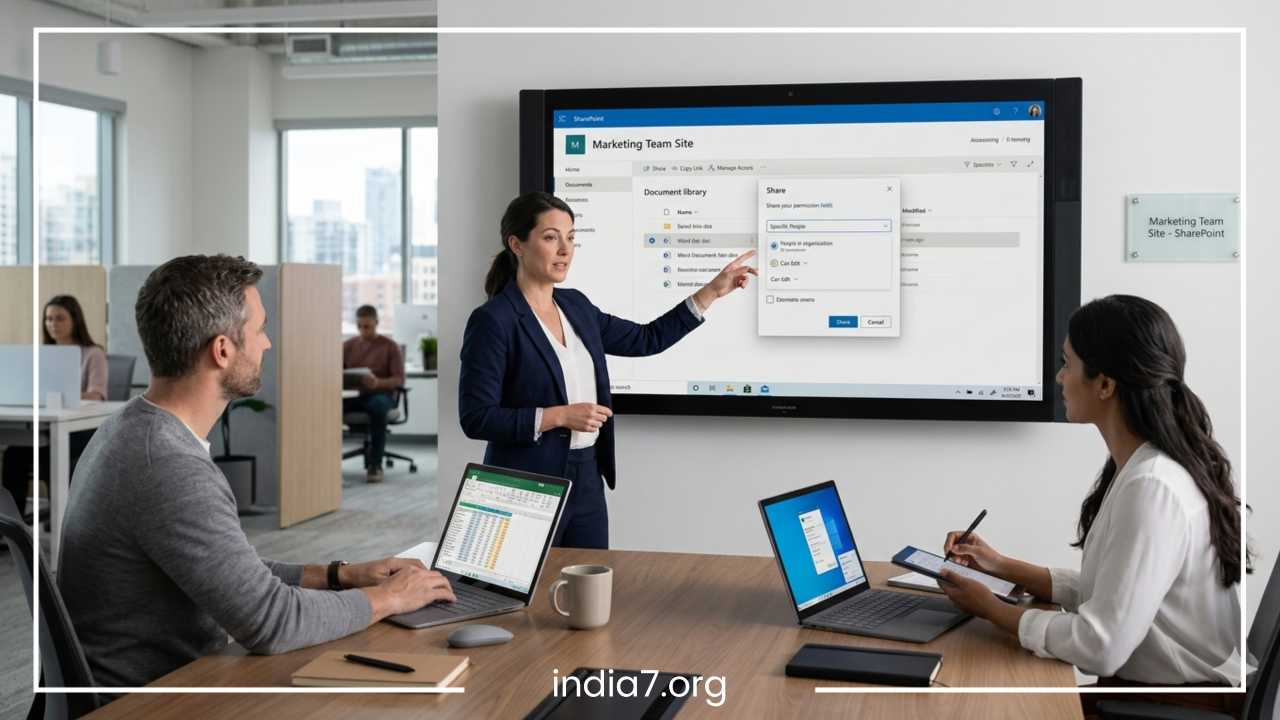
Sway is part of the larger Microsoft ecosystem. This means you can easily share a Sway within a Microsoft Teams channel or a SharePoint site.
-
In Teams: You can add a Sway as a tab at the top of a channel. This is perfect for a “Team Handbook” or a “Project Tracking” Sway that everyone needs to see frequently.
-
In SharePoint: Use the “Sway web part” to display your presentation directly on a SharePoint page.
Use in Classrooms and Corporate Environments
In the classroom, teachers can share a Sway link with a specific “Class Group.” In corporate settings, HR might share an onboarding Sway that is restricted to the “New Hires” group. This level of granular control ensures that information is distributed only to those who need it.
Best Practices for Sharing Sway Presentations
To ensure your audience has the best possible experience, follow these professional tips:
Choose the Correct Permission Level
Always start with the most restrictive permission and open it up only as necessary. If you are sharing a private report, do not use the “Anyone with a link” setting. If you are launching a public marketing campaign, make sure “Anyone” is selected so you don’t frustrate potential customers with a login prompt.
Optimize for Mobile Viewing
Before sharing, click the Play button and resize your browser window or check the preview on your phone. Ensure that your images aren’t cropped awkwardly and that text is legible. Sway does most of this for you, but it is always wise to double-check “Focal Points” on your images to ensure the most important part of the picture is visible on all screens.
Keep Content Updated
One of the best features of Sway is that the link stays the same even if you change the content. Use this to your advantage. If you are sharing a “Monthly Report,” you can simply update the existing Sway rather than creating a new one and sending a new link every month.
Use Clear Titles and Navigation
Because Sway is non-linear, use clear headers. If your Sway is long, encourage viewers to use the Navigation icon (the four-square icon in the bottom right) to jump to specific sections. This improves the user experience for those who are looking for specific information.
Test Before Sharing
Always open your sharing link in an “Incognito” or “Private” browser window. This allows you to see exactly what a stranger would see, ensuring that you haven’t accidentally left the Sway behind a login wall you didn’t intend to.
Common Issues & Troubleshooting
Even with a user-friendly tool like Sway, you may encounter occasional hurdles.
Link Not Working
If a user reports that a link is broken, first check if the Sway has been deleted or moved to the trash. Secondly, ensure the link was copied in its entirety; sometimes a trailing character is missed when pasting into a chat box.
Permission Errors
If a user sees a “Request Access” screen, it usually means you have set the permissions to “Specific People” or “Your Organization,” and they are either not on the list or not logged in. Switching the permission to “Anyone with the link” usually fixes this, provided the content is safe for public viewing.
View vs. Edit Confusion
Sometimes a creator accidentally sends an “Edit” link to a client. This can be embarrassing and risky. If this happens, go to the Share menu, click More Options, and select Reset Share Settings. This will invalidate all previous links, allowing you to generate a new, “View-only” link.
Browser Compatibility
While Sway works on most modern browsers, very old versions of Internet Explorer may struggle with the advanced HTML5 features of Sway. Encourage your viewers to use updated versions of Edge, Chrome, or Safari for the best experience.
Security & Privacy Tips
In the digital age, protecting your data is paramount. Sway provides several tools to help you stay secure.
Avoid Sharing Sensitive Data Publicly
Never put highly sensitive information—like Social Security numbers, private financial records, or unencrypted passwords—into a Sway set to “Anyone with a link.” Remember that once a public link is out there, you cannot control who sees it.
Use Restricted Access When Needed
If you are sharing sensitive business strategies, always use the Specific People option. This requires the recipient to log in, creating an audit trail of who has accessed the document.
Managing Access After Sharing
You don’t have to leave a Sway open forever. If a project has concluded, you can change the permissions back to Just Me to effectively “unpublish” the work. This is a great way to manage the lifecycle of your content and ensure that outdated information isn’t floating around the web.
Password Protection
For an extra layer of security, you can add a password to your Sway. Even with the link, a viewer must enter the correct password to see the content. This is highly recommended for sharing private family photos or “eyes only” corporate briefings.
Final Thoughts
Microsoft Sway is a remarkably flexible tool that bridges the gap between a static document and a dynamic website. By mastering the various sharing methods—whether it is a simple link, an embed code for your blog, a social media post, or a collaborative edit link for your team—you can ensure your ideas are communicated effectively and professionally.
The best method for sharing depends entirely on your specific goals. For quick updates, a link is unbeatable. For brand integration, embedding is the way to go. For internal security, organization-level permissions are your best friend.
Sway empowers you to move beyond the limitations of file attachments and static slides. It allows you to create a living, breathing digital experience that looks as good on a phone as it does on a projector. We encourage you to experiment with these settings to find the workflow that fits your needs. Start by creating a test Sway and trying out the different sharing options today; you will soon find that Sway is one of the most versatile assets in your digital toolkit. Whether you are teaching a class, pitching a client, or sharing a personal story, the right sharing strategy will make all the difference in how your message is received.